
Why the PC Is Not Always the Client’s Fault
A client says the computer is slow. The easy reaction is to blame the user: too many tabs, too many apps, too many pop-ups, too many “yes” clicks.
Sometimes that is true. But many Windows PCs arrive cluttered before the client ever touches them. Trial utilities, vendor helpers, duplicate cloud prompts, startup agents, browser add-ons, bundled security tools, and app launchers can turn a new laptop into a support ticket by the second week. A Windows bloat audit helps the consultant separate user habits from machine clutter before removing anything.
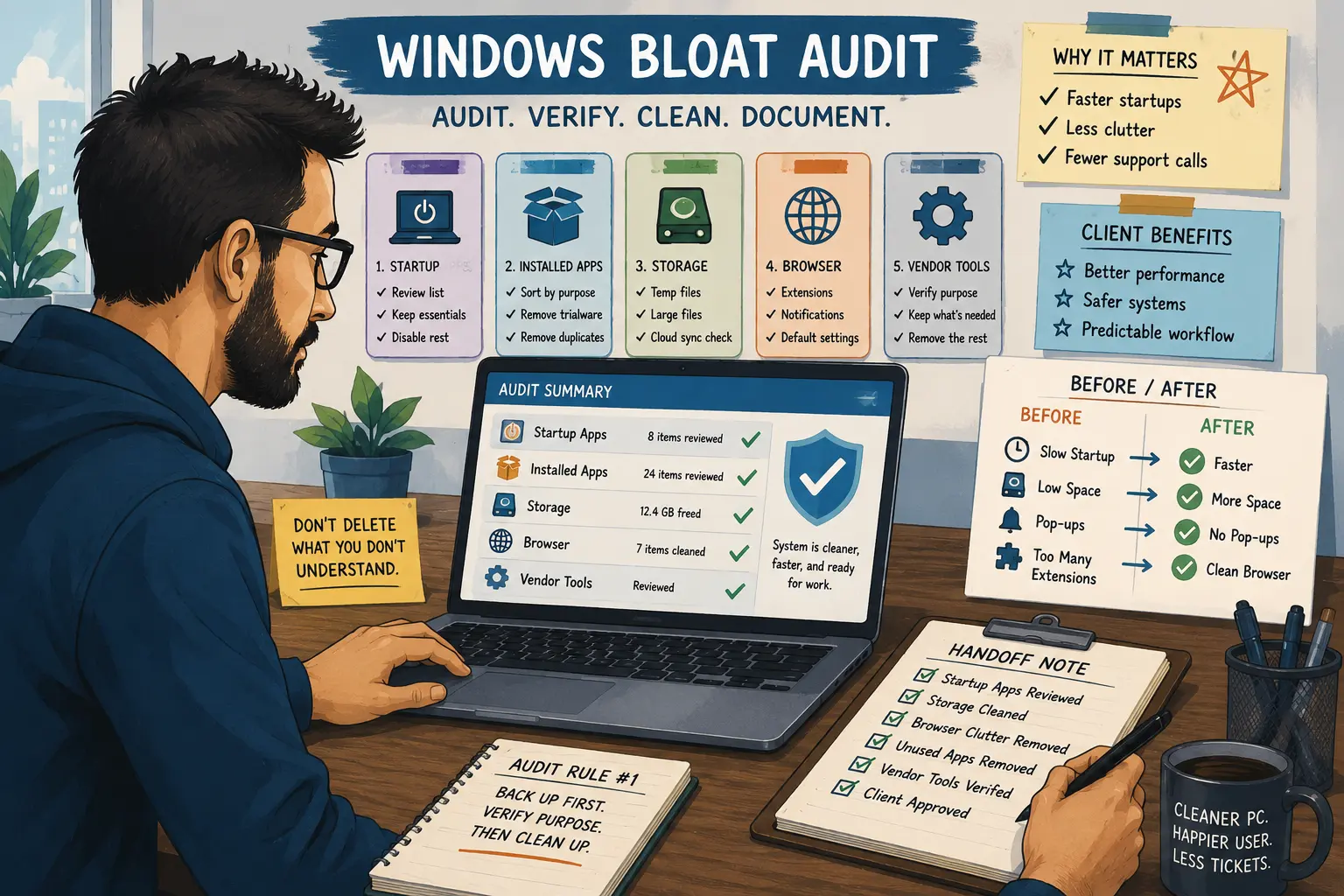
Windows Bloat Audit Map
- Why the PC Is Not Always the Client’s Fault
- Windows Bloat Audit at a Glance
- What Counts as Bloat in a Small-Business PC
- Run the Audit Without Breaking the Workflow
- Mistakes That Make Cleanup Look Unprofessional
- Make the Audit a Repeatable Service
- Next Step: Build Your Before-and-After Note
- FAQs
- References
Windows Bloat Audit at a Glance
- Best for: Solo IT consultants, micro-MSPs, and small-business tech providers supporting Windows laptops and desktops.
- Main takeaway: Audit clutter before removing it, because some ugly-looking apps support printers, scanners, VPNs, backups, accounting tools, or warranty features.
- Time, cost, or effort: Plan 45 to 90 minutes for a basic audit, or 2 to 3 hours when the device has unknown apps, multiple users, or backup uncertainty.
- Best result to expect: A cleaner, easier-to-support PC with documented changes and fewer startup, storage, browser, and vendor utility distractions.
- When not to use this: Do not treat a bloat audit as malware removal, data recovery, full rebuild, legal hold review, or hardware repair.
What Counts as Bloat in a Small-Business PC
Bloat is not just “apps the consultant dislikes.” In a business PC, bloat means software, settings, prompts, services, extensions, or defaults that add friction without adding enough business value.
That definition matters because cleanup can go wrong fast. A laptop may have a label printer utility that looks old, a VPN helper that starts silently, or a scanner tray app that only matters once a week. Removing the wrong item can make the PC look cleaner while breaking the workflow the client actually needs.
Key terms for the audit
- Startup app: Software that launches when Windows or the user session starts.
- Vendor utility: Manufacturer software for updates, drivers, hotkeys, battery settings, or warranty support.
- Trialware: Preinstalled or bundled software that exists mainly to sell a subscription.
- Browser clutter: Extensions, notifications, search defaults, profiles, and installed web apps.
Mini scenario: the front-desk PC that prints labels
A dental office complains that the front-desk PC is slow. The consultant sees duplicate PDF tools, old vendor utilities, cloud sync prompts, and a label printer helper.
The label printer helper looks like bloat, but the receptionist uses it twice a day. A careless cleanup disables it, and check-in breaks the next morning.
A professional audit flags it as “verify before changing.” The consultant removes trialware, disables a retail app launcher, cleans browser notifications, leaves the label utility alone, and documents the decision. The result is not just a cleaner PC. It is a cleaner PC that still works.
Run the Audit Without Breaking the Workflow
The audit should move from low-risk visibility to higher-risk changes. Start by observing, then document, then remove only what you can explain.
Practical steps for a Windows bloat audit
- Capture the complaint first. Write down what feels wrong: startup time, browser pop-ups, storage warnings, fan noise, app launch delay, or update prompts.
- Check backup status. Confirm whether documents, desktop files, browser profiles, and business files are protected before cleanup.
- Review installed apps. Sort by vendor, install date, size, and business purpose. Mark unknown apps for verification.
- Review startup apps. Use Windows Settings or Task Manager first. Use advanced tools only when the situation justifies it.
- Check storage recommendations. Review temporary files, large files, synced files, and unused apps before deleting anything manually.
- Audit browser clutter. Check extensions, notification permissions, installed web apps, search defaults, and extra profiles.
- Create the handoff note. Record what changed, what stayed, and what needs client approval.
Quick decision guide
- If the app is trialware with no business use, remove it after confirming it is not tied to a required subscription.
- If the app is a startup helper for a printer, scanner, VPN, backup, or security tool, verify before disabling it.
- If the app is a vendor utility, keep it unless it is redundant, broken, or replaced by a better update process.
- If the issue is browser pop-ups, check notification permissions and extensions before blaming Windows.
- Skip removal if backup is unclear, the app supports a line-of-business workflow, or the client cannot risk downtime.
Windows bloat audit worksheet
| Audit area | What to check | Safe first move |
|---|---|---|
| Startup apps | Apps launching at sign-in | Disable only known nonessential items |
| Installed apps | Trialware, duplicates, unused tools | Uninstall approved low-risk apps |
| Storage | Temporary files, large files, synced files | Use cleanup recommendations first |
| Browser | Extensions, notifications, web apps | Remove unwanted extensions and notification permissions |
| Vendor tools | Driver, firmware, warranty, hotkey utilities | Verify purpose before removing |
| Security tools | Antivirus, VPN, backup, remote support | Do not disable casually |
Mistakes That Make Cleanup Look Unprofessional
The fastest way to lose trust is to break something while “cleaning.” The second fastest is to leave no record of what changed.
Common mistakes
- Removing first and asking later: It feels efficient, but it creates blame when an app was needed. Fix it by tagging unknown items for review.
- Treating all vendor software as junk: Some vendor utilities handle driver updates, battery settings, docking behavior, or hotkeys. Fix it by separating nuisance apps from support utilities.
- Disabling every startup item: A shorter startup list is not automatically better. Fix it by keeping security, backup, VPN, printer, scanner, and remote-support items unless there is a clear reason to change them.
- Ignoring browser notification spam: Many “slow PC” complaints are actually browser pop-ups and extensions. Fix it by auditing the browser separately.
- Skipping the before-and-after note: Without documentation, the client remembers only that the consultant touched the machine. Fix it with a short cleanup report.
Better alternatives than blind uninstalling
| Option | Best for | Pros | Cons |
|---|---|---|---|
| Disable startup only | Useful apps that do not need to launch at sign-in | Lower risk than uninstalling | The app may relaunch later |
| Repair or reset app | Broken supported apps | Can fix behavior without full removal | Not every app supports it |
| Uninstall app | Trialware, duplicates, unused tools | Clean result, easy to explain | Risky if purpose is unknown |
| Browser cleanup | Pop-ups, extension clutter, bad defaults | Often fixes visible annoyance fast | Does not solve system-level bloat |
| Rebuild or clean setup | Heavily cluttered machines | Cleaner long-term result | Needs backup, apps, licenses, and downtime planning |
Make the Audit a Repeatable Service
A Windows bloat audit should not sound like “I’ll clean up whatever I find.” That wording invites unlimited work.
Use a scoped description like this:
“This service reviews installed apps, startup items, storage pressure, browser clutter, vendor utilities, and obvious nuisance software. It includes approved cleanup and a handoff note. It does not include malware remediation, full Windows reinstall, data recovery, failing hardware repair, or deep line-of-business app troubleshooting.”
That scope protects the consultant and the client. It also makes the offer easier to price. A small fixed fee can work for a one-PC snapshot. A higher fixed price can cover approved cleanup. Batch pricing works when several devices share the same baseline.
The real value is not the number of apps removed. It is fewer morning interruptions, fewer “what is this pop-up?” calls, and a cleaner support baseline.
Next Step: Build Your Before-and-After Note
Create a one-page audit note before doing the next cleanup. Use it every time.
The note should include the client complaint, device name, date, storage status, startup items changed, apps removed, browser changes, unknown items left untouched, and recommended next step. That gives the client proof of work and gives you a defense against future confusion.
Windows bloat audit checklist
- Record the complaint before making changes.
- Confirm backup or sync status before deleting anything.
- Review installed apps by purpose, not just by name.
- Disable only startup apps you can explain.
- Treat printer, scanner, VPN, backup, security, and vendor utilities carefully.
- Check browser extensions, notification permissions, and search defaults.
- Use Windows cleanup tools before deleting folders manually.
- Separate bloat cleanup from malware cleanup.
- Document what changed and what stayed.
- Recommend rebuild or replacement when cleanup is not worth the labor.
Clean First, Blame Later
The client may have bad habits. The PC may also have arrived with clutter, duplicate tools, noisy defaults, and vendor software that nobody asked for.
A Windows bloat audit gives IT consultants a fairer way to handle the complaint. Instead of blaming the user or ripping out apps blindly, you inspect the machine, protect the workflow, remove the obvious drag, and document the result. That is how cleanup becomes professional support, not guesswork.
FAQs
Q1. What is a Windows bloat audit?
A1. A Windows bloat audit is a structured review of installed apps, startup items, browser clutter, storage pressure, vendor utilities, and nuisance prompts. The goal is to remove or disable avoidable clutter without breaking the client’s real workflow.
Q2. Should IT consultants remove all preinstalled apps?
A2. No. Some preinstalled apps are obvious trialware, but others may support updates, drivers, hotkeys, battery settings, docking, warranty, or hardware features. Verify the purpose before uninstalling or disabling anything tied to the device vendor.
Q3. Is disabling startup apps safer than uninstalling apps?
A3. Often, yes. Disabling a startup app can reduce boot friction while leaving the app available if the client needs it later. Still, security tools, backup agents, VPN helpers, printer utilities, scanner tools, and remote-support apps should not be disabled casually.
Q4. How long should a Windows bloat audit take?
A4. A basic audit may take 45 to 90 minutes for one stable PC. It can take longer when backups are unclear, the device has several users, or the machine supports printers, scanners, accounting software, or line-of-business tools.
By: Rex Iriarte
Why trust this: Written for solo IT consultants and micro-MSPs who need practical Windows support workflows, client handoff structure, and safer cleanup boundaries.
Last updated: 2026-06-24
Disclosure: No paid placement influenced this post.
Disclaimer
This article provides general educational guidance for IT service packaging and Windows cleanup workflows. Confirm client authorization, backup status, business app requirements, software licensing, and security risk before uninstalling apps, disabling startup items, deleting files, or rebuilding a device.
References
- Microsoft Support — “Configure Startup Applications in Windows.” https://support.microsoft.com/en-us/windows/configure-startup-applications-in-windows-115a420a-0bff-4a6f-90e0-1934c844e473
- Microsoft Support — “Free up drive space in Windows.” https://support.microsoft.com/en-us/windows/free-up-drive-space-in-windows-85529ccb-c365-490d-b548-831022bc9b32
- Microsoft Support — “Uninstall or remove apps and programs in Windows.” https://support.microsoft.com/en-us/windows/uninstall-or-remove-apps-and-programs-in-windows-4b55f974-2cc6-2d2b-d092-5905080eaf98
- Microsoft Learn — “Autoruns for Windows.” https://learn.microsoft.com/en-us/sysinternals/downloads/autoruns



0 Comments