
A secure WordPress site starts with routine maintenance
A small-business website does not need an elaborate cybersecurity operation to become significantly safer. It does need someone to consistently handle the basics.
For most WordPress sites, that means keeping WordPress, plugins and themes current, removing software that is no longer needed, protecting administrator accounts, maintaining recoverable backups, and knowing what to do when something looks wrong.
The important word is recoverable. Security isn't only about preventing an attack. It is also about limiting damage and being able to recover when prevention fails.
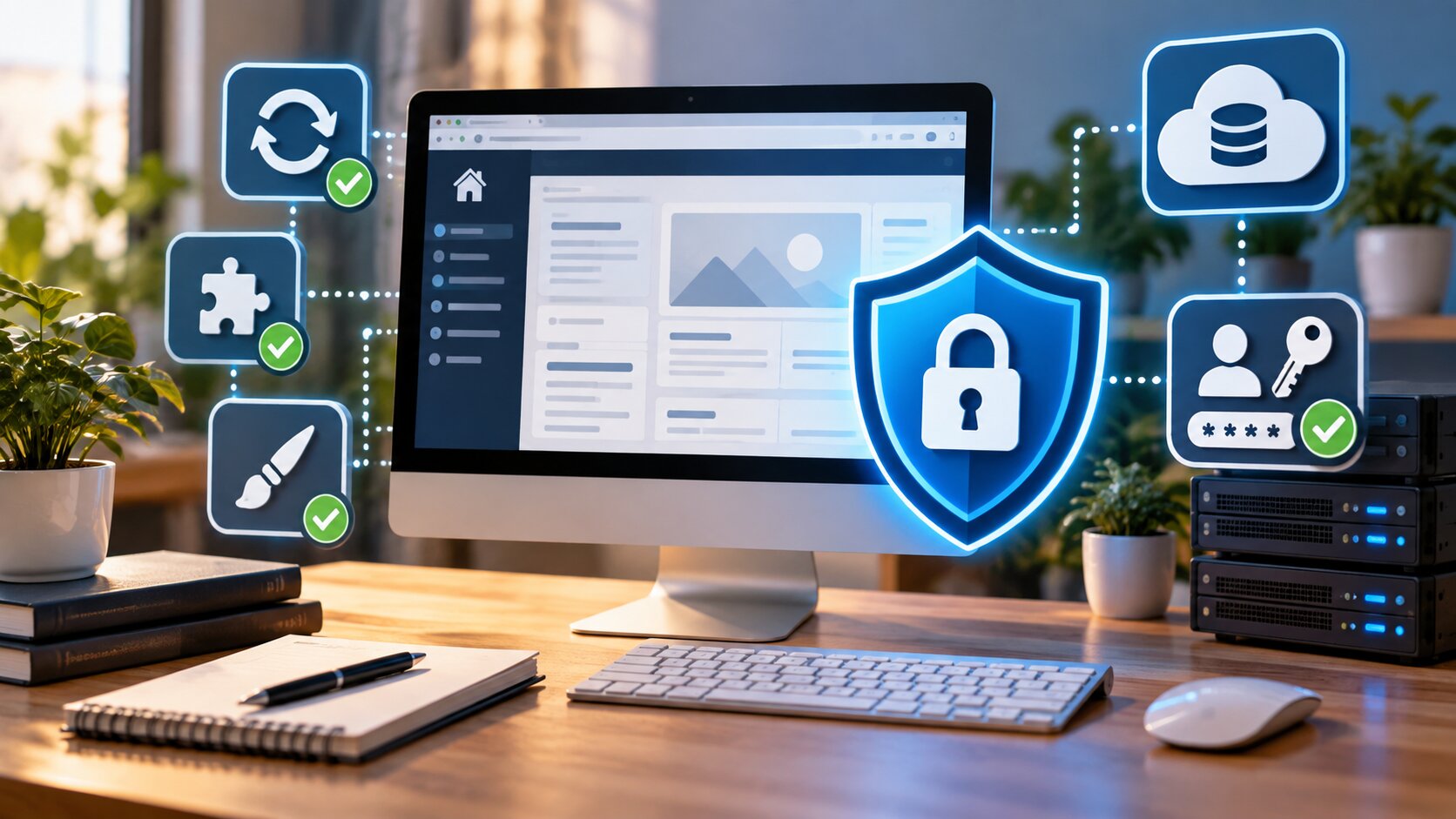
What actually needs protection?
- Best for: Small businesses, solo operators, organizations, and website owners using WordPress.
- Main takeaway: Updates, access control, backups, and monitoring provide a much stronger foundation than installing a pile of security plugins.
- Time and effort: A basic review can often be completed in 30 to 60 minutes, followed by short recurring maintenance checks.
- Best result to expect: Lower exposure to common WordPress problems and a clearer recovery path when something fails.
- When not to use this alone: A compromised website, e-commerce system, membership platform, or site storing sensitive information may require professional investigation and additional controls.
WordPress security has several layers.
WordPress core is the main application. It receives maintenance and security updates.
Plugins extend WordPress, but each plugin also adds code that must be maintained.
Themes control presentation and can contain executable PHP and other code.
User accounts determine who can enter the administrative side of the website and what each person can change.
Finally, the hosting environment sits underneath WordPress. A perfectly maintained WordPress installation cannot compensate for every possible server, account, DNS, or hosting problem.
That is why securing WordPress should be treated as a system rather than a single setting.
The practical WordPress security checklist
Start with this short list:
- Update WordPress core.
- Update active plugins.
- Update active themes.
- Remove plugins you no longer need.
- Remove unused themes, while keeping any theme legitimately required by your configuration.
- Review administrator accounts.
- Use unique, strong passwords.
- Enable two-step or multi-factor authentication where available.
- Confirm that both website files and the database are being backed up.
- Verify that a backup can actually be restored.
- Review the site for unexpected administrator accounts, plugins, files, or redirects.
- Keep a record of how you would recover the website if normal WordPress access stopped working.
None of these steps is particularly glamorous. Together, however, they eliminate many avoidable weaknesses.
Backups are part of security, not an afterthought
One of the easiest WordPress mistakes is assuming that copying the website files means you have backed up the entire website.
Usually, you haven't.
A typical WordPress installation has two major components:
- Files, including themes, plugins, uploads, configuration files, and WordPress itself.
- Database, containing posts, pages, settings, users, and other application data.
A complete recovery strategy generally needs both.
There is another distinction worth remembering:
A backup existing is not the same thing as a backup being recoverable.
A backup should be recent enough to matter, stored somewhere appropriate, and periodically tested.
Consider a small store whose website breaks after a plugin update. Yesterday's working backup may be extremely useful.
Now imagine that the only backup is stored inside the same hosting account and that account becomes inaccessible. Technically, a backup existed. Practically, it may not help.
For an important business site, consider keeping at least one backup destination separate from the live website.
Decide which updates should be automatic
Updates are one of the most important parts of WordPress maintenance.
WordPress supports automatic updates for plugins and themes, but enabling every possible automatic update isn't automatically the best choice for every business website.
Think in terms of risk.
Automatic updates make sense when:
- The component is well maintained.
- The website is relatively simple.
- Reliable backups are already running.
- Someone will notice if an update causes a problem.
More controlled updates make sense when:
- The website has custom code.
- A plugin is essential to checkout, reservations, memberships, or another business-critical function.
- Several plugins have known dependencies.
- An update should be tested before reaching the live site.
The wrong conclusion is "updates can break things, so don't update."
Old software can create a much bigger security problem. WordPress specifically recommends keeping WordPress itself, plugins, and themes current.
A better approach is:
backup → update → verify
After an important update, check the homepage, contact forms, login, navigation, and any revenue-producing features.
Remove software and accounts you no longer need
An inactive plugin may look harmless because visitors cannot see it.
But if you don't need a plugin, deleting it is generally preferable to leaving unnecessary software installed indefinitely.
Apply the same logic to user accounts.
If a freelancer, former employee, developer, or temporary administrator no longer needs access, review that account. Don't keep administrator privileges around merely because removing them is inconvenient.
Also review roles.
Someone who only creates articles generally does not need the same privileges as the person responsible for installing plugins or changing the site's configuration.
The principle is simple:
Give people the access they need, not every permission WordPress can provide.
Harden administrator access
A strong password remains important, but password security shouldn't stop there.
Avoid passwords built from the company name, domain, person's name, common words, or predictable variations.
Each administrator should have a unique password rather than sharing one password across multiple services.
Where supported, add two-step or multi-factor authentication. This adds another barrier when a password is stolen or guessed.
You should also know who your administrators are.
Periodically open the WordPress Users screen and check the Administrator role. If a name is unfamiliar, don't immediately delete it without investigation, but determine why the account exists.
An unexpected administrator can be an important warning sign.
Add protection outside WordPress
WordPress isn't responsible for every request that reaches your website.
Additional protection can exist at the hosting or network layer. A web application firewall, for example, can inspect or filter requests before they reach WordPress.
This is useful because website security works best in layers.
A simplified model looks like this:
Internet → DNS/CDN/WAF → hosting server → WordPress → plugins/themes → user accounts
A weakness at one layer doesn't necessarily have to become a complete compromise if another layer provides protection.
However, a firewall should complement good maintenance rather than replace it.
Putting a firewall in front of an abandoned WordPress installation with years of outdated plugins is not a sensible maintenance strategy.
Know what you will do if the site is compromised
Every business website should have a simple recovery plan before it needs one.
At minimum, know:
- Who controls the domain.
- Who controls DNS.
- Who controls the hosting account.
- Where the backups are located.
- How administrator credentials can be reset.
- Who will investigate a suspected compromise.
- How the site can be restored from a known-good backup.
Imagine discovering that your homepage suddenly redirects visitors to another website.
This is not the ideal moment to discover that nobody knows the hosting password, the domain is registered under an old employee's account, and nobody has tested the backups.
Documenting ownership and recovery access is boring right up until the moment it becomes extremely valuable.
Common WordPress security mistakes
Installing too many security plugins
More plugins do not automatically equal more security.
Multiple tools performing overlapping jobs can create conflicts, consume resources, or make troubleshooting harder. Start with a clear purpose for each tool.
Assuming the hosting company's backup is enough
A host-provided backup can be valuable, but understand its retention period, frequency, contents, and restoration process.
Maintaining an additional recovery option can reduce dependence on a single system.
Ignoring inactive software
Software that serves no purpose should be reviewed and, when appropriate, removed.
Updating without a recovery path
Updates are necessary, but a backup gives you somewhere to go when an update causes an unexpected compatibility problem.
Waiting for visible symptoms
A compromised website does not always announce itself with a defaced homepage. Unexpected accounts, modified files, redirects, unusual resource usage, spam pages, or unfamiliar plugins may deserve investigation.
A simple maintenance schedule
You don't need to turn WordPress maintenance into a daily ritual.
A small business can start with a schedule like this:
| Frequency | Check |
|---|---|
| Automatically or frequently | Backups |
| Weekly | Pending WordPress, plugin, and theme updates |
| Weekly | Basic site functionality after important changes |
| Monthly | Administrator accounts and unused software |
| Monthly | Backup status and available recovery points |
| Periodically | Test the restoration procedure |
| After personnel changes | Remove or adjust unnecessary access |
| Immediately after suspicious activity | Investigate before assuming the problem is resolved |
The appropriate frequency depends on how quickly the site changes.
A mostly static informational website and a busy online store don't have the same recovery requirements. If losing one day of orders would be unacceptable, a backup strategy that runs once a week obviously doesn't match the business risk.
Security is a routine, not a one-time project
WordPress itself is actively maintained, but maintaining the application is only one part of operating a secure website.
The most useful mindset is not "How do I make WordPress impossible to hack?"
No realistic system can promise that.
A better question is:
How do I reduce unnecessary risk, notice problems sooner, and recover reliably when something goes wrong?
That leads to practical actions: maintain the software, reduce unnecessary components, protect privileged accounts, keep usable backups, and document recovery access.
What to do next
Start with a 30-minute audit instead of trying to redesign your entire security setup.
Your first-pass checklist
- Open Dashboard → Updates and review pending updates.
- Check Plugins for anything unused or abandoned.
- Check Users and identify every Administrator.
- Confirm where your latest complete backup is stored.
- Verify that the backup contains both files and database data.
- Record who controls the domain, DNS, and hosting.
- Identify how you would restore the site if WordPress itself became inaccessible.
Completing those steps gives you something far more useful than a vague feeling that the website is "probably secure": a maintenance and recovery baseline.
WordPress security questions
Does WordPress need a security plugin?
Not necessarily. A security plugin can provide useful functions, but it does not replace updates, strong authentication, good hosting practices, backups, or access management.
Should WordPress plugins update automatically?
It depends on the site. Automatic updates can reduce the time software remains outdated, while business-critical or highly customized sites may benefit from controlled updates followed by testing.
Is backing up the WordPress files enough?
Usually not. WordPress documentation explains that a typical site requires both its files and database for a complete restoration.
Should inactive WordPress plugins be deleted?
If you no longer need a plugin, removing it generally reduces unnecessary software that must otherwise be maintained.
How often should I check a business WordPress site?
There is no single schedule for every site. A practical starting point is frequent automated backups, weekly update checks, and monthly reviews of users, unused software, and recovery readiness.
By: IOComputer
Disclosure: This article is educational and editorially independent. Specific security requirements depend on the website and hosting environment.
References
- WordPress Advanced Administration Handbook: Hardening WordPress
- WordPress Advanced Administration Handbook: Backups
- WordPress Documentation: Plugin and Theme Auto-Updates




0 Comments