
The Simple Answer: Use Both When Files Matter
Cloud storage is better for everyday access, phone photos, file syncing, and sharing. An external drive is better for large local backups, fast transfers, and keeping a copy you fully control.
For casual files, one option may be enough. For important files like family photos, tax documents, school work, business records, or creative projects, the safer answer is usually both.
The real decision is not “cloud storage vs external drive” as if one must defeat the other. It is knowing which one should be your daily storage, which one should be your backup, and where your weak spot is.
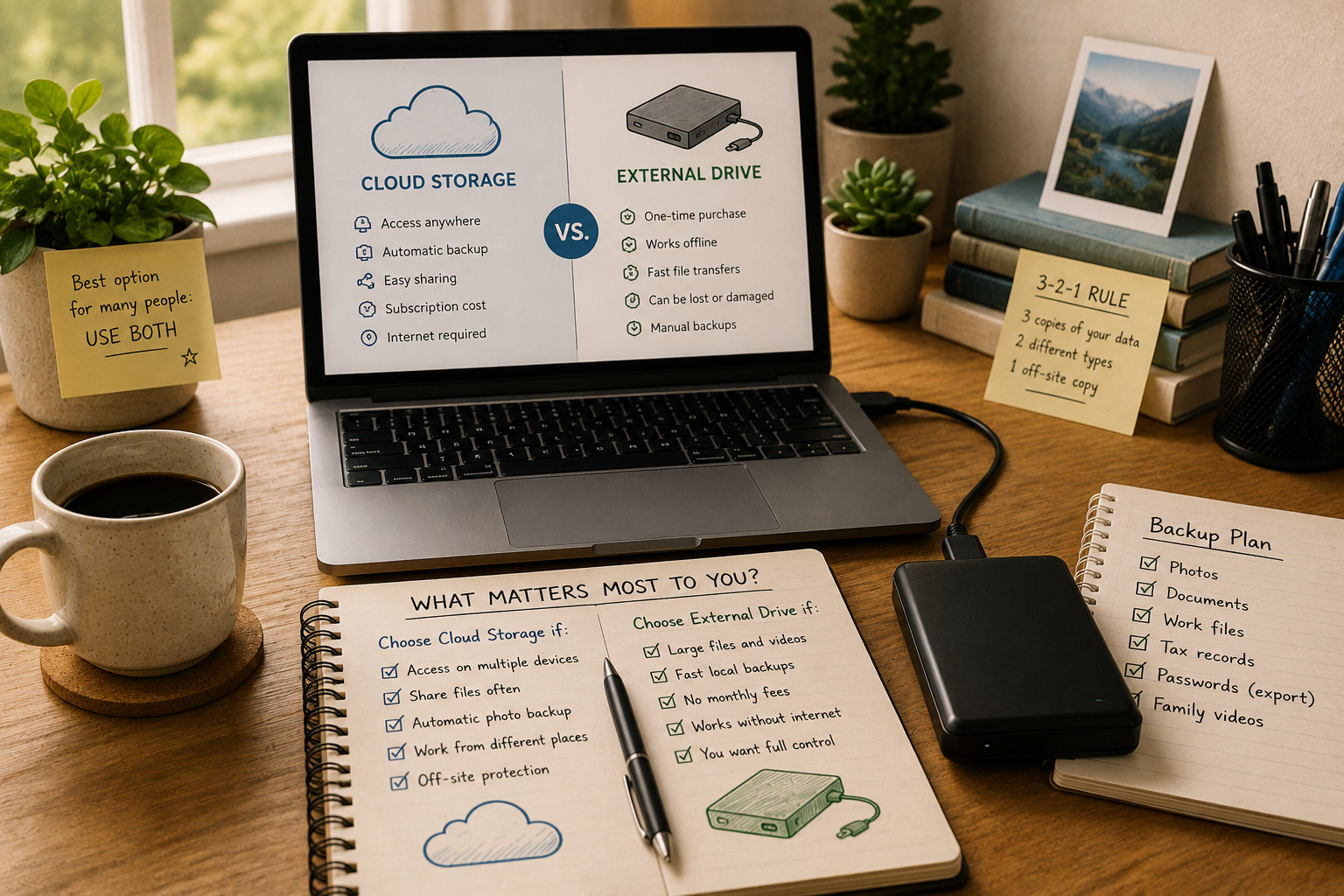
Storage Choice Map for Everyday Files
- The Simple Answer: Use Both When Files Matter
- Cloud Storage vs External Drive: What Each One Does Best
- Cost, Convenience, and Control Compared
- The Backup Mistake Most People Make
- When Cloud Storage Is the Better Choice
- When an External Drive Is the Better Choice
- A Realistic Home Storage Setup
- The Bottom Line Before You Move Your Files
- Common Questions About Cloud Storage and External Drives
- References
Cloud Storage vs External Drive: What Each One Does Best
Cloud storage keeps files on a provider’s servers and lets you access them through the internet. Common examples include Google One/Google Drive, Microsoft OneDrive, Apple iCloud+, and Dropbox. The big advantage is convenience. Your files can sync across devices, survive a laptop failure, and be shared without plugging in hardware.
An external drive stores files on a physical device you own. That could be a portable hard drive, portable SSD, desktop backup drive, or larger network storage device. The big advantage is control. You can copy huge folders quickly, keep files offline, and avoid monthly storage fees after the purchase.
The strongest setup often uses cloud storage for active files and an external drive for backup. That gives you daily convenience and a separate copy if something goes wrong.
Quick decision table
| You need to... | Better choice | Why |
|---|---|---|
| Access files from phone, laptop, and tablet | Cloud storage | Syncing is the main advantage. |
| Back up a full computer locally | External drive | Local backups are faster for large amounts of data. |
| Share folders with family or coworkers | Cloud storage | Links and permissions are easier. |
| Store video projects or huge photo libraries | External drive | Large local storage can be cheaper over time. |
| Protect against theft, fire, or a broken laptop | Cloud storage | Off-site storage helps if your home device is lost. |
| Keep private archives offline | External drive | You control physical access. |
| Avoid monthly payments | External drive | One purchase can last years if maintained well. |
| Avoid losing files from one drive failure | Cloud plus external drive | One copy is not enough for important files. |
Cost, Convenience, and Control Compared
Cloud storage feels cheap at first because many plans start at a few dollars per month. Current consumer examples include iCloud+ at 50 GB, 200 GB, and 2 TB tiers, Google One plans that include 100 GB and 2 TB options, and Microsoft 365 Basic with 100 GB of OneDrive storage. Dropbox Plus is positioned around a 2 TB personal storage plan.
The tradeoff is that subscriptions keep going. A small monthly fee can be worth it if it saves time, protects phone photos, and keeps your devices synced. But over several years, cloud storage can cost more than buying an external drive.
External drives usually cost more upfront but do not require a monthly storage fee. The catch is that a drive is still hardware. It can fail, get dropped, be stolen, or sit forgotten in a drawer. Owning the drive does not automatically mean your files are safe.
Practical cost framework
Use this simple test:
- Estimate your storage need: Check how much space your photos, videos, documents, and backups use now.
- Add growth: If your photo library grows every month, leave room for at least 2 to 3 years.
- Compare total cost: Look at cloud cost over 24 to 36 months, not only the monthly price.
- Include convenience: Paying a little more can be worth it if automatic syncing prevents mistakes.
- Include risk: A cheap drive is not a backup plan if it is your only copy.
The control tradeoff
Cloud storage gives you easy access, but you depend on your account, password, internet connection, billing status, and the provider’s rules. External storage gives you physical control, but you are responsible for protecting, labeling, testing, and replacing the device.
Neither option is perfect. The right choice depends on which weakness you can manage better.
The Backup Mistake Most People Make
The most common mistake is thinking that storage and backup are the same thing.
They are not.
If your photos live only in cloud storage, that cloud folder is your storage, not your backup. If your documents live only on an external drive, that drive is your storage, not your backup. A backup means there is another copy somewhere else.
A practical version of the 3-2-1 rule is still useful for home users: keep three copies of important files, use two different storage types, and keep one copy off-site. For example, your laptop can hold the working copy, an external drive can hold a local backup, and cloud storage can hold the off-site copy.
Home-user version of 3-2-1
For important files, aim for:
| Copy | Where it lives | Purpose |
|---|---|---|
| Copy 1 | Your computer or phone | Daily use |
| Copy 2 | External drive | Fast local restore |
| Copy 3 | Cloud storage | Off-site protection |
This does not have to be complicated. The goal is to avoid one failure wiping out everything.
What counts as important?
Treat these as backup-worthy:
- Family photos and videos
- Tax and financial documents
- School files
- Work files
- Business records
- Creative projects
- Scanned IDs and legal documents
- Password manager backup codes
- Photos of receipts for major purchases
- Anything you would be upset to lose permanently
When Cloud Storage Is the Better Choice
Cloud storage is usually the better choice when you use multiple devices or need automatic syncing. It is especially useful for people who take lots of phone photos, work between a laptop and phone, collaborate on documents, or want a safety net if a device breaks.
It also helps if you are not disciplined about plugging in a backup drive. A cloud service that syncs automatically is not a perfect backup, but it is better than a backup routine you never do.
Cloud storage also shines when you need to share files. Sending a link to a folder is cleaner than copying files to a drive, mailing it, or trying to send huge attachments.
Choose cloud storage if...
- You want phone photos to sync automatically.
- You use more than one device.
- You share files often.
- You travel or work away from one desk.
- You want off-site protection without storing a drive elsewhere.
- Your files are mostly documents, photos, and normal video clips.
- You are comfortable paying a subscription.
- You can secure your account with a strong password and two-factor authentication.
Cloud storage limitations
Cloud storage can be slow for huge uploads, especially video libraries. It can also create confusion if sync settings are misunderstood. Some people think files are saved locally when they are actually online-only. Others delete a synced file on one device and accidentally delete it everywhere.
Cloud storage also depends on account access. If you lose access to your account, ignore billing emails, or fall for a fake storage warning message, your files can become harder to manage.
When an External Drive Is the Better Choice
An external drive is usually better when you have a lot of data, need fast local transfers, or want an offline copy. It is especially useful for photographers, video editors, students with large media projects, home offices, and anyone backing up an entire computer.
A portable SSD is usually faster and more drop-resistant than a traditional portable hard drive, but it often costs more per terabyte. A traditional external hard drive can still make sense for large backup storage when speed is less important.
The key is not to treat the drive as indestructible. External drives should be unplugged when not in use, stored safely, and replaced before they become ancient.
Choose an external drive if...
- You need to back up a full computer.
- You have large videos, photo libraries, or project files.
- Your internet upload speed is slow.
- You want a copy that does not depend on a subscription.
- You need fast file transfer at home.
- You are archiving files you rarely access.
- You want an offline copy of sensitive files.
- You can remember to run backups on a schedule.
External drive limitations
External drives fail. They can also be misplaced, damaged, stolen, or accidentally erased. A drive sitting next to your computer does not protect you from a house fire, flood, theft, or power surge that affects both devices.
That is why an external drive is a strong backup tool, but not the whole backup plan.
A Realistic Home Storage Setup
For most home users, the best setup is simple:
Use cloud storage for active files and phone photos. Use an external drive for a scheduled local backup. Keep your most important files in both places.
Here is one realistic setup for a small household:
| File type | Main storage | Backup |
|---|---|---|
| Phone photos | Cloud storage | External drive photo export every 1 to 3 months |
| School or work documents | Cloud folder | External drive backup |
| Tax files and PDFs | Computer folder or encrypted cloud folder | External drive copy |
| Large video projects | External SSD | Cloud or second drive for finished files |
| Family archive | External drive | Cloud storage or second drive stored off-site |
This setup is not fancy. It is just hard to break with one mistake.
Simple monthly storage routine
Once a month, do this:
- Empty your downloads folder.
- Move important files into named folders.
- Plug in the external drive.
- Run your backup.
- Check that recent files actually copied.
- Unplug the drive and store it safely.
- Confirm cloud sync is working on your most important folders.
A 20-minute routine can prevent years of regret.
The Bottom Line Before You Move Your Files
Use cloud storage if you care most about access, syncing, sharing, and off-site protection. Use an external drive if you care most about large backups, speed, offline control, and avoiding monthly fees.
For important files, do not choose only one. Use both.
The best home setup is usually cloud storage for convenience and an external drive for backup. That combination protects you better than either option alone.
Quick Storage Decision Checklist
Before choosing, answer these:
- Do I need access from multiple devices?
- Do I have large video or photo files?
- Is my internet upload speed reliable?
- Am I willing to pay monthly or yearly?
- Do I want a copy that works without internet?
- Do I have files I would be devastated to lose?
- Do I need to share folders with other people?
- Can I remember to plug in and test an external drive?
- Do I understand what is synced and what is only stored online?
- Do I have at least two copies of my most important files?
If your files are important and your answer is “I only have one copy,” fix that first. The cloud-vs-drive debate comes after the second copy exists.
Common Questions About Cloud Storage and External Drives
Q1. Is cloud storage safer than an external drive?
A1. Cloud storage is safer for off-site protection and device loss, but it depends on account security and internet access. An external drive gives you physical control, but it can fail, be stolen, or get damaged. Important files should have both cloud and local backup.
Q2. Can I use an external drive instead of cloud storage?
A2. Yes, if you mostly work from one computer and remember to back up regularly. It is less convenient for phone photos, sharing, and off-site protection unless you store a second copy somewhere else.
Q3. Can I use cloud storage instead of an external drive?
A3. Yes for many everyday files, but it is not ideal as your only backup for large archives or full computer recovery. A local external drive can make restores faster and gives you a copy outside your cloud account.
Q4. What is better for photos, cloud storage or an external drive?
A4. Cloud storage is better for automatic phone photo syncing and access from multiple devices. An external drive is better for large photo archives and long-term local copies. For family photos, using both is the safer choice.
Q5. How often should I back up to an external drive?
A5. For normal home use, monthly may be enough. For school, work, or creative projects, weekly or even daily backups may be better. The right schedule depends on how much new work you would hate to lose.
By: Raxan.net Editorial
Why trust this: This guide uses current consumer cloud storage examples, official provider plan pages, and recognized backup guidance. It focuses on practical home-user decisions, not enterprise storage architecture.
Last updated: 2026-05-09
Disclosure: No paid placement influenced this post. No cloud storage provider or drive manufacturer sponsored or reviewed it.
References
- Google One, “Google storage plans” https://one.google.com/about/
- Microsoft OneDrive, “Cloud Storage Plans and Pricing” https://www.microsoft.com/en-us/microsoft-365/onedrive/onedrive-plans-and-pricing
- Apple, “iCloud+” https://www.apple.com/icloud/
- Dropbox, “Dropbox Plus” https://www.dropbox.com/plus
- NIST/NCCoE, “Protecting Data from Ransomware and Other Data Loss Events” https://www.nccoe.nist.gov/sites/default/files/legacy-files/msp-protecting-data-extended.pdf




0 Comments