
Why AI Assistant Access Needs a Real Audit
Small businesses are starting to treat AI assistants like helpful office interns. The problem is that many of these “interns” can see more than a new employee ever should: email, calendar details, shared files, browser context, chat history, CRM notes, helpdesk tickets, and connected apps.
That is where an AI assistant permission audit becomes useful. The goal is not to scare the client away from AI. The goal is to slow down just enough to ask: what can the assistant read, what can it act on, what gets logged, who controls it, and what should stay outside the assistant’s reach?
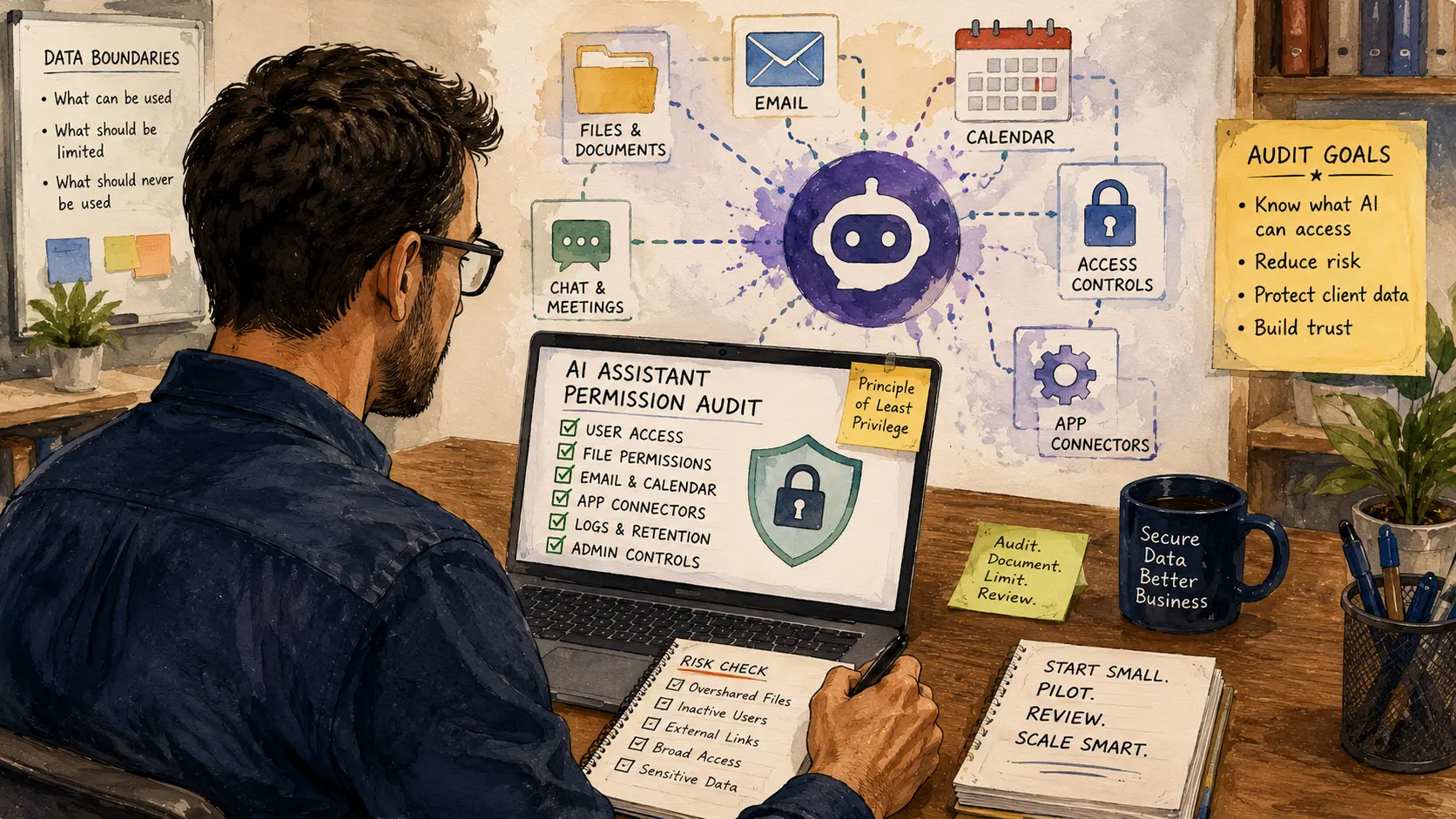
AI Permission Audit Map
- Why AI Assistant Access Needs a Real Audit
- AI Assistant Permission Audit at a Glance
- What an AI Permission Audit Actually Reviews
- Build the Audit Around Six Permission Zones
- Risks, Limits, and When to Escalate
- Turn the Audit Into a Practical Service
- Next Step: Start With One Assistant and One Data Source
- FAQs
- References
AI Assistant Permission Audit at a Glance
- Best for: Solo IT consultants, micro-MSPs, and small-business tech providers helping clients adopt Microsoft Copilot, Gemini for Workspace, Apple Intelligence, ChatGPT-style tools, browser assistants, or app-specific AI assistants.
- What this covers: A practical audit framework for reviewing AI assistant access to email, files, calendars, chat, apps, logs, and user permissions.
- What this does not cover: Legal advice, compliance certification, forensic investigation, AI model testing, or guaranteed prevention of data exposure.
- Main caution: Do not enable broad AI access until file sharing, mailbox access, admin roles, app connectors, and user expectations are reviewed.
- When to get professional help: Escalate when the business handles health records, financial records, legal files, government data, minors’ data, regulated client data, or active security incidents.
What an AI Permission Audit Actually Reviews
An AI assistant permission audit is a structured check of what an AI tool can see, summarize, retrieve, remember, and connect to. It is not only a privacy setting review. It is also a business-process review.
The real issue is context. AI assistants become more useful when they can pull from more places. That same access can make them risky when a company has messy file permissions, over-shared folders, old user accounts, weak admin controls, or unclear data rules.
Scope and key terms
- AI assistant: A tool that can answer, summarize, draft, search, or act using user or business context.
- Connector: A link between the assistant and another app, such as email, files, CRM, chat, helpdesk, or storage.
- Permission inheritance: When an assistant can access what the signed-in user can access.
- Oversharing: Files, folders, mailboxes, or apps visible to more people than needed.
- Prompt log: A record of user prompts, responses, or interaction metadata, depending on the tool.
- Data boundary: The practical line between what the AI assistant may use and what should stay out of scope.
The key question is simple: “If this assistant answers based on everything this user can access, what might it accidentally surface?”
Mini scenario: the AI assistant sees the wrong folder
A 14-person consulting office enables an AI assistant for email and shared documents. The owner wants it to help draft proposals and summarize client notes.
The consultant reviews the file structure first and finds a folder called “Admin Shared.” It includes proposal templates, old payroll exports, employee notes, signed vendor contracts, and a spreadsheet with personal contact details. The owner thought only two people had access. In reality, eight users can open it because of an old sharing rule.
The AI assistant is not the root problem. The folder permissions are. The assistant simply makes the hidden mess easier to expose.
The right service is not “turn AI on.” The right service is: audit the data sources, reduce oversharing, define who gets AI access, document what the assistant can use, and create a rule for sensitive data.
Build the Audit Around Six Permission Zones
A useful AI audit should be small enough to sell and specific enough to protect the client from vague AI enthusiasm. Start with the systems the business already uses.
Safer next steps for each zone
- Identity and sign-in. Confirm which accounts can use the assistant, whether MFA is enabled, who has admin roles, and whether inactive users still exist.
- Email and calendar. Review mailbox access, delegate permissions, shared mailboxes, calendar visibility, and whether sensitive appointment details should be exposed.
- Files and cloud storage. Check shared folders, external links, old public links, inherited permissions, sensitive folders, and user access groups.
- Chat and meetings. Review whether transcripts, recordings, chat history, and meeting summaries are enabled, retained, or shared too broadly.
- App connectors. List connected apps such as CRM, helpdesk, project management, accounting, storage, browser extensions, or automation tools.
- Logs, retention, and admin controls. Check where prompts, responses, audit logs, and configuration settings are stored, plus who can review or export them.
AI assistant audit worksheet
| Audit area | What to check | Why it matters |
|---|---|---|
| User access | Who can use the assistant and under which license | Prevents casual rollout to the wrong roles |
| Admin roles | Who can change AI, sharing, or connector settings | Reduces high-risk configuration mistakes |
| Shared files | Which folders are visible to broad groups | AI may surface documents users forgot they could access |
| External links | Public or anyone-with-link sharing | Old links can expose data outside the company |
| Mailbox access | Delegates, shared inboxes, archived messages | Email often contains contracts, invoices, disputes, and private details |
| Meeting content | Transcripts, summaries, recordings | Summaries can spread sensitive context faster than expected |
| Connected apps | CRM, helpdesk, accounting, project tools | Connectors can widen the assistant’s reach |
| Prompt history | Logs, retention, review access | Users need to know what may be stored or reviewed |
Quick decision guide
- If the client has clean file permissions and a small team, start with a focused AI pilot for one team or workflow.
- If the client has messy shared folders, audit file permissions before enabling broad assistant access.
- If the client uses shared mailboxes or delegated inboxes, review email access before enabling email-connected AI features.
- If the assistant connects to CRM, helpdesk, accounting, or project tools, document every connector before rollout.
- If the business handles regulated or sensitive records, involve legal, compliance, or qualified security support before enabling AI access.
- Skip broad rollout if nobody can explain what the assistant can read, what it stores, or who controls the settings.
Risks, Limits, and When to Escalate
AI assistant risk usually starts with ordinary permission problems. The assistant may only use what a user can already access, but that can still be too much. A user who has access to an old HR folder, a client dispute folder, or a company-wide finance share may not realize the assistant can surface that information in a summary or answer.
This is why the audit should focus on practical boundaries. A small business does not need a 90-page AI policy on day one. It needs a plain rule set that says which data sources are approved, which ones are blocked, who can use the assistant, and what users should not paste into prompts.
What not to assume
- Do not assume “enterprise AI” means low risk. Enterprise controls help, but poor permissions can still create exposure.
- Do not assume users understand data boundaries. A user may paste client data, employee details, or vendor disputes into a prompt without thinking.
- Do not assume AI settings are one-time settings. Vendors update features, connectors, admin controls, and retention options over time.
- Do not assume the assistant knows what is confidential. The assistant follows access and instructions, not office politics.
- Do not assume one policy fits every role. The owner, bookkeeper, salesperson, technician, and receptionist do not need the same AI access.
Red flags that need a stronger review
- The company has public or “anyone with the link” folders.
- Former employees still have active accounts or app access.
- Users share one login for multiple people.
- Client contracts, HR notes, payroll exports, or legal files sit in general shared folders.
- The business wants AI connected to email, CRM, files, and chat all at once.
- Nobody knows whether prompts or responses are logged, retained, reviewed, or used for improvement.
- The client wants AI to summarize sensitive customer conversations without a written rule.
Safer alternatives to a full rollout
| Option | Best for | Pros | Cons |
|---|---|---|---|
| Single-user pilot | Owner or manager testing AI first | Low disruption, easier to observe | Can miss team-wide permission issues |
| One-workflow pilot | Proposal drafts, meeting notes, or helpdesk summaries | Practical and measurable | Needs clear data boundaries |
| Read-only assistant use | Search and summarize, without actions | Lower operational risk | Still depends on file and mailbox permissions |
| Limited connector rollout | Only approved apps or folders | Easier to control scope | May reduce usefulness |
| Full AI rollout after audit | Cleaner environments with clear controls | Best long-term adoption path | Takes more planning and client buy-in |
Turn the Audit Into a Practical Service
An AI assistant permission audit can become a real service package for IT consultants because it sits between excitement and risk. The client already wants AI. Your role is to make sure the rollout does not expose a decade of messy file habits.
Position the service around business outcomes:
- Reduce accidental data exposure.
- Keep AI pilots small enough to manage.
- Clean up permissions before expanding access.
- Help staff understand what not to paste into prompts.
- Document settings so future support is easier.
- Protect the consultant from being blamed for a rushed rollout.
Simple package structure
| Package | Best for | What to include | What to exclude |
|---|---|---|---|
| AI Readiness Snapshot | Client asking “Can we turn this on?” | User list, app list, basic file-sharing review, risk notes, next-step recommendation | Deep compliance review, legal policy writing |
| AI Permission Audit | Microsoft 365, Google Workspace, or app-connected AI | File permissions, email/calendar access, connectors, logs, admin roles, user guidance | Pen testing, incident response, forensic review |
| AI Pilot Setup | One team or workflow | Approved use case, access limits, user checklist, support notes, review date | Company-wide rollout |
| AI Governance Starter | Growing client with multiple departments | Role-based access plan, approved data sources, user rules, review schedule | Formal compliance certification |
A practical pricing path could include a fixed audit fee for a small environment, then a per-user or per-data-source add-on for larger clients. For example, a 10-user office with one cloud storage system and one AI assistant is different from a 40-user office with shared mailboxes, CRM, helpdesk, accounting, and meeting transcripts.
Do not sell this as fear. Sell it as rollout control.
Next Step: Start With One Assistant and One Data Source
The fastest way to make this useful is to pick one assistant and one data source. For example, start with Microsoft 365 Copilot and SharePoint, Gemini for Workspace and Google Drive, or an app-specific assistant inside a CRM or helpdesk tool.
Then ask one practical question: “What can this assistant see today that the owner would not want every user to resurface?”
That question turns AI from a buzzword into a checklist.
AI assistant permission audit checklist
- List every AI assistant or AI feature already enabled.
- Identify which users can access each assistant.
- Confirm MFA and admin-role hygiene.
- Review shared folders, public links, and broad access groups.
- Check shared mailboxes, delegates, and calendar visibility.
- List app connectors and browser extensions tied to AI features.
- Check prompt, response, transcript, and meeting-summary settings.
- Create a “do not paste” rule for sensitive data.
- Pilot with one workflow before expanding company-wide.
- Schedule a review date because AI settings and features change.
Keep the Assistant Helpful Without Making It Reckless
AI assistants can save time, but small businesses should not treat them like harmless autocomplete. Once an assistant can search files, summarize meetings, read emails, or connect to business apps, it becomes part of the access-control conversation.
That is the consultant’s opportunity. Help the client move from “turn it on” to “turn it on carefully.” The business still gets the benefit of AI, but with cleaner permissions, better user expectations, and fewer surprises when the assistant knows too much.
FAQs
Q1. What is an AI assistant permission audit?
A1. It is a structured review of what an AI assistant can access, summarize, store, or connect to. It usually covers users, admin roles, files, email, calendars, chat, meetings, app connectors, logs, and retention settings.
Q2. Should small businesses avoid AI assistants completely?
A2. Not necessarily. The safer approach is to start with a narrow pilot, clean up permissions first, and define what data is allowed. The risk is highest when a company turns on broad access without understanding shared folders, mailboxes, connectors, and logs.
Q3. Is AI assistant access the same as normal user access?
A3. It depends on the tool, but many assistants work within the user’s permissions or the connected app’s permissions. That means old oversharing can become a bigger problem because the assistant may make forgotten files easier to find or summarize.
Q4. What should an IT consultant check before enabling AI for a client?
A4. Start with identity, MFA, admin roles, shared folders, external links, email access, app connectors, and prompt or response logging. Then choose one workflow for a pilot before enabling the assistant across the whole business.
Q5. When should an AI permission audit become a security or compliance project?
A5. Escalate when the business handles regulated records, health or financial data, legal files, government data, sensitive employee records, minors’ data, or evidence related to a dispute or incident. Those situations need stronger review than a basic IT service package.
By: Rex Iriarte
About the author: Written for solo IT consultants and micro-MSPs who need practical service packaging, client handoff structure, and safer AI adoption workflows.
Reviewed by: Editorial review only. No credentialed legal, compliance, or cybersecurity certification review is claimed.
Last updated: 2026-06-23
Disclosure: No paid placement influenced this post.
Disclaimer
This article provides general educational guidance for IT service packaging and AI permission reviews. It is not legal, compliance, forensic, or individualized cybersecurity advice. Before enabling AI assistants for sensitive or regulated workflows, confirm authorization, data-retention needs, privacy obligations, and any industry-specific requirements that may apply.
References
- Microsoft Learn — “Data, Privacy, and Security for Microsoft 365 Copilot.” https://learn.microsoft.com/en-us/microsoft-365/copilot/microsoft-365-copilot-privacy
- Google Workspace — “Generative AI in Google Workspace Privacy Hub.” https://knowledge.workspace.google.com/admin/gemini/generative-ai-in-google-workspace-privacy-hub
- Apple Security Research — “Private Cloud Compute Security Guide.” https://security.apple.com/documentation/private-cloud-compute
- NIST — “Artificial Intelligence Risk Management Framework: Generative Artificial Intelligence Profile.” https://www.nist.gov/publications/artificial-intelligence-risk-management-framework-generative-artificial-intelligence
- Federal Trade Commission — “Cybersecurity for Small Business.” https://www.ftc.gov/business-guidance/small-businesses/cybersecurity



0 Comments