
The Dashboard Got Shiplap and a Podcast Widget
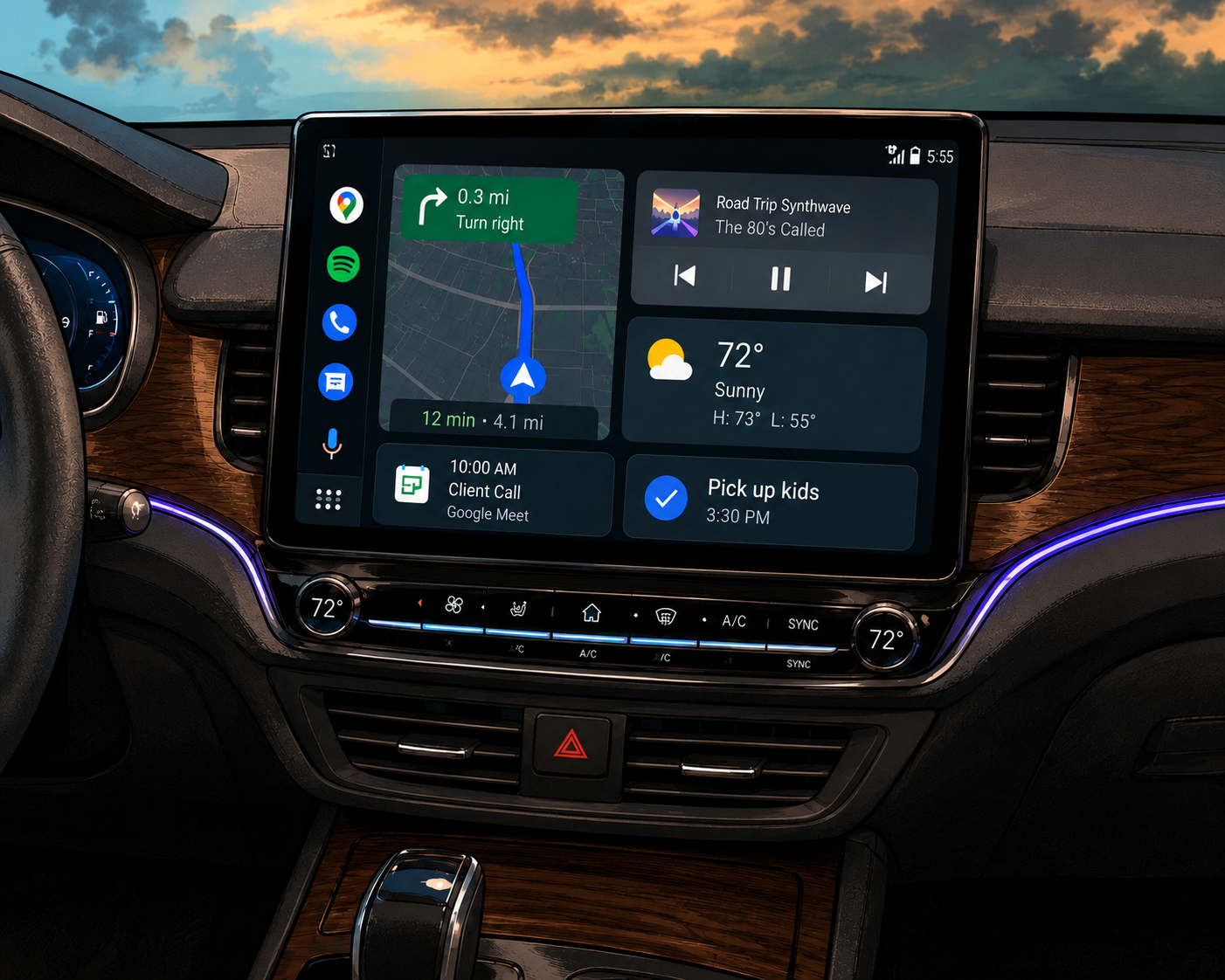
There is a special kind of modern absurdity in getting into a car and realizing the screen has been redecorated. Yesterday, it showed a map and music. Today, it has panels, cards, suggestions, assistant prompts, media controls, route previews, climate hints, and the confidence of a condo flip with gray floors.
Android Auto used to feel like a simple bridge between phone and car. Now it feels like the bridge hired an interior designer and started saying things like, “We opened up the space.”
That is not all bad. Better maps, cleaner media controls, smarter voice help, and fewer reasons to touch your phone are useful. The problem starts when the dashboard gets so polished, busy, and “helpful” that changing a song feels like walking through a staged open house where every room has a scented candle.
The Android Auto Makeover Map
- The Dashboard Got Shiplap and a Podcast Widget
- Quick Take Before the Infotainment Screen Finds Throw Pillows
- Android Auto Is Not Just Mirroring a Phone Anymore
- When the Dashboard Makeover Gets Too Busy
- How to Keep Android Auto Useful Without Letting It Stage the Car
- FAQ: Android Auto and Dashboard Overload
- Disclaimer
- References
Quick Take Before the Infotainment Screen Finds Throw Pillows
- Core claim: Android Auto is getting smarter and more visually ambitious, but the car screen still needs to stay boring where driving safety matters.
- What people usually get wrong: They assume a prettier dashboard interface is automatically easier to use.
- Why it matters: Navigation, messages, media, voice controls, app shortcuts, and vehicle features all compete for glance time.
- Who this affects: Anyone who has tried to start navigation and accidentally entered a dashboard boutique.
- Bottom-line opinion: Let Android Auto decorate the car a little. Do not let it turn the whole dashboard into a lifestyle brand.
Android Auto Is Not Just Mirroring a Phone Anymore
Android Auto started as a way to bring useful phone features into the car without making drivers paw at their phones like raccoons trying to open a lunchbox. Maps, music, calls, messages, and voice commands made sense. The car screen became a controlled, driving-focused version of the phone.
That idea still matters. Google says Android Auto works with over 500 vehicle models, connects through USB or Bluetooth-supported wireless setups, and brings compatible apps to the car display. Android Auto’s official page also describes features like navigation, smart replies, smart home controls, productivity apps, and Gemini replacing the classic Google Assistant experience as it rolls out.
The newer shift is more dramatic. Google’s May 2026 Android-in-cars update describes a refreshed Android Auto experience, immersive navigation, premium entertainment while parked, and more capable Gemini features. Cars with Google built-in are also getting deeper integration, including vehicle-specific answers and hardware-aware features in eligible vehicles.
That is where the condo flip joke starts making too much sense. The interface is no longer just helping. It is renovating.
The dashboard makeover myths
- “Cleaner visuals always mean fewer distractions.”
- “More cards mean more control.”
- “Voice assistance removes all the attention cost.”
- “If the car supports it, it must belong on the main screen.”
- “Parked entertainment will never tempt anyone at the wrong time.”
What the real pattern suggests
The pattern is obvious: car software is becoming more personalized, more app-driven, and more assistant-shaped. Android Auto wants to make the car feel connected. Cars with Google built-in want the vehicle itself to feel like part of the software experience, not just a screen holder.
That can be excellent when the task is simple. Asking for directions to the closest gas station makes sense. Having a route, music, and a call control visible in a clear layout makes sense. Using voice for a quick message can be better than touching a phone.
But the more the dashboard behaves like a living room, the more the driver has to decide what belongs there. A car is not a tablet on wheels. It is a moving machine where attention is already doing a full-time job.
A 2026 parking-lot mini case
Picture a driver leaving a grocery store at 6:18 p.m. The car connects wirelessly. Android Auto opens. The screen offers navigation, media, suggested replies, a recent destination, and a voice assistant ready to help.
So far, fine.
Then the driver wants one simple thing: directions home with the usual podcast. But the screen has new layout behavior after an update, the media card looks different, and the map is showing a richer visual mode. The driver is still parked, which is good. The problem is not disaster. The problem is the tiny delay where a simple drive becomes a tour of the new floor plan.
Mira, nobody asked the dashboard to become an HGTV reveal.
When the Dashboard Makeover Gets Too Busy
The danger is not that Android Auto looks better. Better design can help. Bigger touch targets, clearer maps, smarter voice support, and consistent media controls can reduce fumbling.
The danger is when “better” becomes “busier.” A screen can be clean and still demanding. A feature can be useful and still badly timed. A voice assistant can reduce tapping but still require mental attention, confirmation, or correction. That is why the design question is not only, “Can the system do it?” It is, “Should this be visible while the car is moving?”
NHTSA’s distracted-driving guidance is a reminder that attention matters. Anything that pulls eyes, hands, or focus away from driving deserves caution, even when it lives on the car’s built-in display instead of a phone.
Where the simple take fails
- Pretty is not the same as safe: A polished layout can still bury the one control you need.
- Voice is not magic: Voice can help, but misheard commands and confirmation screens still create friction.
- More apps are not always better: A car screen should not become a second home screen with a steering wheel attached.
- Updates need recovery time: A changed layout can break muscle memory, even if the update is technically an improvement.
What not to do
Do not treat Android Auto like a home screen you can casually browse while driving. Rearranging, exploring, testing Gemini prompts, hunting for a new media layout, and checking parked entertainment features should happen while parked.
Also do not leave every notification and app surface active just because the setup allows it. The best dashboard is not the one that shows everything. It is the one that shows the few things you need without making you negotiate with the screen.
How to Keep Android Auto Useful Without Letting It Stage the Car
The practical fix is to give Android Auto a smaller job. Let it handle maps, music, calls, and a few useful voice tasks. Do not make it responsible for every tiny cabin decision, every smart home habit, and every message thread.
Start with setup while parked. Google’s Android Auto setup guidance specifically tells users to allow time for setup before starting the drive and to keep attention on the road and driving conditions. That is not just legal padding. It is the correct way to treat any interface that changes inside a car.
Then simplify the experience. Keep the launcher clean. Put the navigation and audio apps you actually use near the front. Remove apps you never touch. Turn down message previews and notifications if they make the screen feel like a group chat wearing a seatbelt.
Quick reality-check list
- Set up Android Auto before driving, not at the first stoplight.
- Keep the main screen focused on maps, audio, and phone controls.
- Remove or bury apps you do not use in the car.
- Use steering wheel voice controls for simple tasks, but do not test long prompts while moving.
- Learn what changed after major updates while parked.
- Disable or reduce message notifications if they pull your attention.
- Treat parked entertainment as parked entertainment, not “almost parked” entertainment.
Dashboard design triage
| Feature type | Keep visible? | Best use | Watch out for |
|---|---|---|---|
| Navigation | Yes | Routes, traffic, exits, charging stops | Typing destinations while moving |
| Audio controls | Yes, but simple | Play, pause, skip, source switching | Browsing playlists on the road |
| Messages | Limited | Voice readouts and short replies | Long threads and emotional replies |
| Gemini or voice assistant | Useful in moderation | Simple commands and quick questions | Long conversations that steal attention |
| Smart home controls | Optional | Turning on lights before arrival | Turning the car screen into a house remote |
| Parked video or games | Parked only | Waiting, charging, resting | Treating “parked” features like driving features |
| Vehicle settings | Keep minimal | Temperature, defrost, common comfort controls | Menu hunting while moving |
The Dashboard Can Look Nice Without Becoming a Property Brothers Episode
Android Auto should absolutely improve. Better navigation, smarter voice support, and cleaner media controls can make everyday driving less annoying. Nobody wants to return to a tiny monochrome radio screen that looks like it was designed during a fax machine argument.
But the dashboard does not need to become a renovated condo with six zones, floating shelves, and a lifestyle narrative. The best car interface is still the one that helps quickly, stays predictable, and does not demand admiration.
Let Android Auto decorate a little. Let it make the drive smoother. Just keep the driver as the main character, because the screen may have taste, but it does not have a driver’s license.
FAQ: Android Auto and Dashboard Overload
Q1. Is Android Auto becoming too distracting?
A1. Android Auto can reduce distraction when it keeps maps, media, and calls in a simplified driving interface. It can also become distracting if the driver browses apps, explores settings, or reads too much on the screen while moving. The safest habit is to set up routes, audio, and preferences before driving.
Q2. Is Gemini in Android Auto a good thing?
A2. It can be useful for hands-free help, especially simple requests like navigation, music, or quick questions. The tradeoff is that longer conversations, wrong interpretations, or confirmation prompts can still take mental attention. Use it like a shortcut, not like a passenger running a meeting.
Q3. What should I change first after an Android Auto update?
A3. Park the car and spend 5 minutes checking the launcher, navigation layout, audio controls, and notification behavior. Make sure the apps you use most are easy to reach, then remove or ignore anything that adds clutter without saving time.
By: Andrew Eyes
Why trust this: This commentary uses current official Android Auto and Google built-in car feature pages, plus driver-distraction safety guidance, without claiming insider access.
Last updated: 2026-05-20
Disclosure: No paid placement influenced this post.
Disclaimer
This post is general technology commentary, not driving, legal, or vehicle-safety advice. Always follow local traffic laws, your vehicle manual, and on-screen safety instructions, and avoid interacting with screens in ways that take attention away from driving.
References
- Google Blog: “Do more and have more fun with the next generation of Android Auto and cars with Google built-in” (2026). https://blog.google/products-and-platforms/platforms/android/android-in-cars-updates/
Supports the discussion of refreshed Android Auto features, Gemini, immersive navigation, parked entertainment, and Google built-in updates. - Android: “Android Auto” (accessed 2026-05-20). https://www.android.com/auto/
Supports the discussion of Android Auto features, compatibility, Gemini rollout, smart replies, apps, and connection options. - Google Android Auto Help: “Set up Android Auto” (accessed 2026-05-20). https://support.google.com/androidauto/answer/6348029
Supports the setup guidance, including pairing before driving and paying attention to road conditions. - Google built-in: “Cars with Google built-in” (accessed 2026-05-20). https://built-in.google/cars/
Supports the discussion of car-integrated Google apps, voice control for vehicle settings, app availability, and automatic updates. - NHTSA: “Distracted Driving” (accessed 2026-05-20). https://www.nhtsa.gov/risky-driving/distracted-driving
Supports the safety framing around attention, screens, and driver distraction.




0 Comments