
The Extra Request Is Usually Small Until It Is Not
A technician arrives to deploy four laptops. Before lunch, the client asks for one old scanner, two personal email accounts, a conference-room screen, and a printer that nobody mentioned during discovery.
Each request sounds minor. Together, they can turn a planned half-day installation into an unfinished project and an uncomfortable invoice.
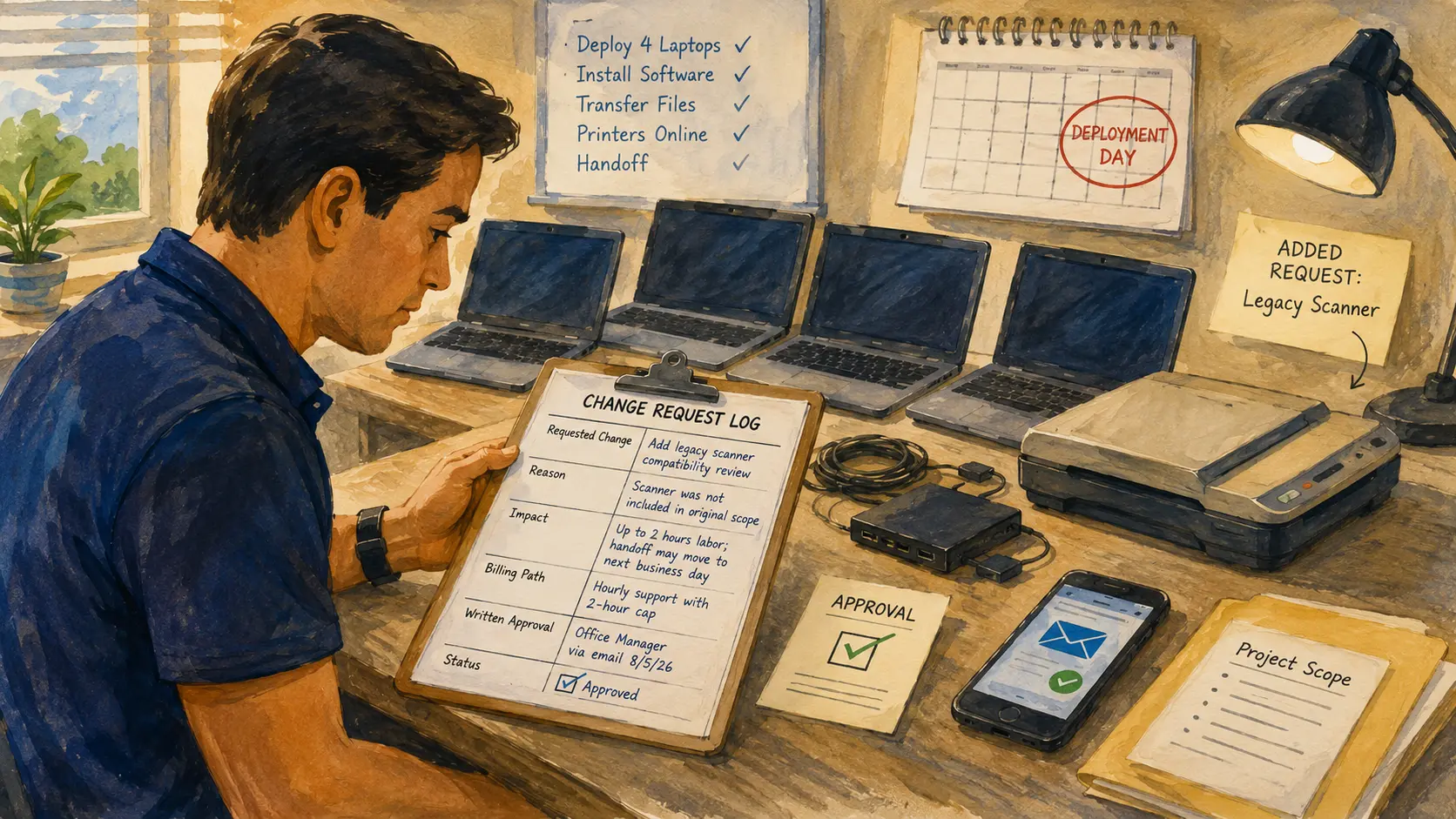
A simple IT change-request log creates a pause point. It records what changed, why it changed, how the request affects time or price, and who approved the next step.
Your Scope-Creep Control Plan
- The Extra Request Is Usually Small Until It Is Not
- Change-Request Log Snapshot
- Define the Moment When the Original Scope Changes
- Use Four Fields to Record the Added Work
- Approve the Change Before It Rewrites the Schedule
- Put the Change Log Into Service in 15 Minutes
- A Small Log Protects the Client and the Technician
- Frequently Asked Questions
- Disclaimer
- References
Change-Request Log Snapshot
- Best for: Solo IT consultants, micro-MSPs, network installers, and freelance sysadmins delivering defined projects for small-business clients.
- What this covers: A lightweight process for recording added tasks, changed assumptions, schedule impact, pricing impact, and written approval.
- What this does not cover: State-specific contract law, dispute resolution, regulatory obligations, or a substitute for legal review.
- Main caution: Do not continue substantial added work based only on a hallway conversation or a vague text message.
- When to get professional help: Ask an attorney to review your agreements when projects involve sensitive data, regulated clients, large financial exposure, subcontractors, or unusual liability.
A change request is not a complicated legal document by default. For a modest IT project, it may be a short email, a helpdesk record, a CRM note, or a simple form connected to the approved statement of work.
The purpose is practical: stop the project for a moment, describe the new request, explain the impact, and obtain approval before the added work consumes the schedule.
Define the Moment When the Original Scope Changes
Scope creep begins when the client expects work that was not included in the approved quote or statement of work.
The added request may be reasonable. It may even be useful. The problem is not the request itself. The problem is allowing the request to enter the project without a visible decision.
Common scope-change triggers
- A new device is added after approval.
- The client wants support for software that was not listed.
- A data-transfer request becomes larger than expected.
- An unsupported printer or scanner appears during deployment.
- The client asks for after-hours installation.
- A vendor call becomes necessary.
- Building access delays the work.
- The client adds training or handoff time.
- The existing environment differs from the site-survey notes.
- A repair problem appears during a setup project.
The change-request process should be proportional. A five-minute clarification does not need a formal project amendment. A two-hour scanner problem does.
Mini scenario: one scanner changes the afternoon
A small accounting office approves a five-laptop deployment. The scope includes laptop configuration, approved software, business-file transfer, two printers, and a short handoff.
During installation, the office manager asks the technician to connect an older document scanner. The scanner depends on software that is not on the approved application list. The model may not be supported by the new operating system.
The technician has three reasonable choices:
- Decline the added work and finish the approved deployment.
- Open a separate hourly support ticket for scanner troubleshooting.
- Add a written change request for a compatibility review and a revised schedule.
The wrong choice is quietly spending two unapproved hours on the scanner while the original handoff slips into the evening.
Use Four Fields to Record the Added Work
A small change log should be easy enough to use while the technician is still on-site or connected remotely.
The four-field change-request log
| Field | What to Record | Example |
|---|---|---|
| Requested change | The added task, device, user, location, or deadline change | Add compatibility review for one legacy scanner |
| Reason | Why the request appeared after approval | Scanner was not included in the original device list |
| Impact | Labor, schedule, equipment, vendor coordination, or risk | Up to two hours of hourly troubleshooting; deployment handoff may move to the next business day |
| Approval | Who approved the change, when, and through which written channel | Approved by office manager by email on 2026-08-05 |
Those four fields are enough for many small additions. Add a fifth field for price or billing method when the impact needs clearer separation.
Optional fifth field: price or billing path
Use one of these:
- Fixed additional fee
- Hourly work with a spending cap
- Separate support ticket
- Revised quote
- Paid assessment
- Declined or referred work
Do not bury the billing path inside a paragraph. Make it visible.
Copy-ready starter log
| Date | Requested Change | Reason | Impact | Billing Path | Written Approval |
|---|---|---|---|---|---|
| 2026-08-05 | Add one legacy scanner compatibility review | Device was not included in approved scope | Up to 2 hours; handoff may move to next business day | Hourly support with 2-hour cap | Office manager approved by email |
The log can live in a spreadsheet, a shared document, a helpdesk ticket, or the project record. The best tool is the one the technician will actually update.
Approve the Change Before It Rewrites the Schedule
The change-request log works only when it creates a real pause point.
Before continuing, answer four questions:
- What changed?
- How much extra work may be required?
- What happens to the schedule or price?
- Who can approve the next step?
A client contact may be able to approve a small hourly support block but not a new hardware purchase. Write the approval path before the project begins.
Use plain-language approval wording
For a minor addition:
The scanner was not included in the approved deployment scope. I can review compatibility under a separate hourly support ticket, capped at two billable hours unless you approve additional work. This may move the laptop handoff to the next business day. Please reply to confirm approval.
For a larger change:
The requested after-hours migration changes the project schedule and labor plan. I will send a revised quote before scheduling the new work window.
For unsupported or risky work:
This request falls outside the approved project and requires a separate assessment or specialist referral before work continues.
The wording is calm. It does not blame the client. It makes the decision visible.
Match the approval process to the size of the change
| Change Type | Best Approval Path | Example | Main Tradeoff |
|---|---|---|---|
| Minor addition | Email confirmation or ticket approval | Add one hour of printer troubleshooting | Fast, but keep the cap visible |
| Moderate scope change | Written change log plus added line item | Add two users and two data transfers | Clearer pricing, but the schedule may move |
| Major project change | Revised quote or revised SOW | Add after-hours migration and vendor coordination | Slower approval, but protects both sides |
| High-risk or unclear request | Paid assessment or referral | Unsupported legacy server issue | Adds a separate step, but avoids guessing |
A change request should not become a trick for charging more. It should explain why the original plan no longer matches the work.
What not to assume
- The client remembers the original scope: Restate the relevant boundary when the extra request appears.
- A verbal yes is enough: Use a written reply, ticket approval, or signed change record.
- A small task has no schedule effect: One old device can interrupt testing, documentation, and the next appointment.
- Every discovered issue belongs to the project: Separate deployment work from troubleshooting unless the approved scope includes both.
- The nearest employee can approve the change: Confirm who is authorized to approve labor, hardware, and schedule changes.
Put the Change Log Into Service in 15 Minutes
The first version should be simple enough to use today.
Minutes 0 to 5: create the log
Add these columns:
- Date
- Requested change
- Reason
- Impact
- Billing path
- Written approval
- Status
Use a spreadsheet or the project system already in use.
Minutes 5 to 10: define three approval paths
Create three simple rules:
- Minor addition: Written approval through email or ticket reply.
- Moderate addition: Added line item or short change record.
- Major addition: Revised quote, revised SOW, or separate assessment.
Add one internal rule for work that should be declined or referred.
Minutes 10 to 15: write two reusable messages
Prepare one message for hourly work with a cap and one message for a revised quote.
Example hourly message:
This request is outside the approved scope. I can handle it as hourly support with a two-hour approval cap. Please reply to confirm before I continue.
Example revised-quote message:
This request changes the project deliverables or schedule. I will send a revised quote before adding it to the project plan.
Store those messages where they are easy to copy during a service call.
Turn Approved Changes Into Trackable Work
After approval, update the project record.
Odoo Project supports task tracking, allocated time, customer fields, and sales-order links for billable projects. ERPNext project records can connect to sales orders and aggregate timesheet-based costing and billable amounts. Odoo, ERPNext, Zoho One, or any other ERP with projects, tickets, and sales records can support the workflow.
The software-neutral sequence is:
- Record the request.
- Explain the impact.
- Obtain written approval.
- Create the added task or ticket.
- Update the estimate or quote.
- Track the actual time.
- Include the approved addition in the handoff and invoice notes.
Do not treat the ERP as the approval. The written client decision is the approval. The software stores the record.
Use this scope-creep prevention checklist
- Attach the approved quote and SOW to the project record.
- Identify the client contact authorized to approve changes.
- Keep the four-field log easy to reach.
- Pause when an extra request may affect labor, price, or schedule.
- Separate troubleshooting from deployment work.
- Add a spending cap for uncertain hourly tasks.
- Use a revised quote for larger additions.
- Track approved changes as separate tasks or tickets.
- Mention open items during the client handoff.
- Ask for legal review when project risk or financial exposure increases.
A Small Log Protects the Client and the Technician
Scope creep is not always caused by a difficult client. Small-business IT environments contain forgotten devices, undocumented software, and last-minute needs.
A simple change-request log keeps those surprises manageable. Record what changed, explain the impact, choose the billing path, and obtain written approval before continuing.
The goal is not more paperwork. The goal is a project that can finish on time, invoice cleanly, and leave both sides with the same understanding of what was approved.
Frequently Asked Questions
Q1. What is an IT change request?
A1. An IT change request records work that falls outside the approved project scope or changes an earlier assumption. It should explain the request, the reason, the expected impact, the billing path, and the written approval.
Q2. Does every small extra task need a change request?
A2. No. Use judgment. A quick clarification may not need a formal record. Added work that affects price, schedule, deliverables, equipment, vendor coordination, or risk should be recorded and approved.
Q3. Is an email reply enough for approval?
A3. It may be enough for a modest addition when the client agreement allows it and the approver has authority. Larger changes may need a revised quote, revised SOW, or formal amendment. Ask an attorney to review the process when the stakes are higher.
Q4. Should change requests be tracked in an ERP?
A4. They can be. Odoo, ERPNext, or any other ERP with project, ticket, and sales records can help connect approved changes to tasks, time entries, and invoice notes. The written client approval should remain visible.
Q5. What should happen when the client does not approve the added work?
A5. Continue only with the approved scope when that is practical and safe. Record the open item, explain the limitation, and close or hand off the original project according to the agreed plan.
By: Marcus Irizarry
About the author: Marcus Irizarry covers IT services, web design, coding, ecommerce, and practical technology workflows for small operators.
Last updated: 2026-06-11
Disclosure: No paid placement influenced this post.
Disclaimer
This article provides general educational information for small IT service businesses. It is not legal advice and does not replace a contract review by a qualified attorney. Contract terms, approval requirements, enforceability, and risk allocation can vary by state, project type, industry, and client relationship.
References
- Acquisition.gov: Contract Terms and Conditions, Commercial Products and Commercial Services — Provides a federal procurement example stating that certain contract changes may be made only by written agreement of the parties.
- U.S. Small Business Administration: Governing Rules and Responsibilities — Explains in a federal-contracting context that changes can affect price and delivery schedules.
- Odoo Documentation: Task Creation — Documents customer fields, sales-order links, and allocated time for billable project tasks.
- ERPNext Documentation: Project — Documents project links to sales orders, timesheet-based costs, and billable amounts.



0 Comments