
Before You Buy Traffic, Fix the Front Door
A small IT business can waste a surprising amount of money sending people to a homepage that does not explain what the company does, who it helps, or how to start. Paid ads are not magic. They just send more people to the same page faster.
For solo IT providers, micro-MSPs, web developers, email consultants, and Odoo or any other ERP implementers, the homepage has one job: help the right visitor understand the offer and take the next step.
This IT business homepage checklist is for owners who want to clean up the page before spending money on ads, SEO campaigns, or social traffic. It is about making a page that can carry a sales conversation while you are busy fixing someone else’s problem.
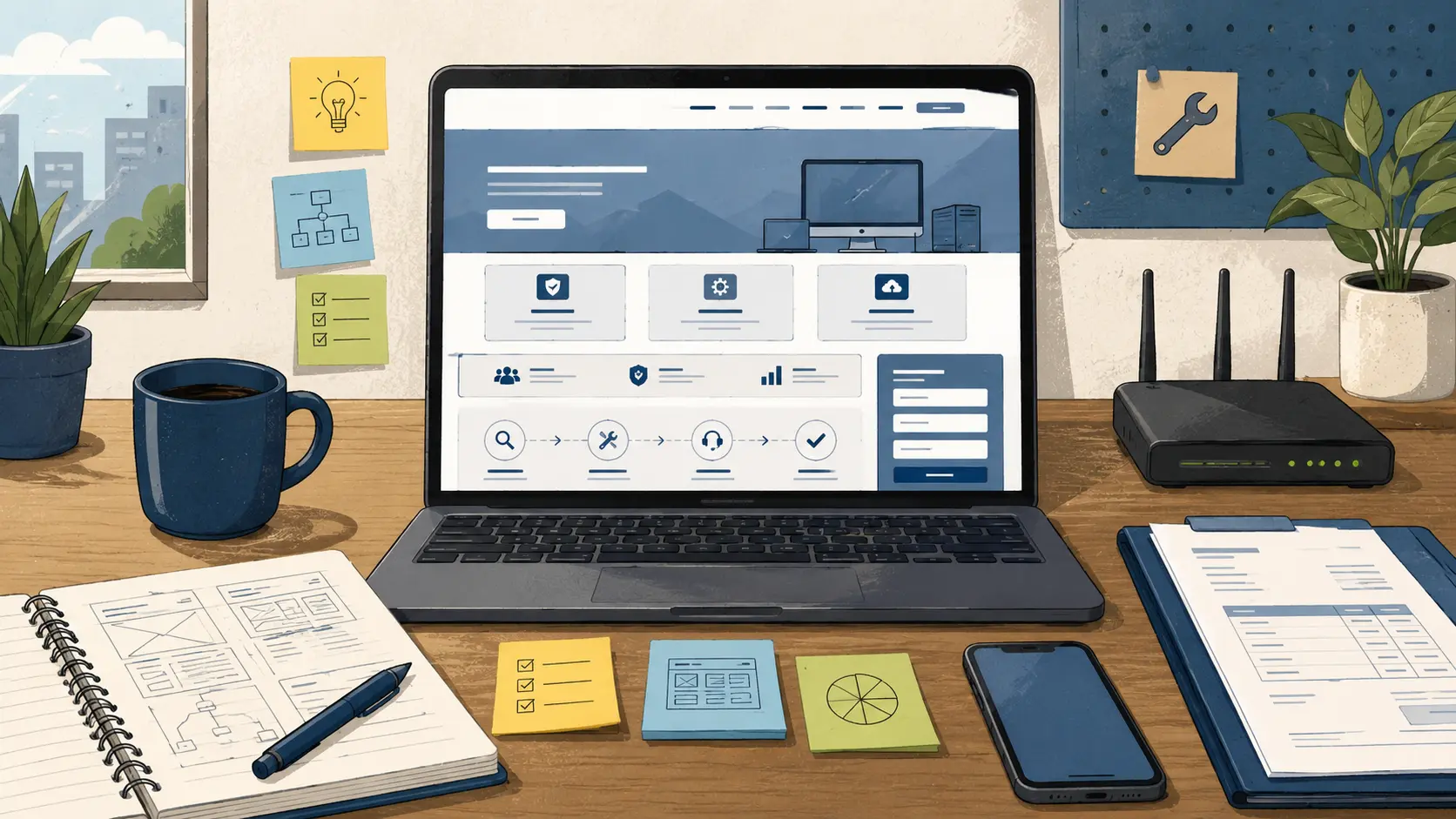
Homepage Repair Map
- Before You Buy Traffic, Fix the Front Door
- Homepage Checklist Snapshot
- What Your Homepage Has to Prove
- Build the Page in This Order
- Mistakes That Waste Ad Spend
- Turn the Checklist Into a 60-Minute Fix
- Homepage Checklist FAQs
Homepage Checklist Snapshot
- Best for: Self-employed IT providers, micro-MSPs, web developers, email providers, and ERP consultants.
- Main takeaway: Your homepage should explain your services, prove you are organized, and guide one clear next step.
- Time, cost, or effort: A first cleanup can take 60 to 90 minutes.
- Best result to expect: Better lead quality and fewer vague inquiries.
- When not to use this: Do not buy ads yet if your services, location, intake process, or contact path are unclear.
What Your Homepage Has to Prove
Your homepage does not need to explain every tool you know. It needs to prove four things quickly: what you do, who you help, what problem you solve, and what the visitor should do next.
A small-business owner looking for help with a website, business email, domain setup, or Odoo and any other ERP system wants to know whether you can solve the issue without making the mess worse. Plain service language beats clever slogans.
The four proof points
- Service clarity: Name the work directly, such as web development, business email setup, domain support, helpdesk workflow, or ERP setup.
- Audience fit: Say whether you help local businesses, self-employed professionals, small offices, stores, churches, clinics, contractors, or other IT providers.
- Process confidence: Show how a request moves from contact to estimate, work, testing, and handoff.
- Next step: Give one obvious action, such as requesting a fit call, sending a work request, or downloading a checklist.
A realistic homepage scenario
Picture a solo IT consultant whose homepage says, “Technology solutions for modern businesses.” That sounds fine until a visitor asks, “Do they fix business email or only build websites?”
A better first screen would say: “Web, email, and workflow systems for small businesses that need setup, cleanup, and support.” Under that, add “Request a project review” and a smaller “See service packages” link.
Build the Page in This Order
Do not start with colors, animations, or a new theme. Start with the order of information: opening promise, services, proof, process, fit, and contact.
The practical homepage order
- Hero section: Say what you do, who you help, and the main result in one short block.
- Service cards: List three to five services, not twelve scattered capabilities.
- Problem section: Name the pain points, such as broken forms, email delivery problems, confusing invoices, or messy work tracking.
- Process section: Show the steps from request to handoff.
- Trust section: Add business name, location or service area, years active if true, public contact route, and examples of work categories.
- Fit section: Explain who the service is for and who should not book yet.
- Contact section: Repeat the primary action with a short form or clear contact option.
Quick decision guide
- If you sell web development, show what kind of sites you build and what the client must provide.
- If you sell email systems, show whether you help with business email setup, migrations, DNS records, or mailbox cleanup.
- If you sell Odoo or any other ERP setup, show the first workflow you can help organize, such as quotes, invoices, projects, tickets, or inventory.
- Skip paid ads if the homepage does not explain your service in the first 10 seconds.
Mistakes That Waste Ad Spend
Paid traffic exposes weak pages. If the homepage is vague, ads make the problem more expensive.
The most common mistake is treating the homepage like a resume. Visitors need to know what you can reliably deliver, what the first step looks like, and whether the work fits their situation.
Common homepage mistakes
- Listing tools instead of outcomes: “WordPress, Odoo, DNS, email, hosting” tells people what you touch. “Fix broken website forms and business email setup” tells them what they get.
- Using one contact button for every situation: A repair request, a new website, and an ERP cleanup project need different intake questions.
- Hiding the service area: Say whether you serve the USA, a local region, or selected industries.
- Skipping proof of process: A visitor should see that you test, document, and hand off work, not just “get it done.”
- Sending ads to the homepage too early: If the page cannot convert a warm referral, it is not ready for cold traffic.
Homepage options before buying ads
| Option | Best for | Pros | Cons |
|---|---|---|---|
| Clean existing homepage | You already have a site and clear services | Fast, low-cost, good first step | Limited by the current layout |
| Build one focused landing page | You want to promote one service, such as email setup | Clearer message, easier ad testing | Does not fix the whole website |
| Rebuild the website structure | Your services are unclear or scattered | Stronger long-term foundation | Takes more planning and content work |
| Pause ads and fix intake first | You get vague or bad-fit inquiries | Improves lead quality | Slower if you need leads immediately |
Turn the Checklist Into a 60-Minute Fix
You do not need to rebuild the whole website to make the homepage more useful. Set a timer for 60 minutes. Write down what the page claims to do, who it serves, and what action it asks for.
One-hour homepage cleanup checklist
- Rewrite the first headline so it names the service category and audience.
- Replace vague service words with specific service blocks.
- Add one sentence explaining the work request process.
- Put the main call to action near the top and again near the bottom.
- Add a short “good fit” and “not a good fit” section.
- Remove tool lists that do not support a clear offer.
- Test the contact form from a phone.
- Check that the business name, service area, and contact route are visible.
- Save a dated copy of the old homepage before editing.
- Make a short note of what changed and why.
What to do after the cleanup
After the first pass, ask one practical question: “Would a busy business owner understand what to do next without calling me for clarification?” If the answer is no, simplify again. Clean service language, a visible process, and a simple intake path can do more for lead quality than another clever slogan.
Your Homepage Should Earn the Ad Budget
Before you pay for traffic, make the homepage do basic work. It should tell the right visitor what you do, what problems you handle, how the request starts, and what happens after they contact you.
A clear homepage will not close every sale. The goal is to improve the first conversation, reduce bad-fit leads, and keep your ad budget from pointing at a messy desk.
Start With the Page You Already Have
Open your current homepage and mark every section as keep, rewrite, move, or remove. Then fix the first screen, the service list, and the contact path before touching design details. If the page becomes easier to understand in one sitting, you are moving in the right direction.
Final DIY check
- Can a visitor name your top three services in under 30 seconds?
- Does the page explain who you help?
- Does the page show how work starts?
- Is there one main call to action?
- Can the contact form collect the details you need for a useful reply?
Homepage Checklist FAQs
Q1. Should an IT business homepage mention every service offered?
A1. No. Show the main service categories and guide visitors to the right next step. Use separate pages for web development, email systems, ERP setup, support, or maintenance.
Q2. Should I buy ads before redesigning my IT business website?
A2. Only if the homepage already explains the offer, audience, proof, and contact path clearly. Ads can bring traffic, but they cannot fix a confusing page.
Q3. What is the most important homepage section for a small IT provider?
A3. The first screen matters most. It should say what you do, who you help, and what action to take next.
Q4. Can one homepage cover web development, email systems, and ERP work?
A4. Yes, but only if the page groups those services clearly. Use plain service cards and give the strongest placement to the main money maker.
By: Rex Iriarte
Why trust this: Raxan.net publishes practical small-business technology guidance focused on web systems, email workflows, service delivery, and client-facing operations.
Last updated: 2026-06-17
Disclosure: RaxanExpress.com is a related service provider. This post is written as DIY guidance and does not require buying services.



0 Comments