
The Fake Calm of a Device Saying “You’re Protected” With One Red Icon
There is a special kind of emotional nonsense when your device says, “You’re protected,” while displaying one red icon like a tiny digital emergency flare. The headline is calm. The badge is sweating. The user is now staring at the screen like the laptop just whispered, “Everything is fine, except the basement.”
This is modern security alert culture. Your phone, browser, email, antivirus, password manager, bank app, and smart toaster all want to protect you. They also want attention. Constantly. With banners. With dots. With warnings. With yellow triangles that seem legally required to appear right before lunch.
The problem is not that security alerts are useless. Many are genuinely helpful. The problem is alert overload. When every app sounds concerned, people start treating all warnings like background noise. Ay bendito, even danger needs better branding.
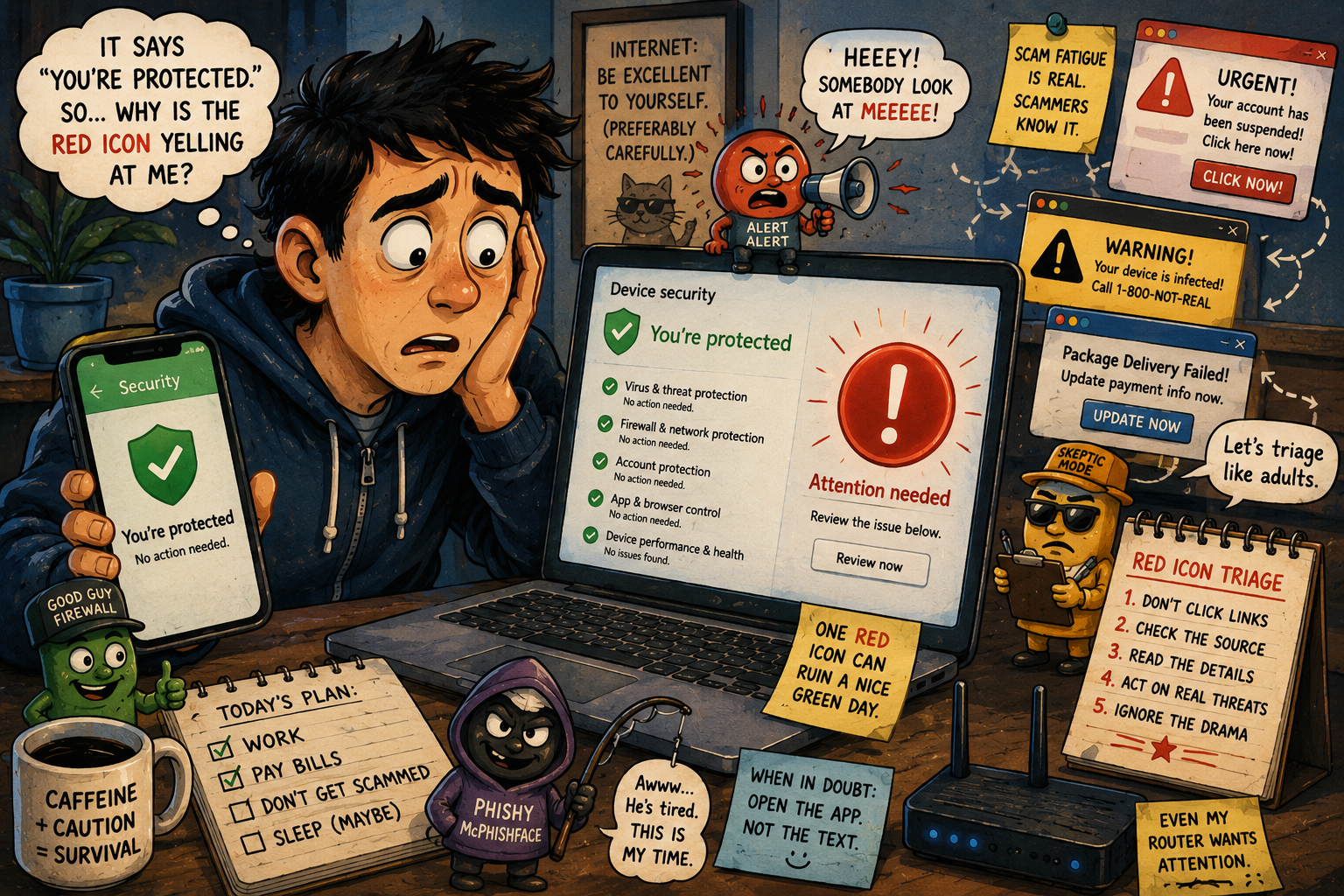
What This Red-Icon Drama Covers
- The Fake Calm of a Device Saying “You’re Protected” With One Red Icon
- The Green Checkmark Is Doing Public Relations
- Scam Fatigue Is Real, and Scammers Know It
- Mini Case: The Phone That Whispered “Protected” While Screaming
- The Two-Minute Red Icon Triage
- The Bottom Line: Calm Is Not the Same as Clear
- FAQ: Security Alerts, Scam Fatigue, and Red Icons
- References
The Green Checkmark Is Doing Public Relations
A green checkmark is supposed to soothe you. It says the device is mostly fine, the kingdom stands, and the villagers may return to their apps. Then one corner of the screen shows a red icon, and suddenly the green checkmark feels like a spokesperson avoiding direct questions.
That mismatch is what drives people crazy. Security dashboards often combine many signals into one friendly status: antivirus, account protection, firewall, updates, browser protection, device health, password warnings, and backup reminders. One problem can create a red or yellow badge, while the main message still says you are protected.
Technically, that may be true. Emotionally, it feels like a smoke detector saying, “Home is safe,” while pointing at one flaming curtain.
Not Every Red Icon Means the Same Thing
A red icon can mean several things:
- A real security issue needs action.
- A recommended setting is turned off.
- An update is pending.
- A scan has not run recently.
- A subscription or account sync failed.
- A password appeared in a breach list.
- A browser blocked something suspicious.
- A notification is trying to be helpful, dramatic, or both.
The trick is not to panic. The trick is to identify the category. Is this about malware, account access, updates, payment, identity, or a setting preference? A red icon without context is just a tiny angry tomato.
Scam Fatigue Is Real, and Scammers Know It
Scams are not a side quest anymore. They are the weather. The FTC reported that in 2025, people filed more than 1 million imposter-scam reports, with reported losses rising nearly 20% to $3.5 billion. The FBI also reported that 2025 cyber-enabled crime losses approached $21 billion. That is not “be careful out there” territory. That is “the internet has raccoons in the walls” territory.
Meanwhile, tech companies are stuffing more scam detection into browsers, phones, email, and messages. Google has described AI-driven fraud protections across products. Microsoft Defender SmartScreen helps warn about phishing, malware sites, and suspicious downloads. These tools matter.
But scam fatigue happens when users see too many warnings, real and fake. After the tenth “urgent account alert,” the brain starts sorting everything into one bucket labeled “ugh.”
That is dangerous because scammers imitate security language. They say your account is locked, your package failed, your toll payment is overdue, your bank needs confirmation, your device has malware, or your grandson somehow needs gift cards despite being twelve and sitting in the next room playing a game.
The Most Annoying Truth
Sometimes the real warning and the fake warning use the same emotional costume: urgency.
That is why the safest move is not to click the warning. It is to go directly to the app or website yourself. If your bank text says there is a problem, open the bank app directly. If your phone says a password is compromised, open the password manager from settings, not from a random link. If a browser page screams that your device is infected and demands a phone call, close it. No gracias.
Mini Case: The Phone That Whispered “Protected” While Screaming
Imagine a normal phone on a normal Tuesday.
At 8:10 a.m., the user sees a text about an unpaid toll. At 8:11, email warns about a “new login.” At 8:12, the browser blocks a sketchy page. At 8:13, the phone says a security update is available. At 8:14, the password manager says two passwords were reused. At 8:15, the coffee machine blinks because it also wants to join the cybersecurity department apparently.
The user sees one red icon and thinks, “I cannot do this right now.”
That reaction is human. It is also exactly why triage matters. You do not need to solve every alert instantly. You need to know which ones require immediate action and which can wait.
Alert Priority Table
| Alert Type | What It Usually Means | How Fast to Act |
|---|---|---|
| Suspicious login on bank, email, or password manager | Someone may be trying to access a critical account | Act now, using the official app or website |
| Browser scam or malware warning | The site or download may be unsafe | Stop immediately, close the page or cancel the download |
| Security update available | A fix may be ready for known issues | Install soon, preferably the same day |
| Password reuse or breach warning | A password may be weak or exposed | Change important accounts first |
| Notification settings or backup reminder | A useful maintenance item | Handle when you have a few minutes |
This is the difference between attention and panic. Panic says, “Everything is on fire.” Triage says, “The toaster is dramatic, but the bank login gets priority.”
The Two-Minute Red Icon Triage
Use this when your device says everything is protected except the one icon that looks like it has seen the future.
Step 1: Do not click links inside surprise messages
Texts, emails, and pop-ups are where scammers cosplay as security teams. Instead, open the official app or type the known website address yourself.
Step 2: Identify the source
Is the warning from the operating system, browser, antivirus, password manager, email provider, bank app, or a random webpage? Random webpages do not get to diagnose your computer like a doctor with ads.
Step 3: Read the exact label
Do not stop at the icon. Read the sentence beside it. “Update available” is different from “Threat found.” “Review settings” is different from “Payment failed.” Security wording is boring because boring wording is where the useful clues hide.
Step 4: Handle account warnings first
Email, bank, password manager, phone carrier, and cloud storage warnings deserve early attention. Those accounts can unlock other problems.
Step 5: Run updates from settings
For phones, computers, browsers, and security apps, update through system settings or the official app store. Avoid search-result downloads unless you know exactly what you are doing.
Quick Reality Check
If the warning demands secrecy, payment by gift card, remote access to your computer, cryptocurrency, a phone call to a random number, or instant action from a link, slow down. Real security tools do not need you to panic-buy gift cards in the parking lot like a cyber-themed scavenger hunt.
The Tradeoff: Alerts Need to Interrupt You Sometimes
Here is the annoying limitation: if devices made alerts perfectly quiet, people would miss important warnings. If devices make every warning loud, people ignore them. Security design lives inside that miserable sandwich.
Some alerts deserve interruption. A blocked phishing site should stop you. A suspicious bank login should interrupt dinner. A known compromised password on your main email should not wait until “maybe Sunday.”
Other alerts should be calm maintenance. Backup reminders, optional settings, promotional “security upgrades,” and vague account nudges do not deserve the same emotional volume as a malware warning.
When Not to Trust the Calm Message
Do not trust a generic “you’re protected” message if the details show:
- Real-time protection is off.
- Updates have failed repeatedly.
- A threat was found and not resolved.
- A browser or download warning is active.
- A critical account shows suspicious login activity.
- The alert is asking you to call a number or install unknown software.
The sentence matters more than the mood. “Protected” is a summary. The red icon is a footnote. Read the footnote before closing the book.
The Bottom Line: Calm Is Not the Same as Clear
Security alerts are supposed to help, but too many of them create a strange emotional fog. Your device says you are protected, one red icon says “perhaps not,” and you are left doing threat analysis between coffee and a calendar reminder.
The practical move is simple: do not ignore red icons, but do not obey every warning blindly. Identify the source, avoid surprise links, open official apps directly, update through trusted settings, and handle critical accounts first.
A good security alert should make you safer, not train you to click faster. Until devices learn how to explain themselves like normal adults, give every red icon one careful look, then decide whether it is a fire alarm, a maintenance light, or a tiny digital raccoon shaking a clipboard.
FAQ: Security Alerts, Scam Fatigue, and Red Icons
Q1. Should I click a security alert in an email or text?
A1. No. Open the official app or website directly. Scammers often imitate security warnings to push people into clicking fake links.
Q2. Does a red icon always mean my device has malware?
A2. No. It may mean a setting is off, an update is pending, a scan is overdue, or an account needs review. Read the exact alert text.
Q3. Which security alerts should I handle first?
A3. Prioritize suspicious logins, bank or email account warnings, password-manager alerts, browser scam warnings, and confirmed malware detections.
Q4. How do I reduce scam fatigue without ignoring real alerts?
A4. Turn off promotional notifications, keep system security alerts on, review password and account warnings weekly, and use official apps instead of links from surprise messages.
By: Rex Iriarte
Why trust this: Consumer-tech commentary based on current scam-reporting trends, browser protection guidance, device security alerts, and everyday online-safety behavior.
Last updated: 2026-05-13
Disclosure: No paid placement influenced this post.
References
- FTC Consumer Alert, “New trends in reports of imposter scams,” May 7, 2026
- FBI, “Cryptocurrency and AI Scams Bilk Americans of Billions,” April 6, 2026
- Google Blog, “Our fight against fraud: 5 ways we’re keeping you safer,” May 13, 2026
- Microsoft Learn, “Microsoft Defender SmartScreen overview,” accessed May 13, 2026




0 Comments