
The Silent Drama of Secure Boot Warnings Nobody Read Until May
Some Windows warnings arrive like a fire alarm. Others arrive like a sticky note from a nervous accountant. Secure Boot certificate warnings belong to the second group. They do not shout. They sit inside Windows Security, calmly implying that your PC’s boot process has paperwork due.
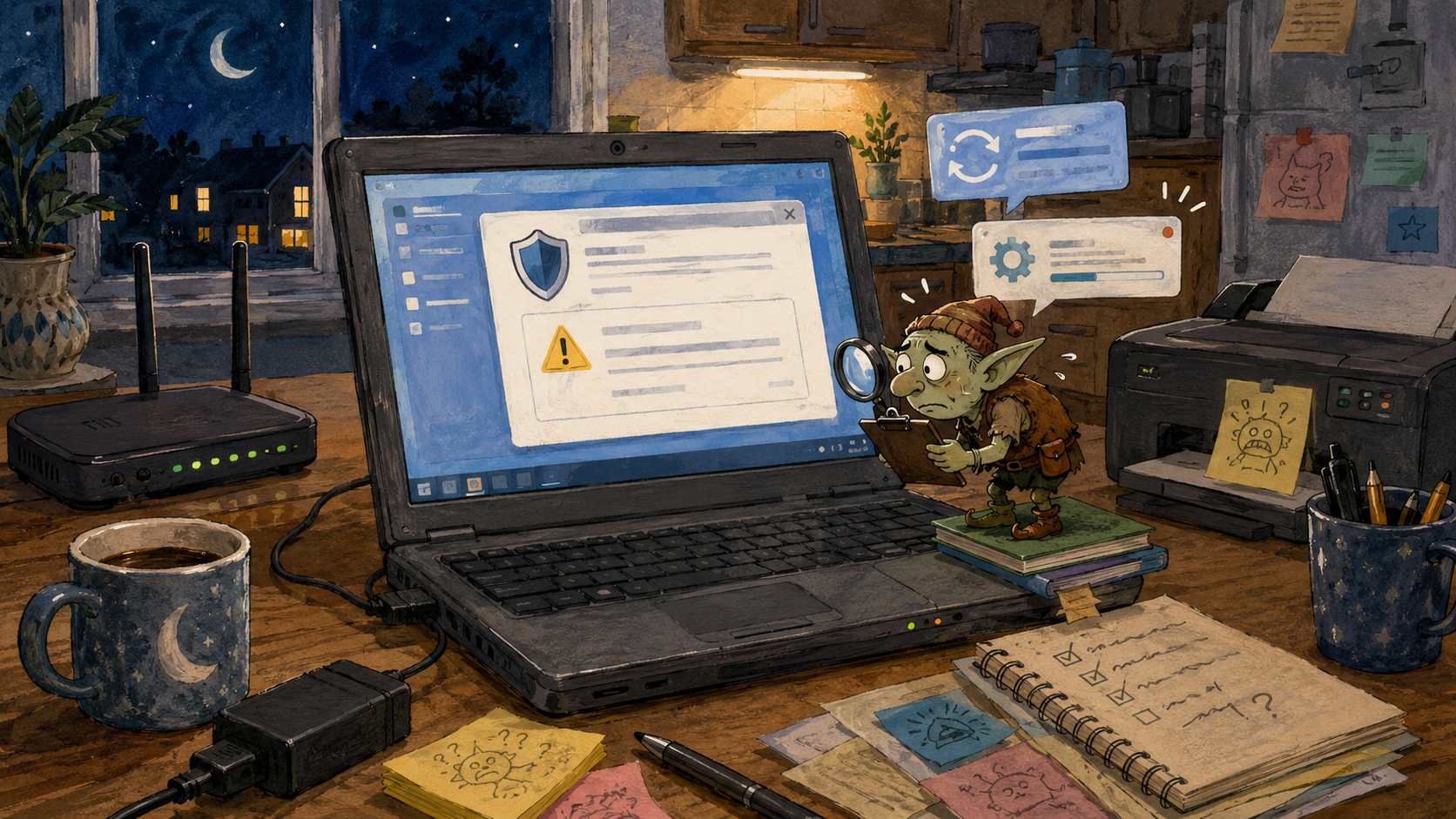
That is why May 2026 feels so funny. A security feature most people only noticed during Windows 11 upgrade arguments is suddenly back on stage, holding a clipboard, saying, “Excuse me, your 2011 trust certificates are aging out.” Ay bendito, even the computer has certificate drama now.
The practical part is simple: Secure Boot warnings are not a reason to panic, but they are not decorative either. If your PC is in the Windows 10 afterlife, this is a good week to stop treating Windows Security like a museum exhibit.
What This Quiet Windows Meltdown Covers
- The Silent Drama of Secure Boot Warnings Nobody Read Until May
- Secure Boot Is Boring Until It Starts Wearing a Badge
- Windows 10 Makes This Feel Like a Haunted Waiting Room
- Mini Scenario: The Laptop That Still Works
- The Five-Minute Reality Check
- The Bottom Line: Read the Badge Before Dismissing It
- FAQ: Secure Boot Warnings and Windows 10 Afterlife
- References
Secure Boot Is Boring Until It Starts Wearing a Badge
Secure Boot is one of those Windows security features that sounds like it was named by a committee trapped in a conference room with cold coffee. Its job is to help make sure trusted software loads during startup, before the operating system fully wakes up and begins asking for updates like a needy houseplant.
The quiet drama is that Microsoft Secure Boot certificates originally issued in 2011 are approaching expiration in 2026. Some begin expiring in June 2026. Microsoft has been moving devices toward newer 2023 certificates so the early boot trust chain can keep working properly.
The reassuring part: Microsoft says devices without the newer certificates should continue to start and operate normally. This is not a “your laptop becomes a decorative cutting board at midnight” situation.
The less reassuring part: those devices may lose the ability to receive new boot-level security protections over time. Translation for normal humans: the PC may still turn on, but the security bouncer at the front door may stop getting fresh instructions.
The Windows Security App Finally Got Nosy
Starting in April 2026, Microsoft added more Secure Boot certificate status information to the Windows Security app under Device security and Secure Boot. You may see green, yellow, or red status badges.
One useful detail matters here. A green checkmark by itself is not the whole story. Microsoft says users should look for text that says Secure Boot is on and all required certificate updates have been applied. In other words, do not just admire the icon. Read the sentence. The sentence has been waiting its whole life for this moment.
Windows 10 Makes This Feel Like a Haunted Waiting Room
Windows 10 reached end of support on October 14, 2025. It did not explode. It simply entered the awkward era where many PCs still work, but the official security umbrella has holes unless the user has a supported path, such as Extended Security Updates.
This is where Secure Boot warnings become less abstract. If a Windows 11 PC is updating normally, the certificate transition should be boring in the correct way. If a Windows 10 PC is enrolled in the consumer Extended Security Updates program, it has a supported path for critical and important security updates through October 13, 2026. If a Windows 10 PC is not enrolled and not receiving the right updates, it may miss important security changes.
The annoying thing about the Windows 10 afterlife is that it rewards procrastination at first. Everything looks fine. The printer still prints after a dramatic negotiation. The browser opens. The spreadsheet from 2018 still contains the family budget and one mysterious tab named “backup final FINAL maybe.”
But security does not fail like a toaster. It fails gradually, unevenly, and usually while the user says, “But it was working yesterday.”
Myth vs. Reality
| Myth | Reality |
|---|---|
| “My PC turns on, so it is supported enough.” | Working is not the same as being protected. |
| “Secure Boot is only for tech people.” | It protects a part of startup most users never see. |
| “A warning badge means Windows is being dramatic.” | Sometimes yes. This time, read the details first. |
| “I can fix it later.” | Later is a software gremlin wearing a tiny cape. |
Mini Scenario: The Laptop That Still Works
Imagine a family laptop in a kitchen corner. It runs Windows 10. It has a printer sticker, three browser toolbars from another era, and a fan that sounds like it is blending gravel.
It is used for email, recipes, school forms, printing return labels, and checking bank statements. Nobody calls it “important,” which is how you know it is important.
In May 2026, Windows Security shows a Secure Boot status message. The laptop owner ignores it because six other things are also asking for attention: cloud backup, browser update, printer ink, password sync, a weather widget, and a utility app that speaks only in panic.
The practical reading is not “buy a new $1,400 laptop today.” It is this: old PCs need clear jobs. A supported computer can handle banking, email, shopping, and saved passwords. The unsupported kitchen laptop can become a recipe machine, offline writing box, or photo viewer after backups are handled. No inventes with the “it is fine because it boots” logic.
The Five-Minute Reality Check
Here is the boring checklist that prevents future nonsense. It is not glamorous. It will not get invited to a tech keynote. It works.
Secure Boot Sanity Check
- Open Windows Security.
- Go to Device security, then Secure Boot.
- Read the status text, not just the badge color.
- Run Windows Update and install available updates.
- Restart when asked, even if the timing feels personally disrespectful.
- Check your PC maker’s support page for firmware or BIOS updates if Windows says action is needed.
- If you are on Windows 10, confirm whether you are enrolled in ESU or planning a supported upgrade path.
- Do not download random “Secure Boot fixer” tools from search results.
When Not to Overreact
Do not panic-buy a new PC just because you saw the phrase “certificate expiration.” Microsoft’s guidance says many devices will receive the new certificates automatically through regular updates, and devices without the newer certificates should still start and operate normally.
Also do not disable Secure Boot as a lazy fix unless you have a specific, informed reason. Turning off a security feature because it produced a warning is like removing the smoke detector because it beeped about the battery. Technically quieter, spiritually worse.
The tradeoff is patience versus control. Automatic updates are easier for most users. Manual firmware updates can be useful, but they require care. If your laptop battery is weak, your power is unstable, or you are not sure which model you own, do not freestyle a firmware update at midnight while eating cereal.
The Bottom Line: Read the Badge Before Dismissing It
Secure Boot warnings are not exciting. That is their secret power. They are the tiny administrative goblin of PC security, asking whether your machine can still verify trusted startup software like a responsible adult.
For everyday users, the practical move is not panic. It is maintenance. Read the Secure Boot status text, run Windows Update, restart, check firmware when needed, and make a decision about Windows 10 instead of pretending October 2025 was merely a suggestion.
The Windows 10 afterlife can be peaceful if the machine has a narrow job and no sensitive accounts. But if that old PC still handles money, passwords, forms, or work files, the warning badge deserves more than a dismissive click. The computer may be dramatic, but sometimes the drama has receipts.
FAQ: Secure Boot Warnings and Windows 10 Afterlife
Q1. Will my PC stop booting when old Secure Boot certificates expire?
A1. Microsoft says affected devices should continue to start and operate normally. The bigger concern is losing future boot-level security protections if the newer certificates are not applied.
Q2. Where do I check Secure Boot certificate status?
A2. Open Windows Security, go to Device security, then Secure Boot. Look for the status text that explains whether certificate updates have been applied or whether action is recommended.
Q3. Does Windows 10 still get these updates?
A3. Windows 10 reached end of support on October 14, 2025. Devices enrolled in Extended Security Updates have a supported path for critical and important security updates through October 13, 2026.
Q4. Should I turn off Secure Boot if warnings annoy me?
A4. No. For most everyday users, disabling Secure Boot is the wrong reaction. Update Windows, check the status message, and look for firmware updates from your PC manufacturer when Windows recommends action.
By: Rex Iriarte
Why trust this: Practical consumer-tech commentary based on current Microsoft security guidance, Windows 10 support timelines, and everyday PC update behavior.
Last updated: 2026-05-13
Disclosure: No paid placement influenced this post.
References
- Microsoft Support, “Windows Secure Boot certificate expiration and CA updates,” accessed May 13, 2026
- Microsoft Support, “Secure Boot certificate update status in the Windows Security app,” April 2, 2026
- Microsoft Windows, “Windows 10 Extended Security Updates,” accessed May 13, 2026
- Windows Experience Blog, “Refreshing the root of trust,” February 10, 2026


0 Comments