
When a Glitchy Screen Makes a Working PC Look Dead
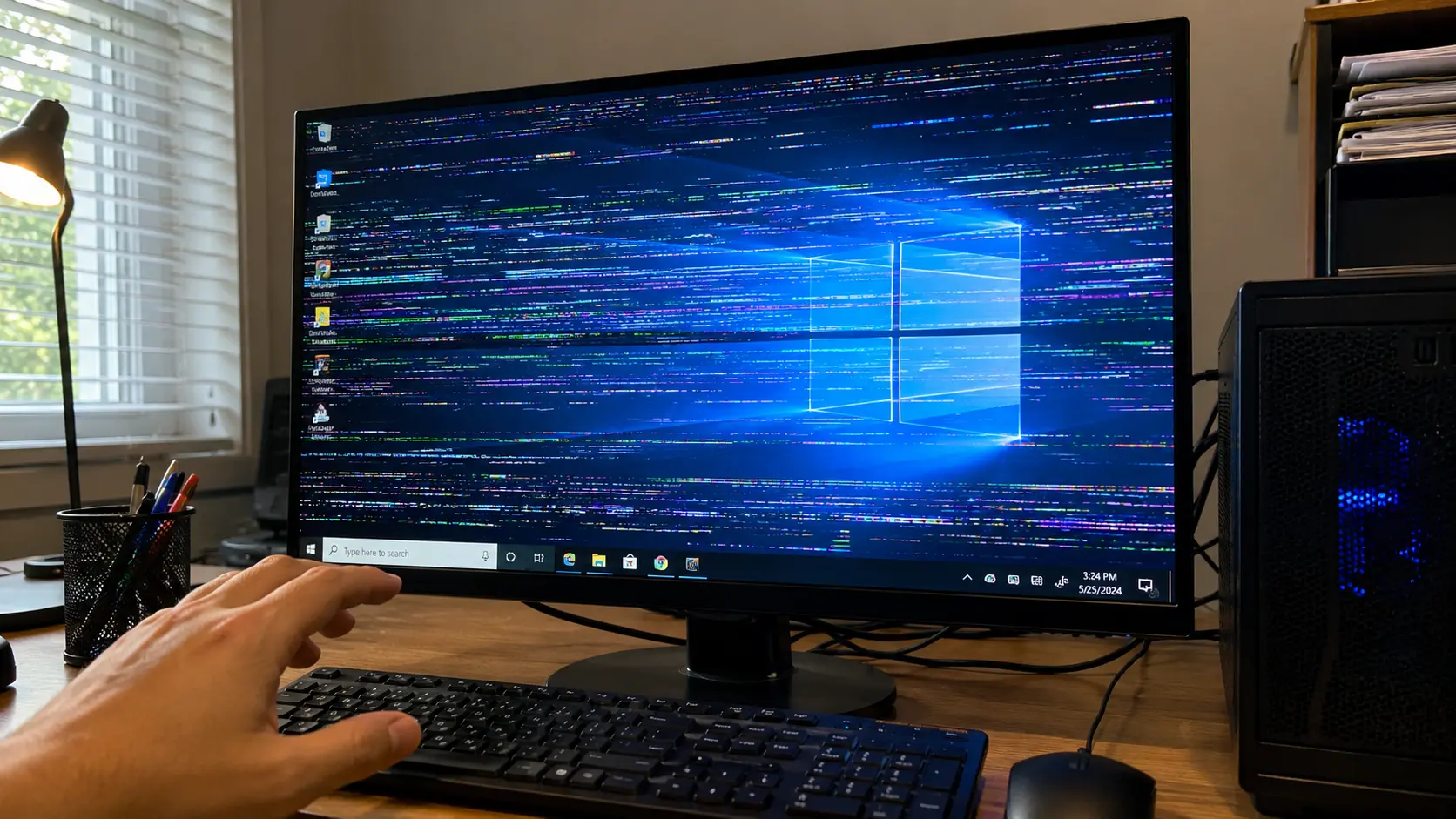
A flickering monitor can make a computer feel finished. The image flashes, briefly goes black, looks scrambled, or becomes unstable after a restart. If the PC also feels hotter than usual, it is easy to assume the hardware is failing and start shopping for a replacement.
Pause before spending money. A screen glitch does not prove that the monitor, graphics card, or entire computer is dead. It can be a clue that a recent display-driver change, Windows update, app conflict, cable problem, or cooling issue needs attention first.
Before You Spend Money on a Replacement PC
- When a Glitchy Screen Makes a Working PC Look Dead
- The Quick Answer Before You Spend Money
- Why an Update Can Look Like Hardware Failure
- Use the Screen Glitch as a Diagnostic Clue
- Safe Checks to Run Before Replacing the PC
- When to Stop Testing and Get Help
- Questions About Glitchy PCs After Updates
- References
The Quick Answer Before You Spend Money
- Best for: Windows users who noticed flickering, brief black screens, scrambled visuals, unexpected heat, or unstable monitor behavior after an update.
- What this covers: Safe checks that help separate an update-related display issue from a cable problem, app conflict, thermal warning, or possible hardware fault.
- What this does not cover: Component-level repairs, BIOS modifications, or instructions to open a laptop or power supply.
- Main caution: A glitchy display is a symptom, not a diagnosis. Do not assume that every flicker is caused by overheating.
- When to get professional help: Shut the PC down and request service if you notice a burning smell, smoke, repeated crashes, a fan that appears stopped while temperatures rise, or visual corruption before Windows loads.
Why an Update Can Look Like Hardware Failure
Windows can automatically install recommended hardware drivers through Windows Update. Optional drivers are handled separately, but an ordinary user may still notice a problem without realizing that a display driver recently changed. That makes the timeline important: did the flickering begin after an update, a restart, a monitor sleep cycle, or the installation of a new app?
Microsoft says that screen flickering in Windows 11 is usually caused by a display-driver issue or an incompatible app. Microsoft also recommends rolling back the display driver when Windows Update recently changed the device and flickering or scrambling begins afterward.
Recent graphics-driver cases show why users should check before replacing hardware. NVIDIA released GeForce driver 595.59 on 2026-02-26, then removed the download after discovering fan-control problems. NVIDIA's later 595.71 driver listed fixes for hardware-monitoring utilities not detecting all GPU fans and for one or more GPU fans not spinning after the driver update.
AMD's 26.6.1 release notes, dated 2026-06-02, list a fixed Radeon RX 9000-series issue where Zero RPM mode could re-enable itself after a monitor went to sleep or was turned off. These examples do not prove that every flickering screen has the same cause. They do prove that software changes can create symptoms serious enough to resemble failing hardware.
Terms Worth Separating
- Display driver: Software that lets Windows communicate with graphics hardware.
- Screen flicker: A visible symptom that may come from software, a connection, a display setting, or hardware.
- Thermal issue: Excess heat that may come from heavy workload, blocked airflow, or cooling behavior that is not responding correctly.
- Rollback: Reverting to a previous driver version when a recent driver change appears to be the trigger.
Use the Screen Glitch as a Diagnostic Clue
A monitor glitch is useful because it gives you a visible event to investigate. During troubleshooting on HP PCs and other Windows systems, unstable monitor behavior was one of the warning signs that drew attention to the underlying problem. That does not establish one universal cause, but it is a good reason to inspect recent changes before assuming the PC needs replacement.
Microsoft offers a simple first test: open Task Manager and see whether it flickers along with the rest of the screen. If Task Manager flickers too, the display driver is probably involved. If Task Manager stays stable while the rest of the display flickers, an incompatible app is more likely.
The number of affected displays also matters. One flickering monitor may point to a cable, dock, adapter, port, refresh-rate setting, or monitor problem. Several displays glitching at the same time may point back toward the PC, graphics driver, or graphics hardware.
Repair-Before-Replacement Check
| What you notice | Check before buying another computer |
|---|---|
| The screen started flickering after an update | Review Windows Update history and the display-driver version |
| Only one monitor glitches | Test another cable, port, or monitor and remove unnecessary adapters |
| Every connected display glitches | Check the display driver, GPU behavior, and whether Task Manager flickers |
| The PC becomes hot or unusually loud | Stop demanding apps and check whether CPU or GPU usage remains high |
| The screen glitches after sleep or monitor wake | Record the pattern and check for a driver-related transition issue |
| Visual corruption appears before Windows loads | Stop treating it as a routine Windows issue and request hardware diagnostics |
A Realistic Scenario
Imagine a desktop that worked normally on Monday. After an update and restart, the monitor briefly turns black twice on Tuesday. On Wednesday, the owner notices more flickering after the monitor wakes from sleep and assumes the computer is dying.
Replacing the PC at that point may be premature. A better first move is to document the update date, check whether Task Manager flickers, test another cable, inspect temperatures, and confirm whether cooling fans appear to operate normally. A service representative can use that record to avoid guessing.
What Not to Assume
- Do not assume the monitor is dead: A display-driver issue or app conflict can create similar symptoms.
- Do not assume Windows itself is always the cause: A graphics-driver update, dock, cable, display setting, or physical fault may be responsible.
- Do not assume a temperature reading tells the whole story: Monitoring software can be incomplete or misleading when fan detection itself is affected.
- Do not assume replacement is the fastest answer: A short diagnostic check may prevent unnecessary spending and electronic waste.
Safe Checks to Run Before Replacing the PC
These steps are designed to collect useful information without opening the computer or making risky changes.
Safer Next Steps
- Save your work and stop demanding tasks. Close games, video editors, and other heavy applications. Give the PC a few minutes at idle.
- Write down when the symptom began. Note whether the glitch followed Windows Update, a graphics-driver update, a restart, sleep mode, or a new app installation.
- Review update history. In Windows 11, open Settings > Windows Update > Update history. Record recent update names and dates.
- Reset the graphics driver once. Press Windows key + Ctrl + Shift + B. The screen may blink briefly as Windows resets the graphics driver.
- Run the Task Manager flicker test. Open Task Manager with Ctrl + Shift + Esc and observe whether it flickers with the rest of the screen.
- Check CPU and GPU activity. In Task Manager, sort processes by CPU and then by GPU. Look for a process that stays unusually active while the PC is idle.
- Isolate the display connection. If possible, try one monitor at a time, use another cable, and remove unnecessary docks or video adapters.
- Inspect cooling behavior from the outside. Listen for fans and look through visible vents only when it is safe to do so. Do not open a laptop, power supply, or unfamiliar desktop case just to investigate.
- Use the manufacturer-recommended driver path. For a laptop or all-in-one PC, check the computer manufacturer's support page before installing a generic graphics driver.
- Consider rollback when the timeline is clear. Microsoft documents using Device Manager to roll back a display driver when Windows Update recently changed the device. Administrative access is required, and the option may be unavailable if Windows does not retain a previous driver.
When Not to Keep Testing
Do not continue running games, benchmarks, or other heavy workloads simply to see whether the problem gets worse. A repeated visual glitch is enough reason to document the issue and reduce load while you investigate.
Do not change several variables at once. If you update the BIOS, reinstall Windows, swap drivers, change refresh rates, and replace cables in one session, you may lose the evidence needed to identify the trigger.
When to Stop Testing and Get Help
Some warning signs justify a faster handoff to a qualified service representative.
Red Flags
- The PC smells like overheated plastic or electronics.
- You see smoke, sparking, or signs of physical damage.
- The computer becomes unusually hot during light use.
- A visible fan appears stopped while the system temperature continues rising.
- The computer repeatedly shuts down, restarts, or crashes.
- Flickering or corruption appears in the BIOS screen or before Windows starts.
- The issue affects several displays after you test different cables.
- You are not comfortable identifying the graphics adapter or reviewing drivers safely.
If there is smoke, a burning smell, or a dangerously hot surface, shut the computer down and disconnect power when it is safe to do so. Do not keep testing the system under load.
The Better First Decision
A glitchy screen deserves attention, but it is not an automatic reason to replace a PC. The better first decision is to record what changed, run a few safe isolation checks, and hand a service representative a useful timeline.
That small pause matters. When companies push updates without making failures easy to identify, ordinary users can mistake a repairable software problem for a dead computer. A working PC should not become electronic waste because nobody checked the last update.
Questions About Glitchy PCs After Updates
Q1. Does a flickering screen mean my GPU is overheating?
Not necessarily. Flickering can come from a display driver, incompatible app, cable, dock, monitor setting, or hardware problem. Check the update timeline, Task Manager behavior, display connections, temperatures, and visible fan behavior before drawing a conclusion.
Q2. Should I immediately uninstall the latest Windows update?
Not as a first step. Record the installed Windows updates and display-driver version, then isolate whether the issue points to the driver, an app, a cable, or a broader hardware problem. Microsoft specifically documents rolling back a display driver when Windows Update recently changed the device and flickering began afterward.
Q3. Should I replace an older PC if the display becomes glitchy after an update?
Replacement may be appropriate when hardware diagnostics confirm a fault or repair is no longer economical. A glitch that begins immediately after an update deserves basic troubleshooting first. A repairable driver or connection problem can look more serious than it is.
Q4. Why check whether the glitch appears before Windows starts?
A glitch inside the BIOS screen or before Windows loads is less likely to be a routine Windows app problem. It may point toward hardware, firmware, or a connection issue that deserves professional diagnostics.
By: Marcus Irizarry
About the author: Marcus Irizarry covers coding, web design, IT service, ecommerce, video games, and media production for Raxan.net. This post combines official vendor documentation with practical troubleshooting observations from HP PCs and other Windows systems.
Last updated: 2026-06-08
Disclosure: No paid placement influenced this post.
Safety and Scope Note
This post provides general troubleshooting information. It does not confirm the cause of a specific computer problem and does not replace hands-on diagnostics. Stop testing and request qualified service when there are signs of overheating, electrical damage, repeated crashes, or visual corruption before Windows loads.
References
- Microsoft Support — “Troubleshoot screen flickering in Windows.” https://support.microsoft.com/en-us/windows/troubleshoot-screen-flickering-in-windows-47d5b0a7-89ea-1321-ec47-dc262675fc7b
- Microsoft Support — “Automatically get recommended and updated hardware drivers.” https://support.microsoft.com/en-us/windows/automatically-get-recommended-and-updated-hardware-drivers-0549a8d9-4842-8acb-75fa-a6faadb62507
- NVIDIA — “GeForce Game Ready Driver 595.71 | Windows 11.” https://www.nvidia.com/en-us/drivers/details/265179/
- AMD — “AMD Software: Adrenalin Edition 26.6.1 Driver Release Notes.” https://www.amd.com/en/resources/support-articles/release-notes/RN-RAD-WIN-26-6-1.html
- Intel Support — “How to Fix a Flickering Screen with Intel Graphics.” https://www.intel.com/content/www/us/en/support/articles/000026580/graphics.html



0 Comments