
If Your Laptop Update Had the Timing of a Petty Ex
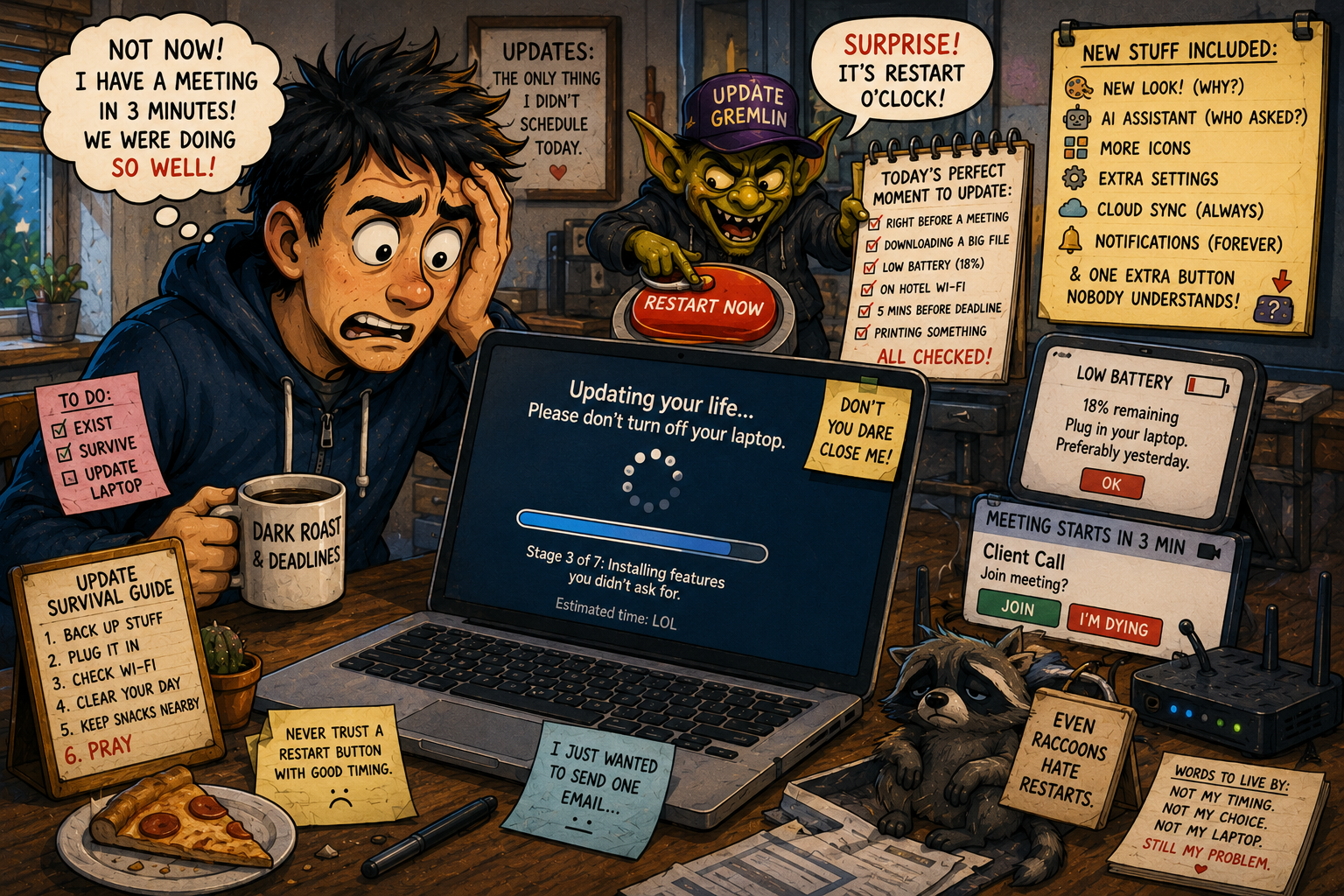
A laptop update never arrives when your schedule is empty, your coffee is perfect, and your soul is prepared. No. It waits until you are five minutes from a video call, exporting a file, helping someone print a form, or trying to look like a competent adult in front of another adult.
Then the message appears: “Restart required.”
Not now, máquina. Not during the one moment this laptop was pretending to be useful.
The joke is old because the pain is fresh. In 2026, updates are not just security fixes. They can bring design changes, AI features, new icons, new menus, new privacy prompts, and one extra button nobody recognizes. Some updates are important. Some feel like your laptop went to a weekend leadership seminar and came back saying, “I’ve changed.”
What This Update Drama Covers
- If Your Laptop Update Had the Timing of a Petty Ex
- The Update Never Arrives When You Are Emotionally Available
- New Features Nobody Asked For, Now With More Buttons
- Mini Case: The Laptop That Chose Violence at 8:57 A.M.
- The Update Survival Checklist
- The Bottom Line: Update, But Do Not Let the Laptop Drive
- FAQ: Laptop Updates, Restarts, and Surprise Features
- References
The Update Never Arrives When You Are Emotionally Available
Laptop updates have two modes: invisible for six days, then suddenly urgent like a raccoon in a smoke alarm. They do not care that you are on hotel Wi-Fi. They do not care that your battery is at 18%. They do not care that you opened the laptop only to send one email before leaving the house.
This is not entirely the laptop’s fault. Updates often include security fixes, reliability patches, driver improvements, and compatibility changes. They matter. A laptop that never updates is not “stable.” It is slowly becoming a museum exhibit with browser tabs.
The frustration comes from timing and presentation. Users are told to update for safety, but the update dialog often feels like a hostage note with friendly fonts. “Restart now.” “Restart tonight.” “Remind me later.” These are not options. These are stages of grief.
Active Hours Exist, Yet Chaos Persists
Windows lets users set active hours so the system avoids restarting while the device is usually in use. Windows can also let users schedule a restart. That is useful, but many people never touch those settings because the update screen appears at the exact moment they are trying to do something else.
macOS has its own update rhythm. Apple’s macOS Tahoe 26 brought a new design, more Continuity features, Spotlight updates, and expanded Apple Intelligence features. Those may be exciting if you asked for them. If you did not, they can feel like waking up to find your desk rearranged by an enthusiastic intern.
The update may be good. The timing may still be petty.
New Features Nobody Asked For, Now With More Buttons
The phrase “new features” used to mean something simple. Maybe a faster search box. Maybe better battery reporting. Maybe a folder option hidden in a place only three people and one support forum would ever find.
Now “new features” can mean AI tools, visual redesigns, widgets, new account prompts, cloud integrations, backup nudges, notification changes, and privacy settings that sound like they require a small legal team and a folding chair.
The issue is not improvement. Improvement is great. The issue is feature creep disguised as care. Your laptop says, “We made this easier,” while adding a panel, a sidebar, an assistant, a sync request, and a banner asking whether you would like personalized suggestions based on the part of your life you thought was none of its business.
The Surprise Feature Problem
Surprise features are annoying because they interrupt habits. People build muscle memory around laptops. They know where the button lives. They know what the menu looks like. They know which warning can be ignored and which warning means “save your document now, champion.”
When an update changes too much without a plain explanation, normal users get suspicious. Is this safer? Is this necessary? Is this optional? Did my laptop just join a cloud service without asking? Why is there an icon shaped like ambition?
This is where “nobody asked for this” comes from. Sometimes people did ask, somewhere, in a feedback hub, in a beta program, under fluorescent lighting. But the average user just wanted the laptop to open, connect to Wi-Fi, and not perform experimental theater before breakfast.
Mini Case: The Laptop That Chose Violence at 8:57 A.M.
Imagine a normal home laptop. It has 42 tabs open, because apparently closing tabs is a personality test. It is used for work, school forms, bills, shopping, video calls, and one mysterious spreadsheet titled “final budget real final.”
At 8:57 a.m., the user has a 9:00 a.m. call. The laptop has other plans.
First, a restart warning. Then a driver update. Then the browser reopens with a “what’s new” page. Then a new feature panel appears. Then an AI tool offers to summarize the meeting that has not started. Then the audio settings forget which microphone exists. This is not productivity. This is a tiny software circus doing jumping jacks on the keyboard.
The user does what users do: clicks through everything quickly to get back to work. That is the risky part. Bad timing trains people to rush through prompts, and rushed prompts are where privacy settings, sync options, default apps, and unwanted features slip in wearing fake mustaches.
Update Drama Table
| Update Moment | What It Feels Like | Better Move |
|---|---|---|
| Restart required during work | Personal betrayal with a progress bar | Schedule the restart for lunch or after work |
| New feature appears after reboot | Laptop redecorated itself | Read the short “what’s new” note before accepting prompts |
| Privacy or AI prompt appears | Software wants a house key | Choose limited access first |
| Old Windows 10 PC wants attention | Haunted but familiar | Confirm ESU, upgrade path, or retire it from sensitive tasks |
| Audio or printer breaks | Technology comedy, but bad | Check drivers and restart once before changing everything |
The Update Survival Checklist
Updates are not optional forever, but they should not control your whole day. Treat them like dental appointments for your laptop: annoying, necessary, better when scheduled.
Before You Click Restart
- Save open documents.
- Bookmark or close important tabs.
- Plug in the laptop.
- Use reliable Wi-Fi.
- Check whether you have 20 to 30 minutes available.
- Screenshot or note any important error message.
- Delay feature setup prompts if you are busy.
- Review privacy, AI, sync, and backup prompts slowly later.
Set Boundaries With Update Timing
On Windows, check active hours under Windows Update settings and adjust them to match when you actually use the device. If Windows asks for a restart, schedule it instead of letting the laptop pick a chaotic little moment of destiny.
For macOS, check Software Update before a work trip, school deadline, or big meeting. Do not discover a major update while your laptop is on airport Wi-Fi with 9% battery and the emotional stability of a paper straw.
For Windows 10 users, the situation is more serious. Microsoft ended Windows 10 support on October 14, 2025. Eligible devices can use Extended Security Updates for more time, but the free-support era is over. If that old laptop still handles banking, email, passwords, or work files, it needs a supported plan. If it is only a recipe machine or couch browser, give it a lighter job and stop asking it to defend the kingdom.
The Tradeoff: Updates Are Annoying Because They Matter
Here is the uncomfortable truth: the same updates that introduce surprise features often carry security and stability fixes. Skipping every update because one menu changed is like refusing all mail because one envelope contained a dental bill.
Updates protect against known issues, support new hardware, fix bugs, and keep browsers and apps working properly. The annoying part is that updates also become delivery trucks for features, settings prompts, and design changes. Safety and clutter arrive in the same box.
That means the smart move is not “never update.” The smart move is “update on your schedule, then review what changed.”
When Not to Install Immediately
Do not start a major update right before:
- A meeting, exam, work deadline, or travel departure
- A low-battery situation
- A weak or public Wi-Fi connection
- A live presentation
- A remote support session with someone who already thinks computers are cursed
- A moment when you cannot troubleshoot for at least 20 minutes
Security updates should not be ignored for weeks. But a major feature update can often wait until you have time to handle the after-party: restarts, prompts, settings, and the one app that acts offended.
The Bottom Line: Update, But Do Not Let the Laptop Drive
Laptop updates have the timing of a petty ex because they appear exactly when you are least interested in emotional processing. They are necessary, but the delivery needs manners.
The practical takeaway is simple: set active hours, schedule restarts, check updates before important days, and slow down when a new privacy or AI feature asks for access. Update the machine, but do not let every new feature move into your life rent-free.
A laptop should be a tool, not a drama calendar with a keyboard. Let it patch. Let it improve. Then tell the surprise feature goblin to wait outside until you have coffee.
FAQ: Laptop Updates, Restarts, and Surprise Features
Q1. Should I install laptop updates right away?
A1. Security updates should be installed soon, preferably when you have time to restart and troubleshoot. Major feature updates can usually wait until your schedule is clear.
Q2. How do I stop Windows from restarting at the worst time?
A2. Set active hours in Windows Update settings and use the schedule restart option when available. That gives you more control over when the restart happens.
Q3. Are new AI or personalization features required after updates?
A3. Not always. Many features have settings or setup prompts. Read the prompt, choose limited access first, and turn off features you do not use.
Q4. Is Windows 10 still safe to use?
A4. Windows 10 support ended on October 14, 2025. If your PC is eligible for Extended Security Updates, enroll or create a plan to upgrade. Avoid using unsupported devices for sensitive tasks.
By: Rex Iriarte
Why trust this: Consumer-tech commentary based on current Windows and macOS update behavior, restart controls, feature-rollout trends, and everyday laptop maintenance.
Last updated: 2026-05-13
Disclosure: No paid placement influenced this post.
References
- Microsoft Support, “Keep your PC up to date with active hours,” accessed May 13, 2026
- Microsoft Support, “Windows Update: FAQ,” accessed May 13, 2026
- Microsoft Support, “Windows 10 support has ended on October 14, 2025,” accessed May 13, 2026
- Microsoft Support, “Privacy and control over your Recall experience,” accessed May 13, 2026
- Apple Newsroom, “macOS Tahoe 26 makes the Mac more capable, productive, and intelligent than ever,” June 9, 2025




0 Comments