
The Tiny Dictator Living Inside Every Permission Popup
Every permission popup has the same energy: polite face, tiny crown, unreasonable demands. It slides onto your screen and says, “Allow access to your location?” like it is asking to borrow a pencil. Then you look closer and realize the pencil is your contact list, camera, microphone, photos, calendar, Bluetooth, motion sensors, and maybe the emotional history of your left eyebrow.
The buttons do not help. “Allow” sounds breezy. “Don’t Allow” sounds like you are personally ruining the app’s childhood.
This is the tiny dictator living inside every permission popup. It does not shout. It does not kick the door. It smiles in system font and asks for “a better experience.” Ay bendito, somehow the better experience always starts with you handing over more of your life.
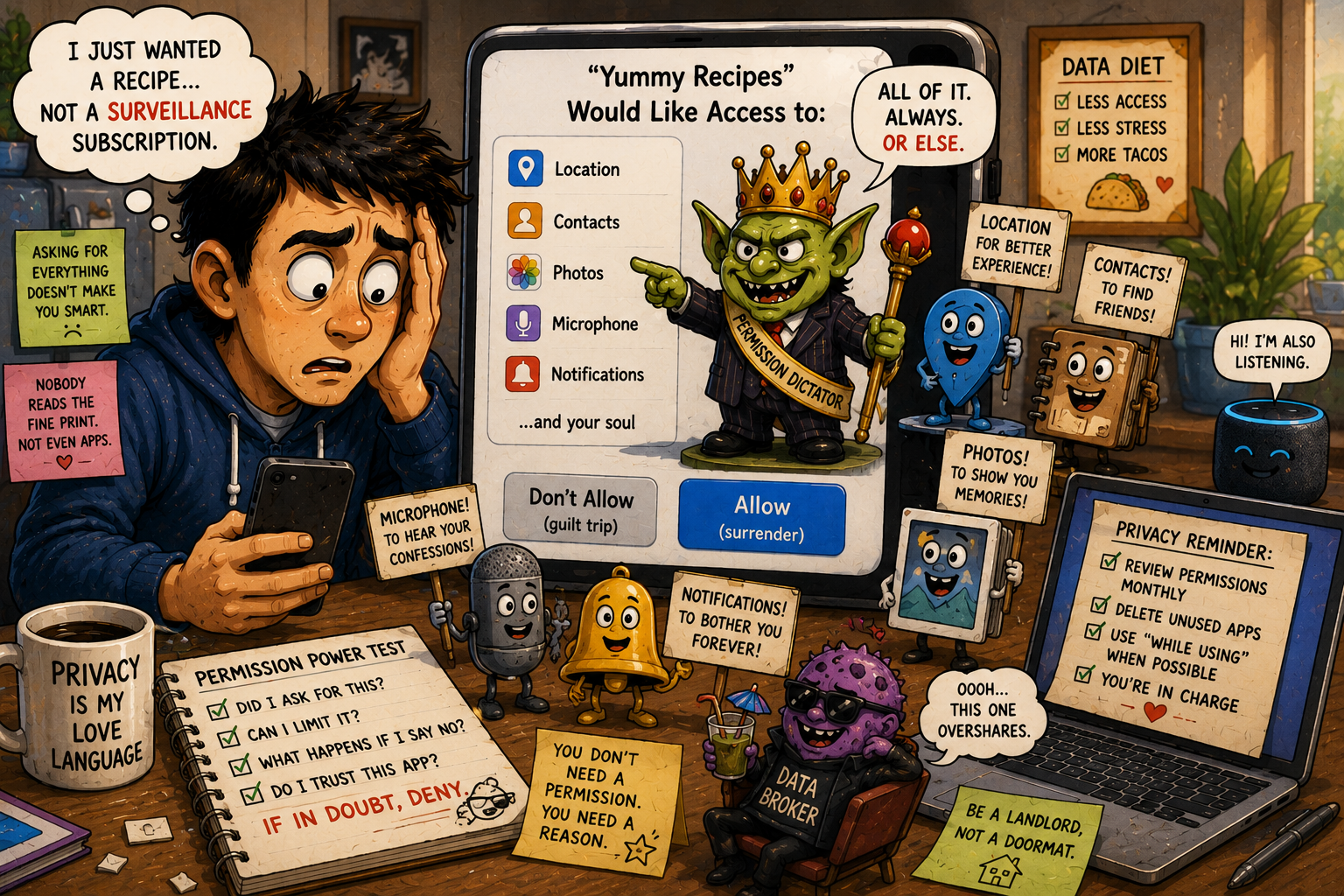
What This Permission Popup Uprising Covers
- The Tiny Dictator Living Inside Every Permission Popup
- Permission Popups Pretend to Ask, Then Start Negotiating
- Why 2026 Made the Tiny Dictator Louder
- Mini Case: The Recipe App That Wanted Your Entire Social Circle
- The Permission Popup Power Test
- The Bottom Line: Say Yes Like a Landlord, Not a Doormat
- FAQ: Permission Popups, Privacy, and App Access
- References
Permission Popups Pretend to Ask, Then Start Negotiating
A permission popup looks like a simple question. It is really a miniature negotiation between what the app wants and what you actually need.
Sometimes the app is reasonable. A camera app needs the camera. A maps app needs location. A video call app needs the microphone unless you are performing silent-screen theater for coworkers.
Other times, the request feels suspiciously ambitious. A recipe app wants contacts. A wallpaper app wants precise location. A coupon app wants Bluetooth. A flashlight app wants notifications, which is bold for an app whose job is “be light.”
The trick is to stop treating permission popups as moral tests. You are not being rude by saying no. You are doing access control. That sounds fancy, but it means, “You may enter the kitchen. You may not inspect the attic.”
The Button Design Is Part of the Drama
Permission prompts often make the yes button look like the main path and the no button feel like a trapdoor. Apps may ask again later, explain why they “need” access, or hide a feature behind a prompt until you give in.
That does not automatically mean the app is shady. Some permissions are genuinely needed for features. But the design pressure is real. The popup wants speed. Your privacy needs friction.
If the permission request appears before you use the feature, be skeptical. If a photo-printing app asks for selected photos when you tap “upload,” that makes sense. If it asks for your whole photo library during the welcome screen, the tiny dictator is already measuring the curtains.
Why 2026 Made the Tiny Dictator Louder
Privacy controls are more visible now, but visibility does not always mean clarity. App stores, operating systems, and browsers have added more labels, reports, dashboards, and permission explanations. That is good. It also means everyday users now face a weird new homework assignment: translating software manners.
Apple’s App Tracking Transparency asks apps to get permission before tracking across other companies’ apps and websites. Apple’s privacy labels are meant to show what data apps may collect and whether it may be linked to you or used to track you. Google Play’s Data safety section asks developers to disclose collection and sharing practices. Android has also made some declared data-safety information more visible in permission flows, and Google announced 2026 changes around location permissions.
That is a lot of progress. It is also a lot of tiny paperwork.
More Control Means More Choices
The funny thing about privacy control is that users often get more buttons, not fewer headaches. “Allow once,” “while using,” “always,” “approximate,” “precise,” “selected photos,” “full access,” “ask next time,” “do not track,” “personalized ads,” “data sharing,” “background refresh.”
Congratulations, your phone now has a zoning board.
More choices are useful only when people know which choice fits the job. Otherwise, permission popups become speed bumps that users learn to tap through. That is dangerous because scammers, sketchy apps, and overly hungry data systems all benefit when users get tired.
Mini Case: The Recipe App That Wanted Your Entire Social Circle
Imagine downloading a recipe app because you want chicken soup. Nothing dramatic. Just dinner.
First prompt: notifications. Fine, maybe you want meal reminders.
Second prompt: photos. Reasonable only if you plan to upload meal pictures.
Third prompt: location. Maybe useful for grocery delivery or local store deals, but not for boiling carrots.
Fourth prompt: contacts. Now the soup has become a surveillance casserole.
The app might say contacts help you “share recipes with friends.” Cute. But you can usually share a recipe without letting an app scan your entire address book like it is hosting Thanksgiving for every person you met since 2012.
Permission vs. Purpose Table
| Permission Request | Reasonable When | Tiny Dictator Moment |
|---|---|---|
| Camera | You scan receipts, QR codes, or take photos in-app | The app asks before any camera feature appears |
| Location | You need maps, local alerts, or delivery estimates | The app wants precise location for basic content |
| Contacts | Messaging or collaboration is central | The app only needs a share button |
| Photos | You upload or edit images | The app asks for the whole library by default |
| Microphone | Voice notes, calls, or audio recording | A shopping or recipe app asks with no clear reason |
| Notifications | Alerts you requested | The app sends marketing disguised as urgency |
This is where common sense beats panic. The app’s job should explain the permission. If the explanation sounds like it came from a marketing department trapped in a fog machine, deny first.
The Permission Popup Power Test
Use this before approving access. It takes less time than finding the email with your dentist’s new patient form, which your inbox has hidden out of spite.
1. Did I ask for the feature?
If you tapped “scan document,” camera access makes sense. If you opened the app for the first time and it immediately wants camera, microphone, contacts, and location, it has main-character syndrome.
2. Can I give a smaller yes?
Choose the narrowest useful option. Use “while using” instead of “always.” Use “selected photos” instead of the full library. Use approximate location if precise location is not needed. Use one-time access when testing an app.
A smaller yes is still a yes. It lets the feature work without letting the app move into your guest room.
3. What happens if I say no?
If the app explains clearly, good. If the app breaks dramatically or keeps nagging without explaining, that tells you something.
Good software explains tradeoffs. Pushy software makes refusal feel like rebellion.
Quick Permission Popup Checklist
- Deny permissions that appear before you use the related feature.
- Use limited access whenever available.
- Avoid full photo, contacts, email, or calendar access unless the core feature truly needs it.
- Turn off notifications that mostly advertise, upsell, or guilt-trip.
- Review location permissions monthly.
- Delete apps you have not used in 90 days.
- Check privacy labels or Data safety summaries before installing unfamiliar apps.
- Do not grant permissions from panic popups, fake warnings, or random web pages.
The Tradeoff: Some Convenience Is Worth It
Here is the part that keeps this from becoming a “throw your phone in a lake” speech. Some permissions are worth granting.
A rideshare app needs location. A banking app may need camera access to scan a check or verify identity. A video app needs microphone and camera access for calls. A calendar assistant may need calendar access if you expect it to manage your schedule.
The problem is not permission. The problem is lazy permission. Full access should not be the default just because it is easier for the developer.
When Not to Fight the Popup
Do not overthink every permission on trusted tools you use daily. If the benefit is clear, the app is reputable, and the access is limited to the feature, approve it. Privacy is not about making your phone miserable. It is about making access intentional.
But do not let “trusted” become permanent autopilot. Big apps change. Features change. Data practices change. Your habits change. The permission you granted for one feature two years ago may now be access you no longer need.
The tiny dictator wins when old permissions stay forever because nobody checks the drawer.
The Bottom Line: Say Yes Like a Landlord, Not a Doormat
Permission popups are not going away. Apps, AI tools, browsers, smart devices, and operating systems will keep asking for access because access makes features smoother and data more valuable.
The practical move is simple: approve permissions only when the app’s job explains the request, choose the smallest useful access, and revisit old permissions before they become digital squatters. You do not need to fear every popup. You need to stop treating every popup like it has authority over your life.
The tiny dictator can ask. You can say no. Or better, you can say, “You may have location while using the app, and you will be grateful.” That is not paranoia. That is boundaries with Wi-Fi.
FAQ: Permission Popups, Privacy, and App Access
Q1. Should I deny every permission popup?
A1. No. Some permissions are necessary. Deny unclear requests first, then grant access when a feature clearly needs it.
Q2. Which permissions deserve the most caution?
A2. Be careful with contacts, precise location, microphone, camera, full photo library, calendar, email, files, health data, financial data, and tracking across apps.
Q3. Is “while using the app” safer than “always allow”?
A3. Usually yes. “While using” limits access to times when the app is active. “Always allow” should be reserved for features that genuinely need background access.
Q4. How often should I review app permissions?
A4. Once a month is enough for most users. Start with location, notifications, contacts, photos, microphone, and camera access.
By: Rex Iriarte
Why trust this: Consumer-tech commentary based on current app permission controls, privacy labels, location access changes, and everyday device behavior.
Last updated: 2026-05-13
Disclosure: No paid placement influenced this post.
References
- Apple, “Privacy - Control,” accessed May 13, 2026
- Apple, “Privacy Labels,” accessed May 13, 2026
- Android Developers Blog, “Redefining Location Privacy,” March 26, 2026
- Google Play Help, “Policy announcement: April 15, 2026,” accessed May 13, 2026
- Federal Trade Commission, “Privacy and Security Enforcement,” accessed May 13, 2026




0 Comments