
The Password That Was Easy to Share Becomes Hard to Control
A shared Wi-Fi password feels efficient when a school, nonprofit, repair counter, or small office has only a few devices. Someone writes it on a sticky note, connects the Chromebook, and moves on. Six months later, the same password may be known by staff, students, volunteers, contractors, printers, loaners, and devices nobody remembers approving.
The question is not whether every organization needs an enterprise wireless overhaul. Many do not. The useful question is whether a shared passphrase still matches the number of people, devices, and handoffs the network now supports.
A managed Wi-Fi profile can reduce manual setup and make future changes easier to push to managed Chromebooks. For organizations with higher risk or more complex access needs, certificate-backed options may provide a stronger path. The right choice depends on the environment, not on chasing the most complicated configuration.
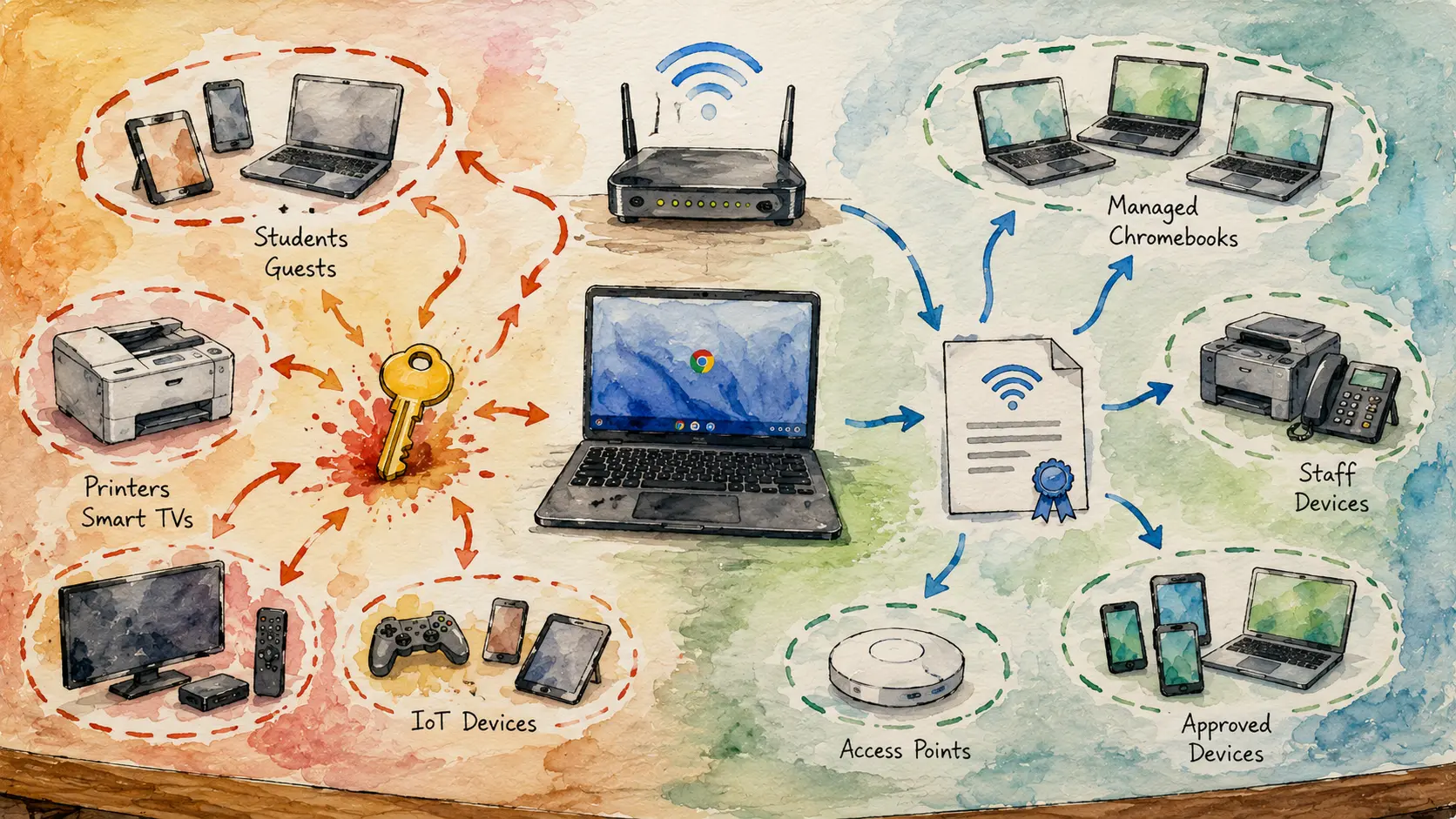
Chromebook Wi-Fi Design Map
- The Password That Was Easy to Share Becomes Hard to Control
- Quick Answer: Match the Wi-Fi Method to the Risk
- Why a Shared Passphrase Stops Scaling
- What a Managed Wi-Fi Profile Changes
- Choose the Smallest Upgrade That Fixes the Real Problem
- Migrate Without Turning Monday Morning Into a Helpdesk Flood
- A Better Wi-Fi Setup Is Easier to Explain and Easier to Revoke
- Frequently Asked Questions
- Disclaimer
- References
Quick Answer: Match the Wi-Fi Method to the Risk
- Best for: Schools, libraries, nonprofits, repair counters, and small offices deciding how managed Chromebooks should connect to Wi-Fi.
- What this covers: A decision framework for comparing shared passphrases, centrally managed Wi-Fi profiles, guest access, and certificate-backed approaches.
- What this does not cover: Password extraction, bypass methods, unauthorized access, or detailed instructions for defeating network controls.
- Main caution: A managed profile is not automatically safer if it still gives every device access to the same broad internal network.
- When to get professional help: Bring in an authorized network administrator when the organization handles sensitive data, depends on uninterrupted access, has several access points or locations, or cannot identify which devices currently use a shared password.
Google recommends using the Admin console to create Wi-Fi profiles and apply them to ChromeOS devices during enrollment. Google also states that later updates to those profiles are automatically pushed to devices. That is the practical advantage: the administrator can change the managed configuration without manually revisiting every Chromebook.
The security decision still needs a clear goal. A profile can distribute a shared password more cleanly, separate guest devices from internal systems, or support certificate-backed access. Those are different outcomes.
Why a Shared Passphrase Stops Scaling
A shared passphrase is one password used by multiple devices or people. It may be acceptable for a home guest network or a tiny office with a short, known device list. It becomes harder to defend when the password spreads beyond the people who need it.
The biggest weakness is operational. Once a password is shared widely, the organization may not know who still has it. Rotating the password can interrupt printers, staff laptops, streaming devices, access points, and loaner Chromebooks. Because the change feels disruptive, teams often postpone it.
Signs the Shared Password Has Outgrown Its Job
- The same password appears on staff devices, student devices, guest devices, and loaners.
- New volunteers or temporary workers receive the internal Wi-Fi password because it is the fastest option.
- Nobody can produce a current list of devices that must be updated after a password change.
- A single forgotten printer or conference-room device can derail a rotation.
- Former staff members or contractors may still know the credential.
- The organization avoids rotating the password because the cleanup feels unpredictable.
A Small Office That Quietly Became a Larger Network
A tutoring center opens with four Chromebooks, one printer, and one front-desk laptop. The owner creates one Wi-Fi password and shares it with the team. Two years later, the center has 18 Chromebooks, seasonal tutors, a smart television, three printers, visitor devices, and a second room with another access point.
The original password still works. That is precisely the problem. The center cannot easily answer who knows it, which devices depend on it, or whether every device belongs on the same network.
The first improvement is not a complicated certificate rollout. It is separating visitors and loaners from staff equipment, documenting the device groups, and deciding which Chromebooks should receive a managed profile.
What a Managed Wi-Fi Profile Changes
A managed Wi-Fi profile is a network configuration delivered through the organization’s administrative controls. For managed ChromeOS devices, Google documents controls for Wi-Fi, Ethernet, VPN access, and network certificates. Administrators can apply settings across an organization or to selected organizational units.
That structure matters because a school can treat student Chromebooks differently from staff Chromebooks. A small office can keep a repair-counter loaner off the same network used by internal systems. A nonprofit can move shared devices into a dedicated group rather than relying on a password passed from person to person.
Three Profile Decisions to Make First
- Who receives the profile: Decide whether the network should apply by device, by user, or only to a selected group.
- Which network the profile reaches: Separate student, guest, loaner, staff, and operational equipment where practical.
- How access is authenticated: A profile may distribute a shared credential or support a certificate-backed design when the organization has the infrastructure and administrative capacity.
Google documents that client certificates on ChromeOS devices are backed by the device’s Trusted Platform Module, and the private key does not leave the device. That can support a stronger access model for organizations that are prepared to manage certificates properly. It is not a beginner shortcut. Certificate deployment adds planning, testing, renewal, and support responsibilities.
Shared Password and Certificate-Backed Access Are Not the Same Upgrade
A centrally managed profile with a shared passphrase can still be a meaningful improvement. It reduces manual entry, narrows who needs to know the password, and makes profile changes easier to push. It does not create unique credentials for each Chromebook.
A certificate-backed profile can go further by tying access to managed credentials rather than one password known by many people. That may fit larger schools, organizations with stricter access requirements, or teams that already manage certificates. It may be excessive for a five-device office that mainly needs a guest network and a documented password-rotation plan.
Choose the Smallest Upgrade That Fixes the Real Problem
The safest plan is not always the most complex plan. The goal is to reduce uncontrolled access without creating a wireless system the organization cannot maintain.
Wi-Fi Options Compared
| Option | Best for | Main advantage | Main limitation |
|---|---|---|---|
| Shared passphrase entered manually | Home networks and tiny offices with a stable, known device list | Simple to understand and inexpensive to maintain | Password knowledge spreads easily and rotations become disruptive as the network grows |
| Managed Wi-Fi profile using a shared passphrase | Managed Chromebook fleets that need easier setup and controlled profile delivery | Administrators can push updates to devices without manually reconnecting each Chromebook | The underlying credential is still shared and the network may remain too broad |
| Certificate-backed managed profile | Organizations with stronger access-control needs and staff able to manage certificates | Reduces dependence on one widely known password and supports device-linked access | Requires planning, testing, renewal, and administrator support |
| Separate guest or loaner network | Visitors, contractors, temporary devices, and repair-counter equipment | Keeps temporary access away from internal equipment | Still needs clear rules, secure configuration, and periodic review |
A Simple Decision Guide
- If you have fewer than 10 stable devices and no shared Chromebook fleet, begin with a secure staff network, a separate guest network, and a documented rotation process.
- If you have managed Chromebooks that move between users or rooms, use centrally delivered Wi-Fi profiles so configuration changes do not depend on manual entry.
- If you have staff-only systems, several device groups, or stronger access-control requirements, discuss certificate-backed access with an authorized administrator.
- If you have loaners, repair devices, volunteers, or visitors, keep them off the internal staff network whenever practical.
- Skip a complex certificate project if the organization lacks the staff, documentation, or support capacity to maintain it reliably.
The device count is a planning shortcut, not a hard security rule. A five-device clinic may need tighter controls than a 20-device tutoring center because the data, systems, and consequences differ.
Migrate Without Turning Monday Morning Into a Helpdesk Flood
A wireless redesign fails when the organization changes too much at once and does not know how to roll back. Start small. Google recommends beginning with one ChromeOS device configured the way the organization wants, then applying settings to the rest of the devices.
NIST guidance for wireless local area networks emphasizes security configuration and monitoring. That supports a practical approach: document the current state, pilot the change, monitor the result, and expand only after the test group behaves as expected.
Six-Step Migration SOP
- Inventory the current network names and device groups. List staff devices, student devices, loaners, guests, printers, and operational equipment.
- Define the access boundary. Decide which groups need internal access and which groups only need internet access.
- Create a small pilot group. Test the intended profile on three to five Chromebooks before changing an entire school cart or office fleet.
- Verify the daily workflow. Test sign-in, reconnect behavior, printing needs, shared-device handoffs, and the expected network after a restart.
- Schedule the credential change. Rotate an exposed or overly broad passphrase during a planned maintenance window, not five minutes before the workday starts.
- Document the rollback and owner. Record who can reverse the change, which devices may need manual attention, and where support notes are stored.
Mistakes That Create Avoidable Outages
- Changing the password before making a device list: The team discovers forgotten printers and loaners only after users cannot connect. Create the inventory first.
- Using one profile for every Chromebook: Staff, student, loaner, and public-use devices may need different access boundaries. Separate the groups before pushing settings broadly.
- Starting with certificates because they sound more secure: A certificate-backed design can be useful, but an unsupported rollout can create more downtime than protection. Pilot it with qualified help.
- Treating guest Wi-Fi as an afterthought: Guest access is part of the design. Temporary devices should not receive internal access simply because someone is in a hurry.
- Skipping monitoring after the change: A successful first connection does not prove the rollout is complete. Watch for reconnect failures, support tickets, and devices that were not included in the pilot.
Red Flags That Justify Escalation
- The same Wi-Fi password is used by staff, students, guests, printers, and loaners.
- The organization cannot identify all devices that need to reconnect after a rotation.
- A lost, stolen, sold, or donated Chromebook may still have managed access.
- Several locations or access points behave differently after profile changes.
- Sensitive systems sit on the same broad network as temporary devices.
- Nobody owns certificate renewal, profile maintenance, or rollback documentation.
A Better Wi-Fi Setup Is Easier to Explain and Easier to Revoke
A shared passphrase can be enough for a small, stable environment. It becomes a liability when too many people, devices, and exceptions depend on it. Managed Wi-Fi profiles help by centralizing Chromebook configuration and making future changes easier to push.
The practical next step is not to choose the fanciest option. List the device groups, separate temporary access from internal access, pilot a managed profile on a few Chromebooks, and decide whether a certificate-backed design is justified by the organization’s risk and support capacity.
Frequently Asked Questions
Q1. Is a managed Wi-Fi profile the same as a certificate-based network?
No. A managed profile is the centrally delivered network configuration. It may distribute a shared passphrase or support a certificate-backed approach. The organization should choose the authentication method that fits its risk, device count, and support capacity.
Q2. Does a small office need certificate-backed Wi-Fi?
Not automatically. A small office may get a meaningful improvement from a separate guest network, a documented device list, planned password rotations, and centrally delivered profiles for managed Chromebooks. Certificate-backed access becomes more attractive when the organization needs tighter device-level control and has the staff or service provider to maintain it.
Q3. Can managed Chromebook profiles make password rotation easier?
Yes. Google states that administrators can create Wi-Fi profiles in the Admin console, apply them to ChromeOS devices, and push later profile updates automatically. The organization should still pilot changes and plan for devices outside the managed Chromebook fleet.
Q4. Should loaner Chromebooks use the same Wi-Fi network as staff laptops?
Usually not when a separate guest or loaner network can meet the need. Temporary devices should receive only the access required for their purpose. The right design depends on the organization’s applications, printers, and support workflow.
By: Marcus Irizarry
About the author: Marcus covers coding, web design, IT service, ecommerce, and practical technology topics for everyday users.
Last updated: 2026-06-12
Disclosure: No paid placement influenced this post.
Disclaimer
This post is a general security-awareness and network-planning resource. It does not provide credential-extraction instructions, bypass methods, individualized cybersecurity advice, or permission to access any device or network. Review only devices and networks that you own or are authorized to administer. Use an authorized network administrator for changes that may affect school, workplace, or sensitive systems.
References
- Google Chrome Enterprise and Education Help — “Add Wi-Fi networks.” https://support.google.com/chrome/a/answer/4601289?hl=en
- Google Chrome Enterprise and Education Help — “Set up networks for managed devices.” https://support.google.com/chrome/a/answer/2634553?hl=en
- Google Chrome Enterprise and Education Help — “Manage client certificates on ChromeOS devices.” https://support.google.com/chrome/a/answer/6080885?hl=en
- Google Chrome Enterprise and Education Help — “Set up ChromeOS devices.” https://support.google.com/chrome/a/answer/4601288?hl=en
- National Institute of Standards and Technology — “Guidelines for Securing Wireless Local Area Networks.” https://csrc.nist.gov/pubs/sp/800/153/final



0 Comments