
Why a Clean Windows Setup Is More Than Cleanup
A small-business owner rarely asks for a “clean Windows setup.” They say the laptop feels slow, the start menu is messy, Teams keeps launching, storage looks full, or the new computer already feels worse than the old one.
For an IT consultant, that problem is not just a quick favor. It can become a repeatable service: clean setup, update pass, account review, app baseline, browser setup, recovery notes, and client handoff. The value is not only speed. The value is giving the client a PC that feels predictable on Monday morning.
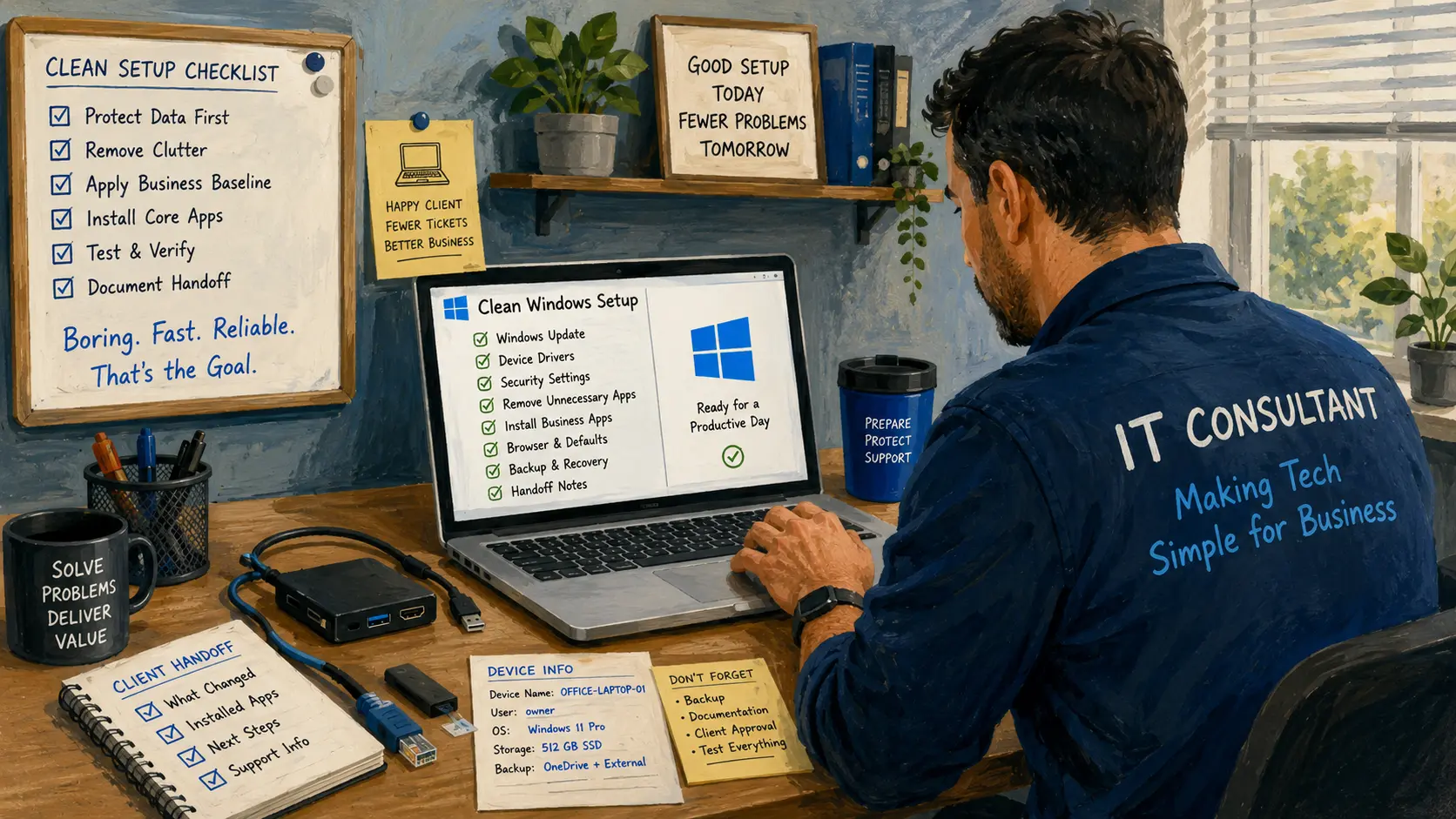
Clean Setup Service Map
- Why a Clean Windows Setup Is More Than Cleanup
- Clean Windows Setup at a Glance
- What a Clean Setup Actually Means
- How to Package the Service Without Overpromising
- Mistakes That Turn Cleanup Into Free Support
- Make the PC Boring, Fast, and Billable
- Next Step: Build the Offer Before the Next Laptop Arrives
- FAQs
- References
Clean Windows Setup at a Glance
- Best for: Solo IT consultants, micro-MSPs, and small-business tech providers who support Windows laptops and desktops.
- Main takeaway: A clean Windows setup should be sold as a documented onboarding service, not as random app removal.
- Time, cost, or effort: Plan for 90 minutes to 3 hours per device, depending on backup needs, updates, user accounts, and app installs.
- Best result to expect: A simpler, safer, easier-to-support PC with fewer unnecessary apps, clearer defaults, and better handoff notes.
- When not to use this: Do not treat a clean setup as a cure for failing drives, malware incidents, legal holds, unknown encryption status, or missing backups.
What a Clean Setup Actually Means
A clean setup is not the same as deleting icons from the desktop. It is a controlled process that turns a messy or factory-loaded Windows PC into a machine that matches the business owner’s real workflow.
For a consultant, the clean setup should answer five questions before the device goes back to the client:
- Who owns this device?
- Who signs in?
- What apps are required for work?
- What data must be protected?
- What should happen if the laptop is lost, replaced, or reassigned?
That last question is where many small-business setups fail. The laptop works on day one, but nobody documents the Microsoft account, local admin setup, recovery key location, backup method, app list, printer setup, or remote-support path. Three months later, a simple issue becomes a scavenger hunt.
Key terms for the service menu
- Clean setup: A structured Windows setup with unnecessary software removed and business defaults applied.
- Baseline: The standard app, security, browser, update, and account configuration for that client.
- Handoff notes: A short record of what was installed, changed, removed, and left intentionally untouched.
- Reinstall: A deeper reset or fresh Windows installation used when cleanup is not enough.
- Remote wipe: A management action that can remove data and reset a device when it is lost, retired, or reassigned.
Mini scenario: the three-laptop office
A local insurance office buys three laptops from a retail store. Each one arrives with trial apps, duplicate cloud storage prompts, consumer security pop-ups, manufacturer utilities, and different browser defaults.
The owner asks the IT consultant to “make them normal.”
A weak response is: “I’ll uninstall the junk.”
A better response is: “I’ll standardize all three devices so each one has the same sign-in rules, updates, browser setup, document shortcuts, backup path, printer access, remote support tool, and handoff notes. That way your next laptop is easier and cheaper to prepare.”
That turns a vague cleanup request into a repeatable device onboarding package.
How to Package the Service Without Overpromising
The service should feel specific. Clients do not need a giant technical explanation. They need to understand what is included, what is excluded, and what the finished PC will feel like.
Practical service steps
- Intake the device before touching it. Record model, serial number, Windows edition, storage size, user name, warranty status if visible, and the client’s main complaint.
- Protect the user’s data first. Confirm what needs to be backed up before app removal, reset, reinstall, or account changes.
- Remove obvious clutter carefully. Uninstall trialware, duplicate utilities, unused launchers, and unnecessary startup apps, but avoid removing business apps just because they look unfamiliar.
- Apply the business baseline. Configure updates, browser defaults, security settings, printers, core apps, cloud storage, remote support, and bookmarks.
- Document the handoff. Give the client a short summary: what changed, what stayed, what needs follow-up, and what to do before replacing the PC.
Quick decision guide
- If the PC is new and only cluttered, offer a clean setup package.
- If the PC is slow but has important user data, start with backup verification and health checks before cleanup.
- If the PC is unstable after updates or app corruption, consider a Windows repair or reinstall path after data is protected.
- If the PC is lost, stolen, or being reassigned, use a managed wipe or retire workflow only when the device is enrolled and the client understands the data impact.
- Skip this approach if the drive is failing, encryption keys are missing, or the business has legal retention requirements. Escalate to a safer data-first process.
Suggested package structure
| Package | Best for | What to include | What to exclude |
|---|---|---|---|
| New PC Clean Setup | New retail or vendor-purchased laptops | Updates, app cleanup, browser setup, user account, security baseline, printer setup, handoff notes | Data migration from old machines |
| Slow PC Cleanup | Existing computers that still boot normally | Startup review, app removal, storage cleanup, update check, basic health notes | Hardware repair, malware remediation, full reinstall |
| Business Baseline Setup | Small offices with 3 to 15 devices | Standard app list, naming convention, remote support, backup path, admin rules | Full enterprise MDM design |
| Reinstall and Rebuild | Corrupt or heavily misconfigured PCs | Backup confirmation, Windows reinstall, driver check, app reinstall, handoff notes | Recovery of deleted files without a separate data-recovery process |
For pricing, a solo consultant could treat this as either a flat per-device service or as part of an onboarding bundle. A simple range might be one basic device price, then a lower per-device rate for batches of three or more. The important part is to price the work as a process, not as “I clicked uninstall for a while.”
Mistakes That Turn Cleanup Into Free Support
Clean setup work can protect your margin, or it can drain an afternoon. The difference is scope.
Common mistakes
- Mistake 1: Starting before backup is confirmed. The client thinks “cleanup” is safe, but app removal, reset, or reinstall work can affect local data. Fix it by making backup confirmation your first step.
- Mistake 2: Removing apps without asking what the business uses. A random-looking utility may connect a scanner, label printer, VPN, or accounting workflow. Fix it by asking for must-keep apps before uninstalling.
- Mistake 3: Promising speed instead of predictability. A cleanup may help, but it will not turn old hardware into a new workstation. Fix it by promising a cleaner, easier-to-support setup, not magic performance.
- Mistake 4: Leaving no handoff record. The client forgets what changed, and you inherit every future mystery. Fix it with a one-page handoff note.
- Mistake 5: Treating every PC the same. A front-desk PC, owner laptop, technician laptop, and bookkeeping machine may need different defaults. Fix it by creating role-based baselines.
Safer alternatives when cleanup is not enough
| Option | Best for | Pros | Cons |
|---|---|---|---|
| Light cleanup | New or lightly used PCs | Fast, lower risk, easy to repeat | May not fix deeper system issues |
| Windows repair reinstall | PCs with update or system problems | Can refresh Windows while addressing corruption | Still needs backup planning and follow-up |
| Full reinstall | Machines with heavy clutter or bad configuration | Cleanest software starting point | Takes longer and requires app/data planning |
| Managed deployment | Growing clients with repeat devices | More consistent and scalable | Requires licensing, planning, and client buy-in |
| Device replacement | Old or unreliable hardware | Reduces recurring support tickets | Higher upfront cost for the client |
Make the PC Boring, Fast, and Billable
The best small-business PC is usually boring. It boots cleanly, opens the required apps, prints without drama, backs up important files, and does not surprise the user with five pop-ups before their first coffee.
That boring result is valuable because it reduces interruptions. It also gives the consultant a cleaner support path. When every device has a known baseline, troubleshooting gets faster because you are not guessing what was installed, removed, disabled, ignored, or half-configured by someone else.
A clean Windows setup service can also lead into stronger recurring work:
- Monthly device health checks
- Backup verification
- Remote support plans
- User onboarding and offboarding
- Hardware replacement planning
- Small-office device inventory
- Microsoft 365 or Google Workspace cleanup
- Security baseline reviews
The service becomes even stronger when it connects to the client’s business outcome. Do not sell “debloating.” Sell fewer interruptions, cleaner handoffs, safer replacements, and less time wasted figuring out why each laptop behaves differently.
Next Step: Build the Offer Before the Next Laptop Arrives
Write the service menu before the next client asks for help. Decide what counts as a clean setup, what counts as a reinstall, what needs a separate quote, and what requires a backup-first warning.
Then create a short intake form. It should ask for the device model, user name, required apps, printers, cloud storage, email system, remote access needs, and whether the client has a current backup. That form protects the client, but it also protects your time.
Clean setup checklist for IT consultants
- Confirm device ownership and primary user.
- Check whether important files are local, synced, or backed up.
- Record Windows edition, device name, serial number, and storage size.
- Remove only approved unnecessary apps and startup items.
- Apply browser, update, security, and default app settings.
- Install the required business apps.
- Confirm printer, scanner, camera, microphone, and Wi-Fi behavior.
- Configure remote support only with client approval.
- Document what changed and what still needs attention.
- Recommend replacement when hardware limits are the real issue.
FAQs
Q1. Is a clean Windows setup the same as debloating?
A1. No. Debloating usually means removing unwanted apps or startup items. A clean Windows setup is broader. It includes data checks, updates, user setup, security defaults, app installs, printer access, browser settings, remote support approval, and handoff notes.
Q2. Should an IT consultant always reinstall Windows on a messy PC?
A2. Not always. A reinstall can be useful when the system is unstable, heavily misconfigured, or difficult to trust. For a new or lightly used PC, a structured cleanup may be enough. The decision should depend on backup status, app requirements, device age, and the client’s tolerance for downtime.
Q3. How do I avoid unpaid support after a cleanup job?
A3. Define the scope before work starts. List what is included, what is excluded, and what counts as a separate follow-up. Give the client a handoff note with changed settings, installed apps, known issues, and replacement recommendations.
Q4. What is the biggest risk in a clean setup service?
A4. The biggest risk is touching data before confirming backup status. The second biggest risk is removing an app the business quietly depends on. A short intake form prevents many of those problems.
By: Rex Iriarte
Why trust this: Written for solo IT consultants and micro-MSPs who need practical service packaging, client handoff structure, and repeatable small-business device workflows.
Last updated: 2026-06-23
Disclosure: No paid placement influenced this post.
Disclaimer
This article is general educational guidance for IT service packaging. Back up important data, confirm client authorization, and review licensing, device ownership, and business requirements before resetting, wiping, reinstalling, or changing managed devices.
References
- Microsoft Support — “Reinstall Windows with the installation media.” https://support.microsoft.com/en-us/windows/reinstall-windows-with-the-installation-media-d8369486-3e33-7d9c-dccc-859e2b022fc7
- Microsoft Learn — “Windows Autopilot documentation.” https://learn.microsoft.com/en-us/autopilot/
- Microsoft Learn — “Device action: Wipe.” https://learn.microsoft.com/en-us/intune/device-management/actions/wipe
- Microsoft Support — “Policy-Based Removal of Pre-installed Microsoft Store Apps.” https://support.microsoft.com/en-us/topic/policy-based-removal-of-pre-installed-microsoft-store-apps-e1d41a92-b658-4511-95a6-0fbcc02b4e9c



0 Comments