
Why “My Computer Feels Slow” Should Not Be a Free Favor
“My computer feels slow” sounds simple until the client expects you to fix years of startup clutter, low storage, weak hardware, browser chaos, old updates, printer utilities, sync conflicts, and mystery apps in one quick visit.
For an IT consultant, that complaint needs a service boundary. A slow computer optimization package turns a vague request into a paid process: intake, backup check, health review, startup review, storage cleanup, malware scan path, performance notes, and a clear recommendation. The goal is not to promise magic speed. The goal is to reduce waste, identify the real bottleneck, and give the client a PC that behaves better.
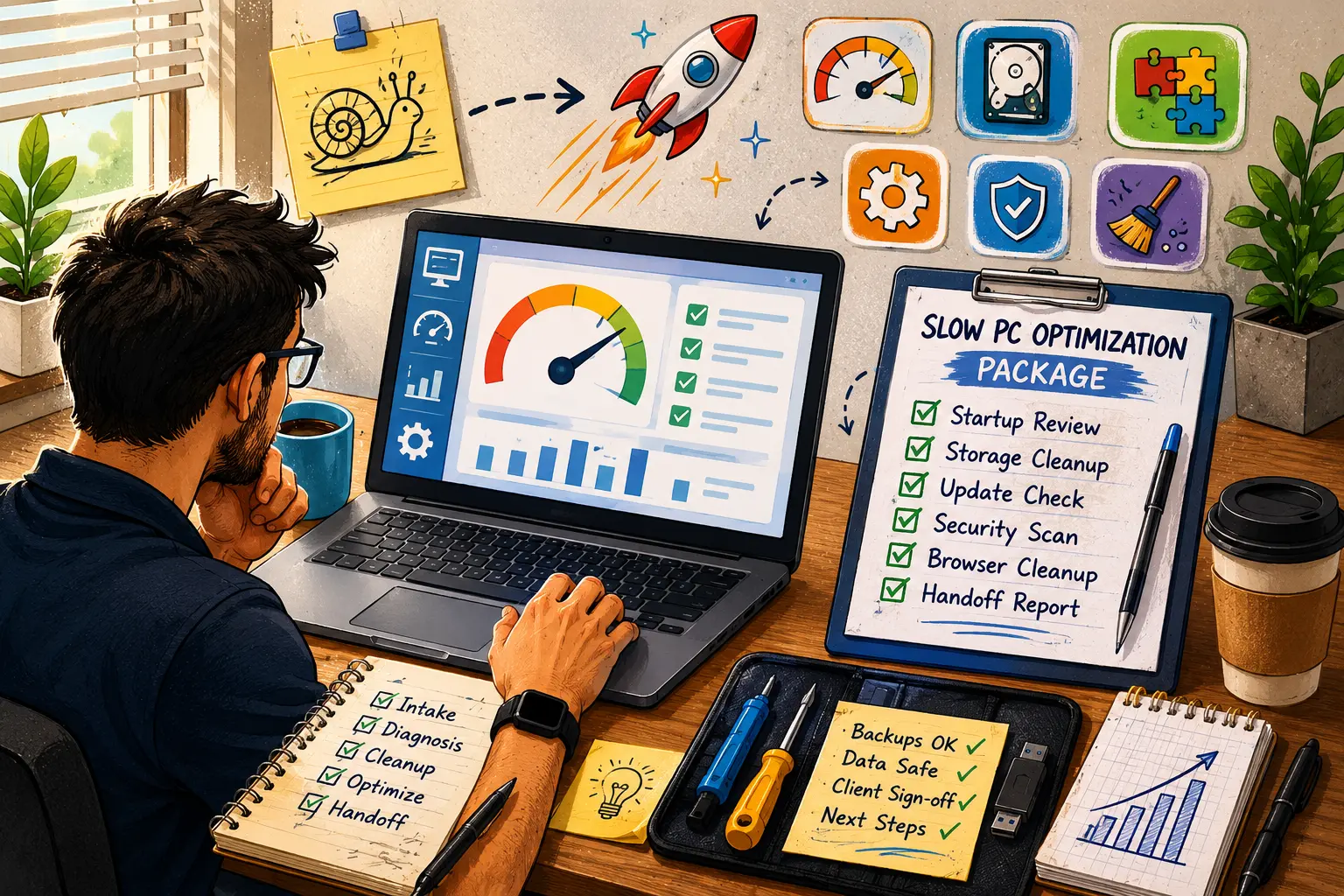
Slow PC Service Map
- Why “My Computer Feels Slow” Should Not Be a Free Favor
- Slow Computer Optimization Package at a Glance
- What the Client Is Really Asking For
- How to Build the Optimization Package
- Mistakes That Destroy the Margin
- Price the Outcome, Not the Clicking
- Next Step: Turn the Complaint Into a Service Menu
- FAQs
- References
Slow Computer Optimization Package at a Glance
- Best for: Solo IT consultants, micro-MSPs, and small-business tech providers who support Windows PCs.
- Main takeaway: Slow-PC work should be scoped as a diagnostic and optimization package, not as casual cleanup.
- Time, cost, or effort: Plan for 60 to 150 minutes per device for a basic optimization, longer if data backup, malware concerns, failing hardware, or user profile problems appear.
- Best result to expect: A clearer, cleaner, easier-to-support PC with documented limits and next steps.
- When not to use this: Do not sell optimization as the answer when the device has a failing drive, active malware, severe overheating, missing backups, or business-critical data risk.
What the Client Is Really Asking For
When a client says a computer is slow, they usually do not mean one technical problem. They mean the computer interrupts their work.
That interruption may look like a 4-minute boot, a browser that opens five unwanted tabs, OneDrive or another sync tool fighting for attention, a hard drive near full capacity, an old laptop running modern apps poorly, or a security app that constantly asks for decisions the user does not understand.
The consultant’s job is to translate “slow” into categories:
- Startup delay: Too many apps launching at sign-in.
- Storage pressure: Low free space, large downloads, old update files, or synced folders.
- Browser drag: Extensions, notifications, cached sessions, or multiple profiles.
- Update backlog: Pending Windows, driver, browser, or app updates.
- Security concern: Suspicious behavior, unwanted pop-ups, or scan warnings.
- Hardware limit: Too little RAM, aging storage, heat issues, or old CPU limits.
- Workflow mismatch: The user expects workstation performance from a budget laptop.
That translation matters because each category has a different fix and a different price. If the client expects one flat “make it fast” miracle, you inherit disappointment. If they understand that the work starts with diagnosis, the conversation becomes easier.
Key terms for the service menu
- Optimization: Low-risk cleanup and adjustment work meant to reduce delays and friction.
- Diagnostic pass: A structured review that identifies likely causes before making changes.
- Startup load: Apps and services that start automatically when Windows or the user session begins.
- Storage cleanup: Removing unnecessary files, temporary files, and unused clutter after confirming data risk.
- Handoff report: A short summary of findings, actions taken, limits, and recommended next steps.
Mini scenario: the bookkeeper laptop
A small office bookkeeper says her laptop takes forever every morning. The owner assumes the laptop needs “a quick cleanup.”
A proper intake finds three separate issues: the device has several startup apps, the storage is almost full, and the bookkeeping software runs from a local database that should not be touched casually. The laptop is also five years old, with limited RAM and a small SSD.
The consultant should not promise that cleanup will make it feel new. A better answer is: “I can do a slow-PC optimization pass, document what is causing the delay, safely reduce startup and storage pressure, and then tell you whether the machine is worth keeping or replacing.”
That is a service. It has scope, time, risk control, and a deliverable.
How to Build the Optimization Package
A good slow computer optimization package should have three layers: intake, action, and handoff. Each layer protects your time and protects the client’s device.
Practical steps for the package
- Capture the complaint in plain language. Ask what feels slow: boot, login, browser, app launch, printing, file search, cloud sync, or shutdown.
- Check data risk first. Confirm whether files are backed up or synced before deleting, resetting, scanning, or changing profiles.
- Review storage and cleanup options. Use Windows storage tools, cleanup recommendations, and client-approved removal of unnecessary files.
- Review startup apps. Disable only items that are safe and clearly unnecessary. Avoid guessing with unknown business tools.
- Run a security sanity check. Use Windows Security or the client’s approved security tool to check for obvious threats.
- Check update and restart status. A machine that has avoided restarts for weeks may feel worse than it should.
- Document hardware limits. Note RAM, storage type, drive space, age, heat symptoms, and whether replacement would be more sensible.
- Deliver a handoff report. List what changed, what did not change, what needs monitoring, and whether a replacement quote is recommended.
Quick decision guide
- If the PC is new but cluttered, recommend a light optimization or clean setup.
- If the PC is old but still healthy, recommend optimization plus a replacement timeline.
- If the PC is slow because storage is nearly full, start with backup confirmation and storage cleanup.
- If the PC is slow only inside one app, treat it as an app-specific support issue, not a full PC tune-up.
- If the PC shows pop-ups, browser hijacking, or unknown security warnings, move it out of the optimization package and into malware or security triage.
- Skip optimization if the device is unstable, overheating, clicking, failing SMART checks, or missing critical backups.
Package tiers that are easy to explain
| Package | Best for | What to include | What to exclude |
|---|---|---|---|
| Slow PC Snapshot | Clients who need a quick answer | 30 to 45 minute review, basic findings, replacement recommendation if obvious | Deep cleanup, malware cleanup, reinstall |
| Basic Optimization | One slow but stable PC | Startup review, storage cleanup, update check, browser cleanup, handoff notes | Hardware repair, app database tuning, full migration |
| Business Optimization Batch | 3 to 10 similar PCs | Same checklist across devices, grouped findings, replacement priority list | Custom fixes for every app unless scoped |
| Rebuild Recommendation | PCs too messy to tune | Backup plan, reinstall estimate, app list, replacement comparison | Pretending cleanup will solve a bad machine |
A simple pricing model can start with a diagnostic fee, then move to a flat optimization package. For many solo consultants, the useful range may be $95 to $250 for a basic one-device service, depending on the market, travel, remote access, backup complexity, and reporting depth. Batch pricing can be lower per device when the environment is consistent.
Mistakes That Destroy the Margin
Slow-PC work is dangerous because it feels small. Small requests are where unpaid support hides.
Common mistakes
- Mistake 1: Letting the client define the result as “fast.” Fast is subjective. Fix it by defining the result as reviewed, cleaned, documented, and recommended.
- Mistake 2: Skipping the intake. Without intake, every later issue sounds like something you caused. Fix it by writing down the original complaint.
- Mistake 3: Removing unknown startup items. Some ugly-looking utilities support scanners, VPNs, backup agents, phone systems, or line-of-business apps. Fix it by disabling only what you can explain.
- Mistake 4: Ignoring hardware limits. A low-end laptop with limited RAM may not become pleasant no matter how carefully you clean it. Fix it by recommending replacement when the math is obvious.
- Mistake 5: Treating malware cleanup as optimization. Malware, suspicious browser behavior, and unknown remote-access tools need a different scope. Fix it by separating security triage from tune-up work.
- Mistake 6: No handoff report. Without a report, the client remembers only “you touched it.” Fix it with before-and-after notes.
Alternatives when optimization is not the best answer
| Option | Best for | Pros | Cons |
|---|---|---|---|
| Basic optimization | Stable PC with clutter or startup drag | Lower cost, quick, easy to package | May not solve hardware limits |
| App-specific troubleshooting | One program is slow | More targeted and fair | Requires app knowledge or vendor support |
| Malware triage | Suspicious behavior or pop-ups | Safer scope for risky issues | Takes longer and may require isolation |
| Windows reinstall | Corrupt or messy software environment | Cleaner result | Needs backup, app reinstall, and downtime planning |
| Device replacement | Old, weak, or unreliable PCs | Best long-term answer | Higher upfront cost for the client |
Price the Outcome, Not the Clicking
The mistake is selling “I will make your PC faster.” That creates a promise you may not control. A healthier offer is: “I will diagnose common causes of slowdown, safely reduce avoidable drag, document the results, and tell you whether this computer is worth more work.”
That is honest. It also feels more professional.
A simple scope statement
Use wording like this in your estimate:
“This service includes a Windows performance intake, startup app review, storage cleanup review, basic update check, Windows Security scan path, browser clutter review, and a short handoff report. It does not include malware remediation, failing hardware repair, data recovery, full reinstall, business app database tuning, or guaranteed speed improvement.”
That one paragraph can save hours.
What the handoff report should include
- Device name, user, model, and date.
- The main complaint in the client’s words.
- Storage status before and after cleanup.
- Startup items changed or left alone.
- Browser or extension issues found.
- Security scan status or recommended follow-up.
- Hardware limits noticed.
- Recommended next step: keep, upgrade, rebuild, or replace.
For a solo IT consultant, the report does not need to be fancy. A one-page PDF, email summary, or ticket note is enough. The point is to create proof of work and a decision path.
Next Step: Turn the Complaint Into a Service Menu
Build the offer before the next slow-PC request comes in. Choose your basic price, your batch price, your excluded work, and your escalation path.
Then create a small intake form with six questions:
- What feels slow?
- When did it start?
- Is the issue constant or occasional?
- What apps matter most for work?
- Are important files backed up or synced?
- Has anyone else tried to fix it?
Those questions move the client from vague frustration to useful detail.
Slow-PC optimization checklist for consultants
- Record the client’s complaint before making changes.
- Confirm backup or sync status before deleting or resetting anything.
- Check storage pressure and cleanup recommendations.
- Review startup apps and disable only explainable clutter.
- Check Windows update and restart status.
- Run the approved security scan path.
- Review browser extensions, profiles, and notification clutter.
- Note hardware limits honestly.
- Separate malware, failing hardware, and app-specific issues from the tune-up package.
- Deliver a short handoff report with next steps.
FAQs
Q1. Should I promise that a slow computer optimization package will make the PC faster?
A1. No. Promise a structured review, cleanup, documentation, and recommendation. A PC may feel faster after startup cleanup, storage cleanup, updates, or browser cleanup, but old hardware and failing components can still limit results.
Q2. What should be excluded from a basic slow-PC tune-up?
A2. Exclude malware remediation, data recovery, failing hardware repair, full Windows reinstall, business app database repair, and guaranteed performance improvement. Those jobs need separate scope because they carry more risk and time.
Q3. How long should a slow computer optimization take?
A3. A basic remote or bench optimization may take 60 to 150 minutes per device. It can take longer when backups are unclear, storage is full, apps are unfamiliar, or security concerns appear.
Q4. Is disabling startup apps safe?
A4. It can be safe when done carefully, but it is not something to guess through. Some startup items support printers, scanners, VPNs, backups, security tools, or business apps. Record what you change and avoid disabling anything you cannot explain.
By: Rex Iriarte
Why trust this: Written for solo IT consultants and micro-MSPs who need practical service packaging, client intake structure, and repeatable Windows support workflows.
Last updated: 2026-06-23
Disclosure: No paid placement influenced this post.
Disclaimer
This article provides general service-packaging guidance for IT consultants. Always confirm client authorization, backup status, device ownership, software requirements, and security risk before deleting files, disabling startup items, reinstalling Windows, or changing managed devices.
References
- Microsoft Support — “Free up drive space in Windows.” https://support.microsoft.com/en-us/windows/free-up-drive-space-in-windows-85529ccb-c365-490d-b548-831022bc9b32
- Microsoft Support — “Configure Startup applications in Windows.” https://support.microsoft.com/en-us/windows/configure-startup-applications-in-windows-115a420a-0bff-4a6f-90e0-1934c844e473
- Microsoft Support — “How to perform a clean boot in Windows.” https://support.microsoft.com/en-us/topic/how-to-perform-a-clean-boot-in-windows-da2f9573-6eec-00ad-2f8a-a97a1807f3dd
- Microsoft Support — “Virus and Threat Protection in the Windows Security App.” https://support.microsoft.com/en-us/windows/virus-and-threat-protection-in-the-windows-security-app-1362f4cd-d71a-b52a-0b66-c2820032b65e
- Microsoft Learn — “Autoruns for Windows.” https://learn.microsoft.com/en-us/sysinternals/downloads/autoruns



0 Comments