
Stop Scheduling Vague IT Problems
A request that says “the internet is acting weird” is not ready for the calendar. It might mean one laptop cannot join Wi-Fi, an entire office lost connectivity, a cloud app is slow, or the client forgot a password. Those are different jobs with different urgency levels, tools, and time estimates.
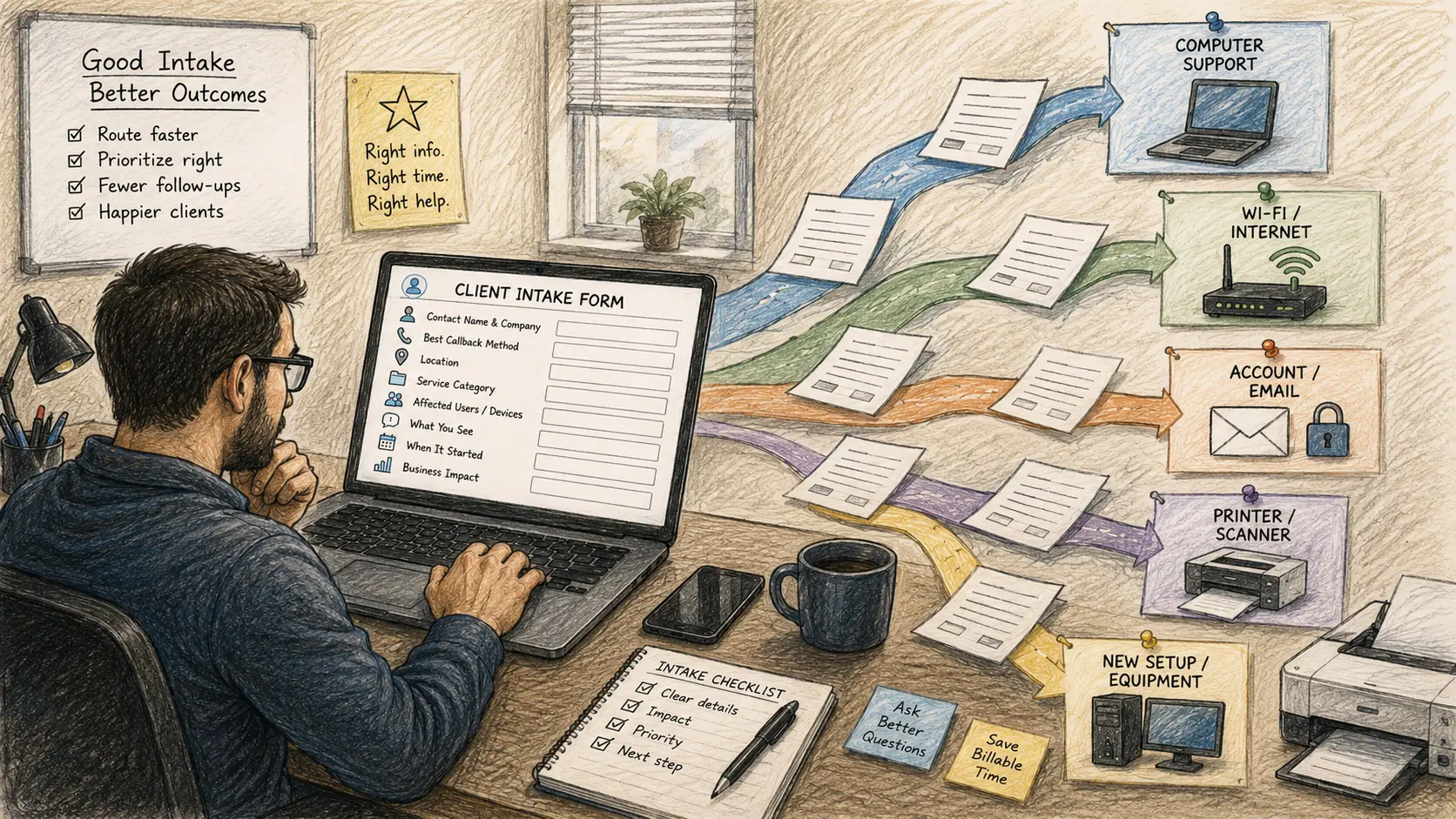
An IT client intake form gives the technician a cleaner starting point. It should capture enough detail to route the request without turning the client into an unpaid junior technician. The goal is not to collect every possible fact. The goal is to collect the facts needed for the next decision.
Your Intake-Form Build Plan
- Stop Scheduling Vague IT Problems
- The Short Answer: Ask for Enough Detail to Route the Job
- Build the Eight-Field Core Form
- Add Conditional Questions Without Creating a Maze
- Use the Form to Protect the Calendar
- Put the Form Into Service in 45 Minutes
- Turn Better Intake Into Better Quotes
- Frequently Asked Questions
- References
The Short Answer: Ask for Enough Detail to Route the Job
- Best for: Solo IT consultants, freelance sysadmins, network installers, and micro-MSPs that need a repeatable front door for support requests.
- Main takeaway: Start with eight required fields and reveal extra questions only when the client selects a relevant category.
- Time, cost, or effort: A usable first version can be built in about 45 minutes with a form builder, a helpdesk portal, or a shared document.
- Best result to expect: Fewer clarification messages before scheduling, clearer priority decisions, and cleaner notes for quoting or ticket creation.
- When not to use this: Do not use an intake form as a substitute for a discovery call when the job involves a migration, a network redesign, multiple vendors, or unclear business risk.
Atlassian’s service-management guidance makes a useful point: capture the data required to begin fulfilling a request, but do not overload the customer with too many questions. That balance matters even more for a one-person IT business. Every extra field adds friction, but every missing field creates a follow-up message.
Build the Eight-Field Core Form
The core form should work for most incoming requests. Keep the language client-friendly. A business owner may know which computer is failing without knowing whether the issue involves DNS, a driver, a switch port, or an account policy.
Required fields for the first version
| Field | Why You Need It | Example Prompt |
|---|---|---|
| Contact name and company | Identifies the requester and the billing relationship | “Who should we contact about this request?” |
| Best callback method | Prevents lost time when more detail is needed | “Phone, email, or text message?” |
| Location | Separates remote work from a possible site visit | “Which office, home office, or remote location is affected?” |
| Service category | Routes the request before reading a long paragraph | “Computer, account, email, printer, Wi-Fi, internet, software, new setup, or other?” |
| Affected users or devices | Helps distinguish one-person inconvenience from a wider interruption | “How many people or devices are affected?” |
| What the client sees | Captures symptoms in plain language | “What happens when you try to use it?” |
| When it started | Reveals whether a recent change may matter | “When did the issue begin, and did anything change shortly before it?” |
| Business impact | Helps prioritize without asking the client to diagnose severity | “Can work continue, continue partially, or not continue?” |
Do not ask the client to decide whether the issue is a Level 1, Level 2, or Level 3 emergency. That language is useful internally, but clients will interpret it differently. Ask about impact instead.
Add one safe upload note
Allow screenshots when they help, but add a short warning:
Before uploading a screenshot, remove or cover passwords, payment details, personal records, and other private information.
Never request passwords through a general intake form. If access is required later, use an approved secure method and collect only what is necessary for the task.
Mini scenario: “The Wi-Fi is broken”
A client submits a one-line email: “The Wi-Fi is broken again.” That message leaves too many open questions.
A structured intake form reveals that one employee’s laptop stopped connecting after returning from a trip. The other 14 employees are online, wired devices work, and the issue began that morning. That is probably a remote-support ticket for one workstation, not an urgent on-site network outage.
Now change one field: all 15 employees are offline, the modem indicator lights changed, and phones cannot join the guest network either. The same vague complaint now needs a different priority and a different first response.
Add Conditional Questions Without Creating a Maze
The eight-field form is the front door. Conditional fields add detail only when the answer will change the next action.
Zendesk documents custom ticket fields that can collect specific information from end users and feed workflows, reporting, and business rules. Atlassian also supports forms linked to request types so the questions can match the kind of request being submitted. A solo operator can apply the same idea without building a large enterprise portal.
Use category-specific follow-up questions
| If the Client Selects | Ask These Follow-Up Questions | Avoid Asking |
|---|---|---|
| Computer or laptop | Device name, operating system if known, whether it turns on, whether the issue affects login or normal use | A long hardware-specification questionnaire |
| Wi-Fi or internet | Number of affected users, wired versus wireless impact, office location, whether modem or router lights changed | Technical networking terms the client may not recognize |
| Email or account | Service involved, affected account, error message, whether login works elsewhere, whether other users are affected | Passwords, recovery codes, or private message contents |
| Printer or scanner | Device model if visible, who is affected, print or scan issue, USB or network connection if known | Driver versions unless the client already has them |
| New computer or setup | Number of devices, due date, required apps, data-transfer need, user names, office or remote location | A fixed-price promise before checking scope |
| Security concern | What was noticed, when it happened, affected account or device, whether business operations are interrupted | Instructions to forward suspicious secrets or expose sensitive data |
A conditional field earns its place when it changes routing, priority, tools, or pricing. Remove fields that merely satisfy curiosity.
Use the Form to Protect the Calendar
A form should create a clean handoff, not an automatic appointment. The next step depends on what the request reveals.
Route requests into four paths
| Intake Result | Next Step | Typical Example |
|---|---|---|
| Clear, limited support issue | Schedule remote support or create a ticket | One printer stopped working for one user |
| Likely wider interruption | Review promptly and call the client | Entire office cannot reach the internet |
| Project-sized request | Schedule discovery before quoting | Replace eight computers and move user data |
| Missing or risky information | Ask focused follow-up questions first | “Email hacked” with no account, timeline, or impact details |
This routing step protects billable time. Without it, the calendar fills with appointments that are too short, too long, or incorrectly prioritized.
Common mistakes that create extra work
- Making every field required: Clients abandon the form or enter low-quality answers just to finish it. Require the core fields and reveal the rest conditionally.
- Asking for technical diagnoses: “What error do you see?” is useful. “Which network layer failed?” is not a client intake question.
- Collecting secrets: Passwords, recovery codes, and private records do not belong in a general request form.
- Using an open text box for urgency: Ask whether work can continue and how many users are affected.
- Sending no confirmation: Tell the client what happens next and when they should use an emergency contact path instead.
Put the Form Into Service in 45 Minutes
The first version does not need automation. It needs to be clear enough that a real client can finish it without calling for instructions.
Minutes 0 to 10: write the core fields
- Add the eight required fields.
- Use plain language.
- Add the screenshot privacy warning.
- Add an “other” option for requests that do not fit neatly.
Minutes 10 to 25: add conditional sections
- Create short follow-up sections for computers, Wi-Fi or internet, email or accounts, printers, new setups, and security concerns.
- Limit each section to the questions that change the next action.
- Remove anything that can wait until the support session.
Minutes 25 to 35: define the response paths
- Decide which answers suggest remote support.
- Decide which answers require a discovery call.
- Decide what counts as a possible wider interruption.
- Write a short confirmation message that explains the next step.
Minutes 35 to 45: test the form
- Recreate three recent support requests using the form.
- Ask whether the answers would have changed your time estimate, priority, or tools.
- Check the form on a phone.
- Remove one question that does not help routing.
If the form later becomes part of a larger workflow, connect it to Odoo, ERPNext, Zoho Desk, Jira Service Management, or any other ERP or helpdesk platform that fits the business. Odoo Helpdesk uses ticket pipelines with customizable stages. ERPNext can create issues from a dedicated support email and classify issues by type. The process should still work before the software is configured.
Turn Better Intake Into Better Quotes
A client intake form is not just a support tool. It also improves quoting. It reveals when a request is actually a project, when discovery should be paid, and when an add-on should be separated from the base service.
Use this decision guide:
- If one user and one known device are affected, route the issue as a support ticket.
- If multiple users, locations, or vendors are involved, schedule discovery before promising a price.
- If the request involves new equipment, migrations, or deadlines, capture the scope before scheduling labor.
- If the client cannot describe the business impact, ask one focused follow-up question before assigning priority.
- If the request asks for sensitive access, move that part of the conversation to an approved secure method.
Quick launch checklist
- Create the eight-field core form.
- Add short conditional sections.
- Keep passwords and private records out of the form.
- Define remote-support, discovery, interruption, and follow-up paths.
- Test the form with three past requests.
- Place the form link where clients already look for support instructions.
- Review the questions after the next 10 submissions.
A Better Front Door Saves the Rest of the Day
An IT client intake form should not feel like paperwork. It should feel like a faster route to the right kind of help. Start with eight fields, add only the conditional questions that change the next action, and use the answers to protect the calendar. The form becomes valuable when it turns vague requests into support tickets, discovery calls, and quotes that make sense before work begins.
Frequently Asked Questions
Q1. How many questions should an IT client intake form include?
A1. Start with eight required fields and add conditional questions only when the answer changes routing, priority, tools, or pricing. A short form that clients complete accurately is more useful than a long questionnaire filled with guesses.
Q2. Should clients submit passwords through the intake form?
A2. No. Keep passwords, recovery codes, payment details, and private records out of a general request form. Move any necessary access exchange to an approved secure method after the request has been reviewed.
Q3. Should the form create a calendar appointment automatically?
A3. Usually not. A form should create a review point first. Some requests belong in remote support, some need a discovery call, and others require a prompt phone call because several users cannot work.
Q4. Does the intake form need to be inside an ERP or helpdesk platform?
A4. No. A basic form builder or shared document can work for the first version. Later, the process can be connected to Odoo, ERPNext, Zoho Desk, Jira Service Management, or any other ERP or helpdesk platform that fits the business.
By: Marcus Irizarry
Why trust this: This post is written for solo IT operators and micro-MSPs, using a practical support-intake framework and current helpdesk documentation.
Last updated: 2026-06-10
Disclosure: No paid placement influenced this post.
References
- Atlassian: How Can I Make My Service Request Forms More Effective? — Explains that request forms should capture the data needed to begin fulfillment without overloading the customer.
- Zendesk: Adding Custom Ticket Fields to Tickets and Forms — Documents how custom fields collect specific information and support workflows, reporting, and business rules.
- Odoo Documentation: Helpdesk — Describes ticket pipelines with customizable stages for tracking and prioritizing requests.
- ERPNext Documentation: Issue — Documents issue creation from a dedicated support email and issue tracking.



0 Comments