
When a Working PC Suddenly Looks Disposable
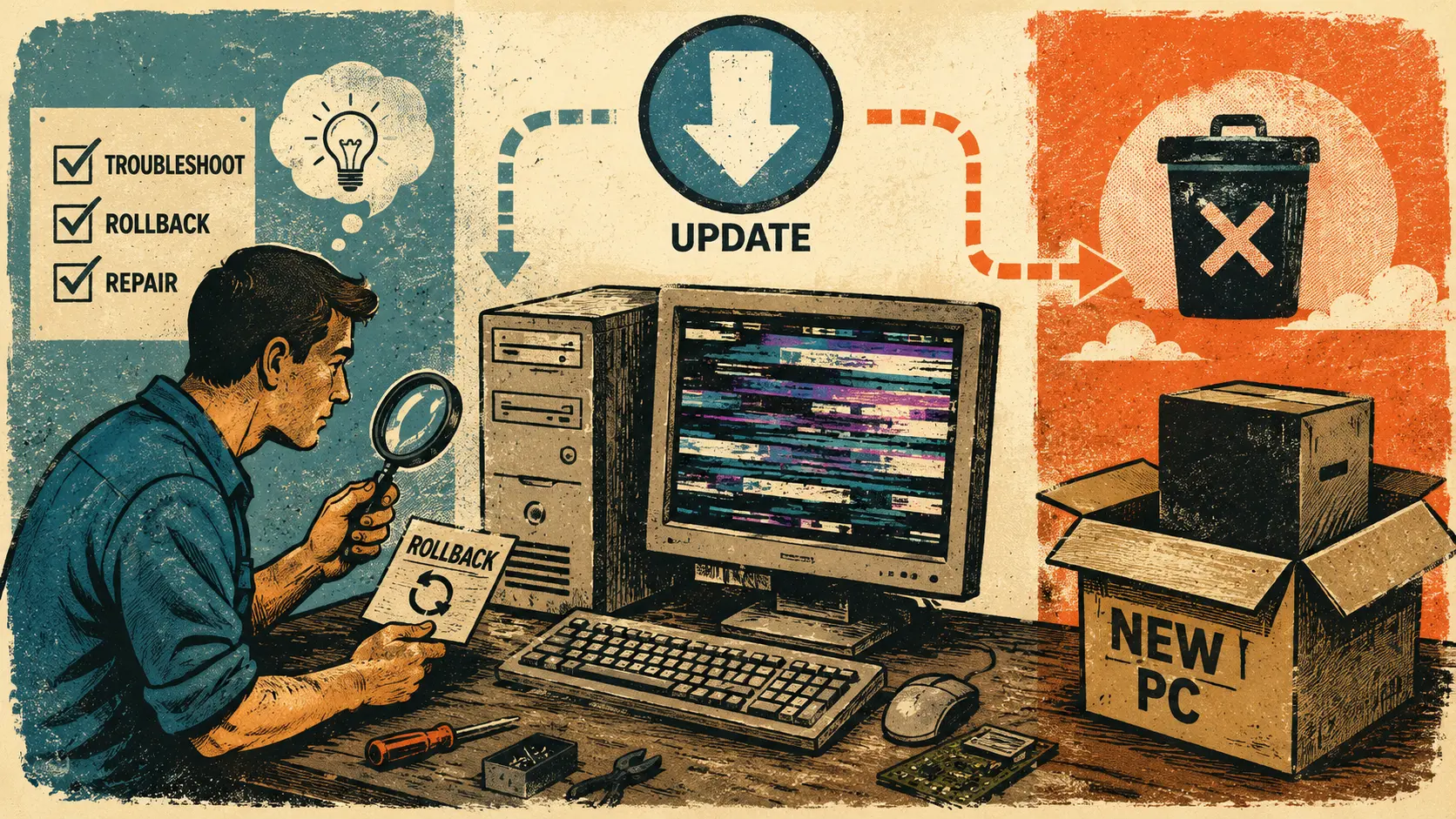
A computer does not need to stop booting before its owner gives up on it. A glitchy monitor can be enough. The screen flickers, briefly goes black, or looks scrambled after an update. The PC may also feel hotter, louder, or less stable. To an ordinary user, that looks like a machine reaching the end of its life.
Sometimes replacement is appropriate. Sometimes it is an expensive response to a repairable software problem. When companies distribute updates but make failures difficult to identify afterward, customers and service representatives are left to reverse-engineer the explanation. That is not a minor support inconvenience. It is a trust problem.
A Better Standard for Update Failures
- When a Working PC Suddenly Looks Disposable
- The Argument in One Minute
- Automatic Updates Need Visible Accountability
- A Glitchy Screen Is Not Cosmetic Noise
- What Vendors Should Publish When an Update Goes Wrong
- Repair Before Replacement Is a Trust Policy
- Questions About Update Failures and PC Replacement
- References
The Argument in One Minute
- Main point: A driver or system update is not finished when it installs. Vendors also need a visible response path when something goes wrong.
- Common mistake: Treating monitor flicker, black screens, or cooling oddities as scattered customer complaints instead of possible update signals.
- Why it matters: A repairable PC can look dead long before anyone checks its update timeline.
- Who should care: PC manufacturers, graphics vendors, operating-system providers, help desks, repair shops, and retailers.
- Reality check: There is no evidence that every glitchy screen is caused by an update, and there is no basis for claiming that vendors intentionally want customers to replace usable computers.
Automatic Updates Need Visible Accountability
Automatic updates exist for a valid reason. Security fixes, compatibility improvements, and device corrections should not depend on every customer manually hunting for the right download. Microsoft says Windows automatically downloads and installs driver updates. It also explains that most drivers are built by third-party hardware or software providers, which work with Microsoft to certify compatibility with Windows.
The weak point appears after installation. Microsoft states that customers seeking details about a new driver need to contact the driver provider. It also says that update information varies between providers and may not be available. That is a surprisingly important gap.
A user can wake up to a computer that behaves differently without knowing what changed, who supplied the change, or whether other systems are showing the same symptom. The service representative may have the same problem. An update can be distributed through a familiar Windows interface while the explanation is scattered across vendor pages, forums, release notes, and support channels.
The Story Customers Are Left to Tell Themselves
When a display starts glitching after an update, the customer rarely begins with a driver-version audit. The story is simpler:
- The computer used to work.
- Something updated.
- The monitor now flickers or briefly goes black.
- The PC seems hot, unstable, or old.
- Nobody can explain the problem quickly.
- Replacing the computer starts to feel reasonable.
That story may be technically incomplete, but it is understandable. A customer cannot act on support information that is hard to find or never published.
A Dated Example: NVIDIA 595.59
NVIDIA provides a useful example of both the problem and the better response. On 2026-02-26, NVIDIA said it discovered a bug in its Game Ready and Studio 595.59 WHQL drivers and temporarily removed the downloads while investigating. NVIDIA told users experiencing fan-control issues to roll back to 591.86 WHQL. On 2026-03-02, NVIDIA said it had resolved the issues and released a new version.
The bug still happened. That matters. The public rollback notice also mattered. It gave users and support reps a version number, a symptom category, a temporary action, and a corrected release path.
A Second Example: AMD Zero RPM Behavior
AMD's Adrenalin Edition 26.6.1 release notes, last updated 2026-06-02, list a fixed Radeon RX 9000-series issue where Zero RPM mode could re-enable itself after a monitor went to sleep or was turned off.
That is exactly the kind of failure ordinary users struggle to connect with an update. The symptom may appear after a state change, not immediately after installation. A monitor wakes up, the machine behaves oddly, and the owner sees a screen problem before understanding the cooling behavior underneath it.
AMD also recommends OEM-provided drivers for laptops and all-in-one PCs because those packages are customized and validated for system-specific features and optimizations. That creates an additional responsibility for manufacturers. A generic “update your driver” answer is not always enough.
A Glitchy Screen Is Not Cosmetic Noise
Microsoft says screen flickering in Windows is usually caused by a display-driver issue or an incompatible app. Its troubleshooting guidance recommends checking whether Task Manager flickers along with the rest of the screen. If it does, the display driver is probably involved. If Task Manager remains stable while the rest of the screen flickers, an incompatible app is more likely.
That is useful guidance for users and technicians. It should also influence the way manufacturers classify incoming complaints. A flicker report is not automatically evidence of a hardware defect, but it is not a complaint to bury under “try another monitor” either.
Troubleshooting observations from HP PCs and other Windows systems add a practical reason to take the symptom seriously: the monitor glitch may be the first visible clue that pushes a customer to investigate. It does not prove one universal cause. It does tell support teams where the customer journey begins.
Where the Simple Take Fails
- “It is only a monitor problem.” One cable, dock, or display can fail, but several affected displays may point back toward the PC, driver, or graphics hardware.
- “It must be Windows.” The visible update interface may belong to Windows while the underlying driver comes from a third-party provider.
- “Just install the newest generic driver.” Laptop and all-in-one systems may need OEM-validated packages.
- “The customer can search for the answer.” That assumes the customer knows the driver version, provider, affected hardware family, and correct support page.
- “A replacement is the easiest fix.” It may be the most expensive way to solve a problem that was never properly isolated.
What Vendors Should Not Do
Do not make the customer choose between silence and a new computer.
Do not hide a known issue inside a long release-note page without a symptom-based support notice. Do not send a repair shop through three support portals to learn whether a driver was recently withdrawn. Do not treat a rollback path as specialist knowledge when the update itself arrived automatically.
Most important, do not confuse a lack of diagnosis with proof that the hardware is dead.
What Vendors Should Publish When an Update Goes Wrong
A good incident notice does not need to be dramatic. It needs to be findable, specific, and useful. The goal is to help a customer or front-line technician answer five questions quickly:
- What version changed?
- Which systems or hardware families may be affected?
- What visible symptoms should users watch for?
- What is the safe temporary action?
- Which corrected version resolves the issue?
Manufacturer Response Scorecard
| Support item | Minimum useful content | Why it matters |
|---|---|---|
| Affected version | Driver, firmware, or update number | Lets the customer confirm exposure |
| Discovery date | Date and time window when practical | Helps service desks compare ticket patterns |
| Visible symptoms | Flicker, black screen, fan-control issue, heat, crash, or sleep-wake trigger | Translates engineering language into customer language |
| Affected hardware | Desktop GPU, laptop family, all-in-one model, dock, or monitor path | Prevents overbroad advice |
| Temporary action | Pause, rollback, OEM package, or service escalation | Gives the customer a safer next move |
| Corrected release | Fixed version and publication date | Closes the loop |
| Support script | A short triage flow for front-line reps | Prevents unnecessary replacement advice |
| Status banner | A visible support-page notice | Reduces time spent searching scattered pages |
A Practical 24-Hour Communication Standard
A reasonable manufacturer policy would treat cooling-control failures, widespread display corruption, repeated black screens, and sleep-wake regressions as high-priority support events.
Within the first support window, publish a short notice even when the investigation is incomplete. State what is known, what remains uncertain, and what users should avoid doing. Update the same page as evidence improves. A temporary notice with honest limits is better than silence that forces every customer to start from zero.
This is an editorial recommendation, not an industry rule. The exact timing will depend on severity, reproducibility, and available evidence. The principle is simple: the communication path should move almost as quickly as the update path.
Repair Before Replacement Is a Trust Policy
Some customers will replace an older computer because the repair cost, downtime, or inconvenience no longer makes sense. That is a legitimate decision. The problem is when replacement happens before anyone checks whether a recent software change made a usable PC look broken.
This is not a measured claim about the entire PC market. It is a support pattern worth taking seriously. When a customer sees visual glitches and receives no clear explanation, buying a new computer can feel safer than continuing to troubleshoot an unreliable one.
Better update communication will not eliminate every failed repair, every hardware defect, or every frustrated customer. It can prevent a repairable driver issue from becoming an unnecessary purchase. It can also help service reps preserve evidence instead of changing five variables and losing the original trigger.
Quick Reality-Check List for Vendors
- Publish affected version numbers where customers can find them.
- Describe visible symptoms in plain language, not only engineering terms.
- Include sleep, wake, monitor-off, and restart transitions in testing plans.
- Give help desks a rollback or escalation script before customers start guessing.
- Separate desktop, laptop, and all-in-one guidance when OEM packages matter.
- Update one public incident page until the issue is resolved.
- Treat repair-before-replacement guidance as part of customer trust.
A Working PC Should Not Become a Mystery Purchase
Updates are necessary. So is accountability after deployment.
When a screen starts glitching, a customer should not need expert knowledge to discover whether an automatic change may be involved. Manufacturers and software vendors cannot prevent every regression, but they can make the next step visible. A working PC should not become electronic waste because the support notice arrived late, was scattered across several sites, or never existed.
Questions About Update Failures and PC Replacement
Q1. Does a glitchy screen prove that an update damaged the PC?
No. Screen flickering can come from a display driver, incompatible app, cable, dock, monitor, firmware issue, or physical hardware fault. The update timeline is an important clue, not a complete diagnosis.
Q2. Are automatic driver updates installed through Windows Update?
Microsoft says Windows automatically downloads and installs driver updates when newer drivers are available. Microsoft also says most drivers are built by third-party providers that work with Microsoft to certify compatibility with Windows.
Q3. Is this an argument against installing updates?
No. Updates are important for security, compatibility, and stability. The argument is that vendors need clearer known-issue notices, symptom descriptions, rollback paths, and corrected-version guidance when a release creates problems.
Q4. Does this prove planned obsolescence?
No. A poor support experience can create that perception, especially when a repairable PC looks broken after an update. That is not evidence of intentional hardware replacement pressure.
By: Marcus Irizarry
Why trust this: Marcus Irizarry covers coding, web design, IT service, ecommerce, video games, and media production for Raxan.net. This commentary uses official Microsoft, NVIDIA, and AMD documentation alongside practical troubleshooting observations from HP PCs and other Windows systems.
Last updated: 2026-06-08
Disclosure: No paid placement influenced this post.
Scope Note
This commentary discusses update communication, support practices, and troubleshooting patterns. It does not establish the cause of a specific computer problem, measure how often customers replace repairable PCs, or claim that any company intentionally creates failures to encourage replacement.
References
- Microsoft Support — “Understanding driver updates.” https://support.microsoft.com/en-us/topic/understanding-driver-updates-dc88b4a0-bdc5-49d8-92ba-396ca39c90b7
- Microsoft Support — “Troubleshoot screen flickering in Windows.” https://support.microsoft.com/en-us/windows/troubleshoot-screen-flickering-in-windows-47d5b0a7-89ea-1321-ec47-dc262675fc7b
- NVIDIA — “Resident Evil Requiem GeForce Game Ready Driver Released.” https://www.nvidia.com/en-us/geforce/news/resident-evil-requiem-geforce-game-ready-driver/
- AMD — “AMD Software: Adrenalin Edition 26.6.1 Driver Release Notes.” https://www.amd.com/en/resources/support-articles/release-notes/RN-RAD-WIN-26-6-1.html



0 Comments