
A Fake Amazon Alert That Almost Looks Routine
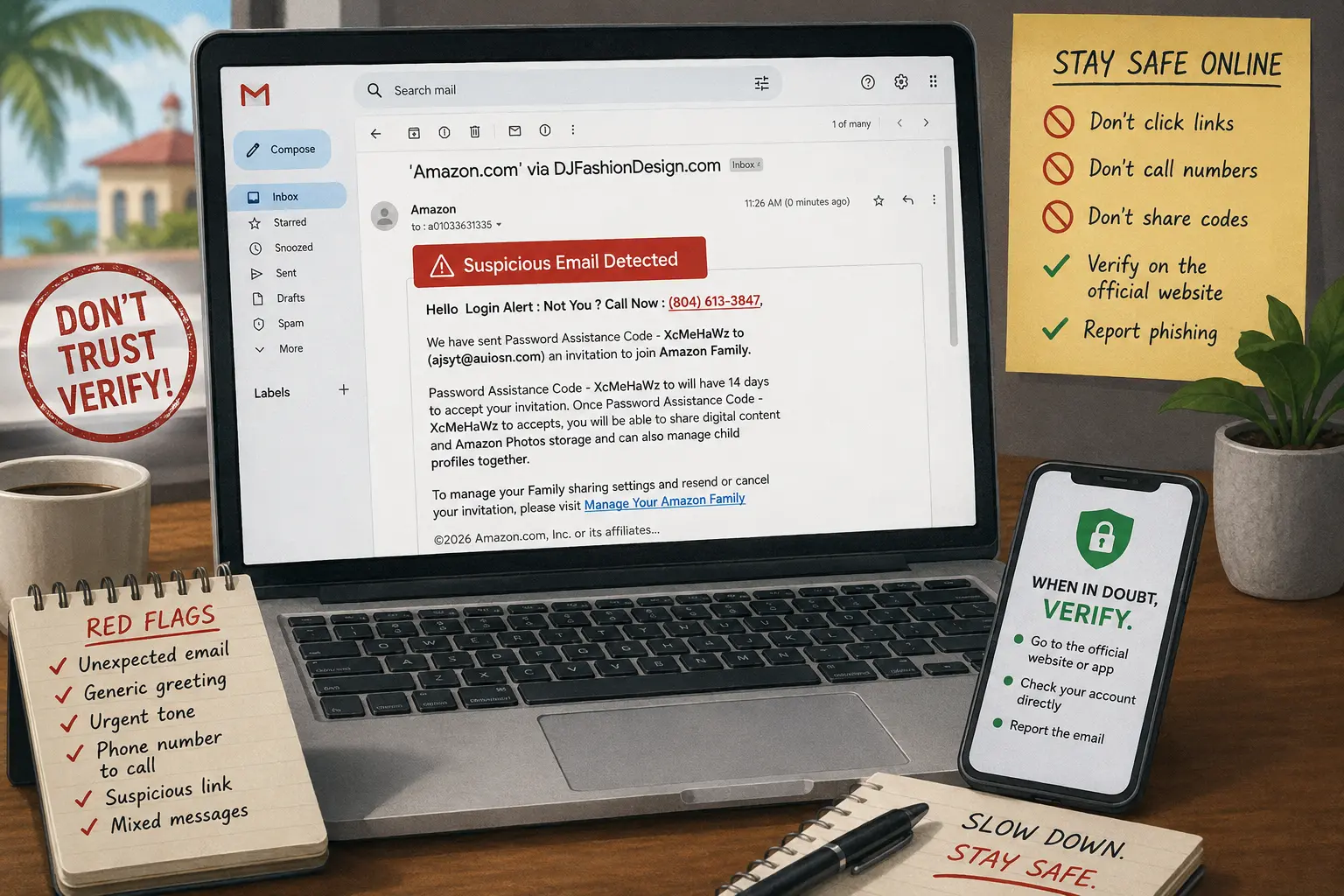
A suspicious Amazon message does not need perfect grammar to be dangerous. The one in this case used a familiar brand name, a “login alert” warning, a phone number, and confusing account-sharing language to push the reader into reacting quickly.
This article breaks down the Amazon phishing attempt safely. It explains the warning signs, why a Gmail filter note matters, what not to do, and the safer way to check your Amazon account without calling a number from the email.
Inside This Amazon Phishing Attempt
- A Fake Amazon Alert That Almost Looks Routine
- Fast Read: What This Covers and What It Does Not
- Why This Email Looks Like a Phishing Attempt
- The 60-Second Safety Check Before You Click or Call
- What To Do If You Already Responded
- The Bottom Line: Slow Down Before You React
- FAQ
- References
Fast Read: What This Covers and What It Does Not
- Best for: Amazon shoppers, Gmail users, and families who want a quick way to judge suspicious account alerts.
- What this covers: A red-flag review of a suspicious email claiming to be from Amazon, with safer reporting and account-check steps.
- What this does not cover: Investigating the sender, identifying the person behind the message, or calling the phone number in the email.
- Main caution: Do not call the number, reply to the message, enter a password, or use links from the email.
- When to get professional help: If you shared a password, payment information, a one-time code, or allowed remote access to a device, contact the affected company, your bank, and a trusted local IT professional promptly.
Why This Email Looks Like a Phishing Attempt
The message tries to look like an Amazon account alert, but the pieces do not line up. It claims there is a “Login Alert,” asks “Not You?”, pushes a phone number, and then switches into a confusing story about an Amazon Family invitation and a “Password Assistance Code.” That mix is the point. It creates enough noise that a worried reader might stop thinking and start calling.
The sender display name also matters. The message appears to present itself as Amazon, but the “via” domain shown in the inbox is not Amazon.com. That does not automatically prove criminal intent by itself because forwarding systems and third-party services can create confusing sender displays. Still, for an account security alert, a mismatch like that is a serious warning sign.
The phone number is another major red flag. A real account alert should not pressure you to call a number inside the message to stop a supposed login problem. The safer route is to open a browser or the official app yourself, type the known website address, and check the account directly.
The Case Study, Safely Redacted
Here is the pattern without repeating the full contact details:
| Clue in the message | Why it matters | Safer response |
|---|---|---|
| “Amazon.com” display name, but sent via another domain | Brand impersonation often uses familiar names while the sender route looks wrong | Treat it as suspicious and do not trust the display name alone |
| “Login Alert: Not You? Call Now” | Urgency is used to make people call before checking | Do not call the number in the message |
| Password assistance code shown in the body | Security-code language can make the message feel official | Never share codes, passwords, or reset links |
| Invitation to “Amazon Family” mixed with account-warning wording | Two unrelated topics are blended together | Check Amazon directly outside the email |
| Gmail says filters affected delivery | Your own Gmail rules may have helped it land in the inbox | Review filters and report the message as spam or phishing |
What Not To Assume
- Do not assume a familiar logo or brand name means the email is real: Scammers often copy brand language and formatting.
- Do not assume Gmail caught everything: Spam filters help, but they do not replace human review.
- Do not assume a phone call is safer than a link: Scam phone numbers can lead to pressure, fake support, remote-access requests, or payment demands.
The 60-Second Safety Check Before You Click or Call
Use this quick check before touching anything inside a suspicious account email.
- Pause for one full minute. Urgency is the bait. A real security check can wait long enough for you to verify safely.
- Check the sender route, not just the display name. A message can say “Amazon” while arriving through an unrelated domain.
- Avoid every link and phone number inside the message. Use the official app or type the known website yourself.
- Look for mixed stories. A login alert, password assistance code, and family-sharing invitation in the same message is a messy combination.
- Report it from inside Gmail. Reporting helps Gmail improve detection for similar messages.
- Review Gmail filters. If Gmail says the message was delivered because of your filters, look for rules that auto-archive, mark as important, forward, or allow messages with broad keywords.
A Practical Gmail Filter Check
In Gmail on a computer, open Settings, then See all settings, then Filters and Blocked Addresses. Look for filters that match broad words like “Amazon,” “order,” “security,” “family,” “code,” or the sender domain. A filter that skips spam, marks messages as important, or forces them into the inbox can accidentally help a scam message bypass your normal workflow.
Do not delete every filter blindly. Some filters may be useful for receipts, school notices, business alerts, or client messages. The better move is to tighten broad filters so they apply only to trusted senders and expected subjects.
Safe Account Check
Open Amazon yourself through the official app or by typing the website address in your browser. Check your account messages, login activity, household or family settings, payment methods, and recent orders. If nothing matches the email, report the message and delete it.
Do not use the “Manage Your Amazon Family” wording from the email as your starting point. Go directly through the account menu after signing in normally.
What To Do If You Already Responded
The next step depends on what happened. Do not panic, but do move quickly.
If You Only Opened the Email
If you only opened the message and did not click, call, reply, download anything, or share information, your risk is usually lower. Report it, delete it, and review your Gmail filters. You can also run a security checkup on your email account and confirm that recovery options are correct.
If You Called the Number
End the call. Do not continue the conversation to “test” the person. If you gave only your first name or general information, make a note of what you shared. If you gave payment information, account credentials, a one-time code, or remote access, treat it as urgent.
If You Shared a Password or Code
Change the affected password from a trusted device. Use a strong, unique password that you do not reuse anywhere else. Turn on multi-factor authentication where available, preferably through an authenticator app or security key rather than relying only on SMS.
Also check whether the same password was used for email, banking, shopping, social media, or school accounts. Reused passwords are a common reason one phishing mistake becomes several account problems.
Red Flags That Need Extra Help
Get help quickly if any of these happened:
- You entered your Amazon password on a page opened from the email.
- You shared a one-time passcode, password reset code, or verification code.
- You gave card, bank, Social Security, or tax information.
- You installed remote-access software.
- You were told to buy gift cards, crypto, or make an urgent transfer.
- You see unfamiliar orders, address changes, new household members, or password reset notices.
For financial exposure, contact the bank or card issuer using the number on the back of your card or inside the official app. For identity theft concerns in the United States or Puerto Rico, use official government reporting resources and keep screenshots, dates, sender details, and transaction records.
The Bottom Line: Slow Down Before You React
This phishing attempt works by mixing fear with familiar branding. The fake “login alert” pushes urgency, the phone number offers a shortcut, and the confusing Amazon Family language makes the message feel like it might be connected to a real account feature.
The safest rule is simple: never use contact details from a suspicious message to fix the problem that message claims you have. Open the account yourself, verify from the official source, report the email, and tighten any Gmail filters that helped it reach your inbox.
FAQ
Q1. Is every Amazon Family email a scam?
A1. No. Amazon has real account and household features. The warning sign here is the combination of unrelated claims, a non-Amazon sender route, urgency, and a phone number inside the message. Verify directly through your Amazon account instead of using the email.
Q2. Should I call the number to ask why they emailed me?
A2. No. Calling gives the sender a chance to pressure you, confirm your number is active, or push you into sharing information. Use official support routes only.
Q3. Why did Gmail let this reach the inbox?
A3. The notice in this case said Gmail filters affected delivery. That means a rule in the mailbox may have influenced where the message landed. Review filters and report the message so similar emails are easier to catch later.
Q4. Should I forward the message to Amazon?
A4. Yes, if you can do it safely. Amazon accepts suspicious communications through its official scam-reporting guidance. Do not click links in the message to report it.
By: Marcus Irizarry
About the author: Technology and IT service contributor covering practical account safety, web security basics, and consumer tech troubleshooting.
Last updated: 2026-06-29
Disclosure: No paid placement influenced this post.
Disclaimer
This article is general online-safety information, not individualized legal, financial, or cybersecurity advice. If you shared sensitive information, lost money, or believe an account was compromised, contact the affected company, your bank or card issuer, and a qualified professional through official channels.
References
- Amazon Customer Service, “Identifying a scam”: https://www.amazon.com/gp/help/customer/display.html?nodeId=G4YFYCCNUSENA23B
- Federal Trade Commission, “How To Recognize and Avoid Phishing Scams”: https://consumer.ftc.gov/articles/how-recognize-avoid-phishing-scams
- Google Gmail Help, “Report spam in Gmail”: https://support.google.com/mail/answer/1366858?hl=en
- FBI, “Cryptocurrency and AI Scams Bilk Americans of Billions,” April 6, 2026: https://www.fbi.gov/news/press-releases/cryptocurrency-and-ai-scams-bilk-americans-of-billions
- Internet Crime Complaint Center, “File a Complaint”: https://www.ic3.gov/



0 Comments