
When the Monitor Is the First Clue
A customer walks in with a glitchy screen and a simple conclusion: the computer is dying. The display flickers, briefly goes black, or scrambles after an update. Sometimes the PC also runs hotter or louder than before. The customer may already be considering a replacement.
That conclusion may be premature. Monitor flicker after an update can point to a display-driver issue, an incompatible app, a bad cable, a dock problem, unusual system load, or a hardware fault. A service representative needs a repeatable way to separate those paths before replacing parts or recommending a new PC.
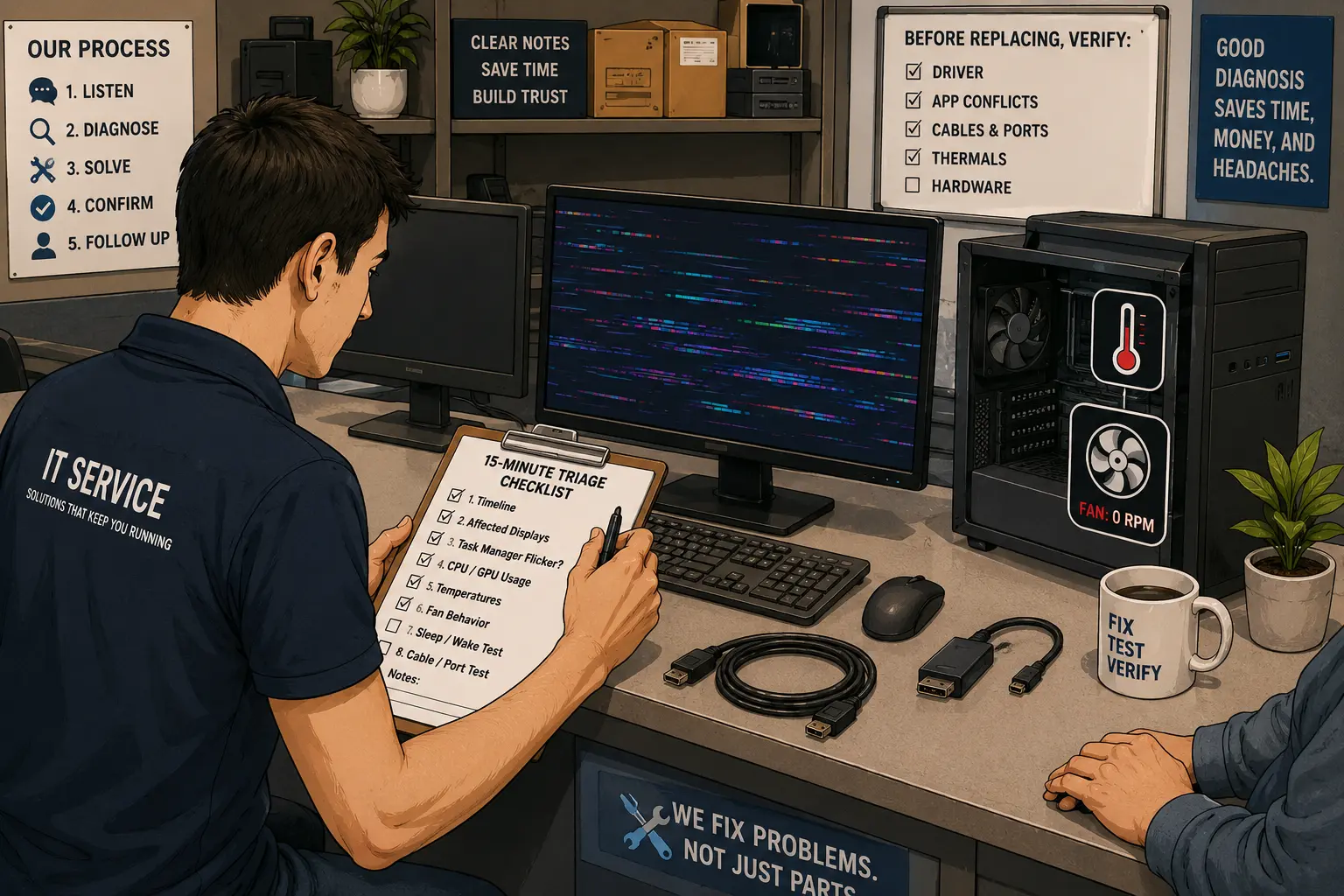
A Better Service-Desk Path for Glitchy PCs
- When the Monitor Is the First Clue
- The 15-Minute Answer for the Service Counter
- Treat Monitor Flicker as a Symptom, Not a Diagnosis
- Run the 15-Minute Monitor Flicker Triage
- Use a Replacement Gate Before Selling a New PC
- Close the Ticket With Evidence, Not Guesswork
- Make Replacement the Last Step, Not the First Answer
- Questions Service Reps Ask About Monitor Flicker
- References
The 15-Minute Answer for the Service Counter
- Best for: Front-line service representatives, repair shops, help desks, and solo IT technicians receiving a PC with flickering, brief black screens, scrambled visuals, or heat complaints after an update.
- Main takeaway: Do not begin with replacement. Build a timeline, isolate the display path, check the Task Manager flicker behavior, and confirm whether heat or fan behavior is part of the case.
- Time, cost, or effort: The first triage pass should take about 15 minutes and require no parts replacement.
- Best result to expect: A clean evidence trail that points toward software isolation, connection testing, thermal escalation, or hardware diagnostics.
- When not to use this: Stop routine triage when there is a burning smell, smoke, electrical damage, repeated shutdowns, or visual corruption before Windows loads.
Treat Monitor Flicker as a Symptom, Not a Diagnosis
Microsoft says screen flickering in Windows is usually caused by a display-driver issue or an incompatible app. Its first isolation step is simple: open Task Manager and observe whether it flickers with the rest of the screen. If Task Manager flickers too, the display driver is probably involved. If Task Manager remains stable while the rest of the screen flickers, an incompatible app is more likely.
That is useful, but it is only the beginning. The rep still needs to ask whether one display is affected or all of them, whether the issue started after a restart or a monitor sleep cycle, whether the system is unusually hot, and whether the glitch appears before Windows loads.
Windows can automatically download recommended hardware drivers through Windows Update. That means a customer may honestly say, “I did not install anything,” even when the graphics environment changed recently. The update timeline belongs in the ticket.
Terms to Keep Separate
- Display-driver issue: Windows and the graphics hardware are not interacting correctly.
- App conflict: One application, overlay, or background utility is interfering with display behavior.
- Connection issue: A cable, port, dock, adapter, or monitor is introducing instability.
- Thermal issue: CPU or GPU heat is abnormal, possibly because of workload, airflow, or cooling behavior.
- Hardware fault: A physical component problem remains after software and connection causes are isolated.
Why the Thermal Question Belongs in the Script
Recent driver incidents show why the rep should not treat display behavior and cooling behavior as separate worlds. NVIDIA's 595.71 driver release notes listed fixes for two 595.59 problems: hardware-monitoring utilities not detecting all GPU fans and one or more GPU fans not spinning after the update.
AMD's Adrenalin Edition 26.6.1 release notes, dated 2026-06-02, listed a fixed Radeon RX 9000-series issue where Zero RPM mode could re-enable itself after a monitor went to sleep or was turned off. These cases do not explain every glitchy screen. They do show why sleep, wake, fan behavior, and temperatures deserve a place in a post-update display triage.
Run the 15-Minute Monitor Flicker Triage
The goal is not to fix every computer in 15 minutes. The goal is to stop guessing. At the end of the first pass, the technician should know which path deserves deeper testing.
The Service-Counter Workflow
| Time | Check | What to record | Why it matters |
|---|---|---|---|
| 0–2 minutes | Ask when the symptom began | Update date, restart, sleep cycle, new app, or no clear trigger | Establishes the timeline |
| 2–4 minutes | Ask whether one display or every display glitches | Monitor count, cable type, dock, adapter, and affected ports | Separates local connection faults from system-wide behavior |
| 4–6 minutes | Open Task Manager and observe flicker behavior | Whether Task Manager flickers with the screen | Helps separate a probable driver issue from an app conflict |
| 6–8 minutes | Review CPU and GPU activity at idle | Highest CPU and GPU processes after a few idle minutes | Identifies runaway workload clues |
| 8–10 minutes | Check temperatures and visible cooling behavior | CPU temperature, GPU temperature, fan readings, and visible fan movement where safely observable | Flags thermal escalation |
| 10–12 minutes | Test after monitor sleep and wake | Whether the symptom returns after the display powers down and resumes | Looks for a repeatable transition problem |
| 12–15 minutes | Isolate cable, port, and display path | One monitor at a time, direct cable connection, alternate port when available | Reduces false hardware conclusions |
Keep the First Pass Low Risk
Do not open the power supply, run a long stress test, or apply several changes at once during first-line triage. If the machine is hot, unstable, or repeatedly crashing, reduce load and escalate.
For a laptop or all-in-one PC, check the system manufacturer's recommended driver path before installing a generic graphics package. Intel's screen-flicker guidance specifically tells laptop users to check with the manufacturer for recommended drivers. Intel also recommends testing one display at a time, using different cables, avoiding unnecessary adapters or dongles, and checking whether flicker appears inside the BIOS screen.
Quick Decision Guide
- If Task Manager flickers with the rest of the screen, prioritize display-driver investigation.
- If Task Manager stays stable while the rest of the screen flickers, investigate recently installed or updated apps.
- If only one monitor glitches, isolate the monitor, cable, port, dock, and adapter path.
- If every display glitches after sleep or wake, record the transition pattern and inspect the graphics-driver timeline.
- If temperatures rise while a visible GPU fan appears stopped, stop load testing and escalate the cooling concern.
- If visual corruption appears in BIOS or before Windows loads, move beyond routine Windows troubleshooting and request hardware diagnostics.
Use a Replacement Gate Before Selling a New PC
The rep should not promise that every glitchy PC is repairable. Some machines do have failing hardware. The problem is recommending replacement before the symptom survives basic isolation.
A replacement gate is a short checklist that protects the customer and the service desk. It avoids the awkward situation where a customer buys a new computer when a cable, driver, app, or update timeline was never reviewed.
Replacement-Gate Checklist
Before recommending a replacement PC, answer these questions:
- Did the issue begin after a Windows update, graphics-driver update, restart, or monitor sleep cycle?
- Does Task Manager flicker with the rest of the screen?
- Does the issue affect one monitor or every connected display?
- Was the computer tested with a direct cable connection and without unnecessary adapters?
- Are CPU or GPU usage levels abnormally high while the system is idle?
- Are temperatures abnormal during light use?
- Do visible fans appear to respond normally where safe observation is possible?
- Does the glitch appear inside BIOS or before Windows starts?
- Was an OEM-recommended driver path considered for a laptop or all-in-one PC?
- Is there evidence of hardware failure after software and connection causes are isolated?
Compare the Next Step, Not Just the Symptom
| Triage result | Best next move | Advantage | Limitation |
|---|---|---|---|
| One display flickers with one cable or dock | Isolate cable, port, dock, and monitor | Fast and inexpensive | Does not rule out an intermittent GPU issue |
| Task Manager flickers with the screen | Investigate display driver and update timeline | Matches Microsoft's first isolation path | Requires careful rollback or update documentation |
| Task Manager stays stable | Investigate app conflict or overlay | Avoids unnecessary driver changes | The conflicting app may not be obvious |
| Heat rises or fans behave abnormally | Stop load testing and escalate | Reduces risk of continued thermal stress | May require deeper diagnostics |
| Corruption appears before Windows loads | Escalate to hardware or firmware diagnostics | Avoids blaming Windows for a pre-boot issue | May require bench testing or manufacturer support |
| Basic isolation fails and repair is uneconomical | Discuss replacement honestly | Gives the customer a reasoned decision | Replacement should be the conclusion, not the opening assumption |
Close the Ticket With Evidence, Not Guesswork
A good triage note helps the next technician and gives the customer a fair explanation. It also creates a pattern if several systems arrive with similar symptoms after the same driver or update window.
Ticket Notes Worth Capturing
- Customer's wording for the symptom
- Date the issue first appeared
- Windows version and recent update history
- PC brand and exact model
- CPU, GPU, and graphics-driver version
- Number of monitors and cable types
- Whether a dock, adapter, or converter is involved
- Whether Task Manager flickers
- Idle CPU and GPU usage
- CPU and GPU temperatures
- Fan readings and visible fan behavior when safely observable
- Whether the issue repeats after sleep or monitor wake
- Whether the glitch appears in BIOS or before Windows starts
- Changes made during triage and the result of each change
Make Replacement the Last Step, Not the First Answer
A glitchy screen can make a functioning PC look unreliable enough to replace. That is exactly why the first response should be structured. The monitor may be the first clue, but it is not the verdict.
A 15-minute triage will not solve every case. It can prevent careless guesses, unnecessary purchases, and support tickets that lose the evidence needed to identify a wider update problem.
Questions Service Reps Ask About Monitor Flicker
Q1. Should a service rep immediately roll back the graphics driver?
Not before recording the installed driver version, update timeline, and symptom pattern. A rollback may be appropriate when the timing is clear, but the technician should preserve evidence and avoid changing several variables at once.
Q2. Why does the Task Manager flicker test matter?
Microsoft uses it as a first isolation step. If Task Manager flickers with everything else, the display driver is probably involved. If Task Manager remains stable while the rest of the screen flickers, an incompatible app is more likely.
Q3. Why test the BIOS screen?
A pre-boot glitch is less likely to be a routine Windows app conflict. Intel recommends checking whether flicker appears inside the BIOS configuration screen. That result can justify hardware, firmware, or manufacturer escalation.
Q4. Should a rep recommend a new PC when the customer already wants one?
A customer can choose replacement for budget, age, or convenience reasons. The rep should still explain whether basic isolation found evidence of hardware failure. A new purchase should be an informed decision, not a substitute for diagnosis.
By: Marcus Irizarry
Why trust this: Marcus Irizarry covers coding, web design, IT service, ecommerce, video games, and media production for Raxan.net. This SOP combines official vendor guidance with practical troubleshooting observations from HP PCs and other Windows systems.
Last updated: 2026-06-08
Disclosure: No paid placement influenced this post.
Scope Note
This SOP provides a first-line troubleshooting framework. It does not replace hands-on diagnostics, manufacturer procedures, or electrical-safety judgment. Stop routine testing and escalate when there are signs of overheating, physical damage, repeated shutdowns, or pre-boot visual corruption.
References
- Microsoft Support — “Troubleshoot screen flickering in Windows.” https://support.microsoft.com/en-us/windows/troubleshoot-screen-flickering-in-windows-47d5b0a7-89ea-1321-ec47-dc262675fc7b
- Microsoft Support — “Automatically get recommended and updated hardware drivers.” https://support.microsoft.com/en-us/windows/automatically-get-recommended-and-updated-hardware-drivers-0549a8d9-4842-8acb-75fa-a6faadb62507
- NVIDIA — “GeForce Game Ready Driver 595.71 | Windows 11.” https://www.nvidia.com/en-us/drivers/details/265180/
- AMD — “AMD Software: Adrenalin Edition 26.6.1 Driver Release Notes.” https://www.amd.com/en/resources/support-articles/release-notes/RN-RAD-WIN-26-6-1.html
- Intel Support — “How to Fix a Flickering Screen with Intel Graphics.” https://www.intel.com/content/www/us/en/support/articles/000026580/graphics.html



0 Comments