
The Check Engine Light Era of Windows 10
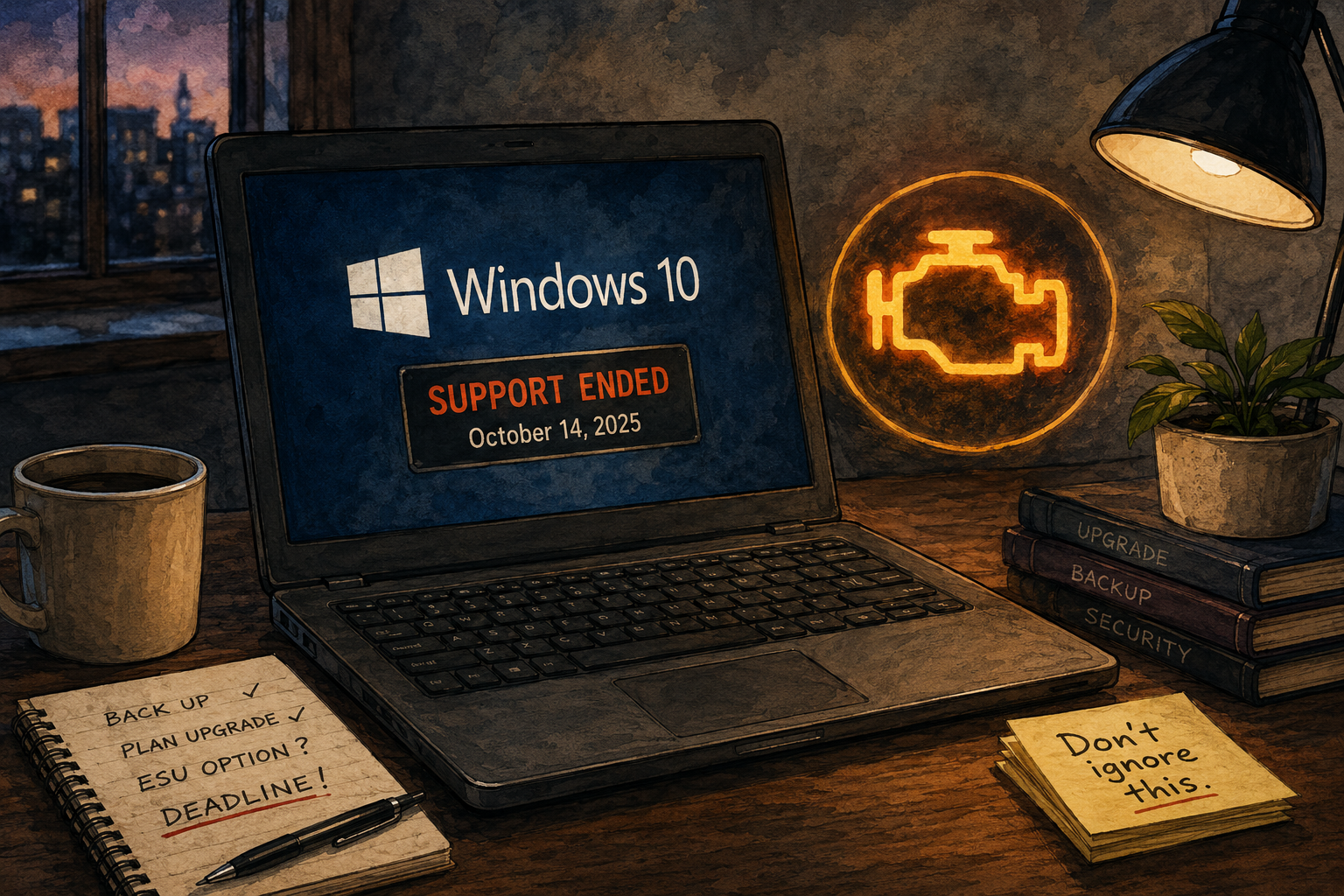
Windows 10 did not explode when support ended. That is exactly why so many people are treating the warning like a dashboard light they can ignore for one more week, then one more month, then one more year.
That is the strange part of the Windows 10 afterlife. The computer still boots. The browser opens. The printer probably still argues with you in the same familiar way. Nothing feels broken enough to force a decision. But end of support was never supposed to feel like a dramatic crash. It is more like a small orange light that says, “You can keep driving, but pretending this is normal will get more expensive.”
Road Map for the Windows 10 Afterlife
- The Check Engine Light Era of Windows 10
- The Numbers Make the Denial Harder to Mock
- What the Holdouts Get Right
- What the Holdouts Get Wrong
- A Practical Exit Plan Before the Afterlife Ends
- Final Thought: The Light Is On for a Reason
- FAQs
- References
The Dashboard Warning, in Plain English
- The core claim: Windows 10 is not useless, but it is no longer a normal long-term operating system for everyday internet use.
- The common mistake: People think “still works” means “still safe enough.”
- Why it matters: Security risk usually grows quietly before it becomes obvious.
- Who this affects: Home users, students, freelancers, small offices, older gaming PCs, and anyone keeping a trusted laptop alive.
- Bottom-line opinion: Staying on Windows 10 can be reasonable for a short transition. Treating it as a permanent plan is the problem.
The check engine light comparison works because most people understand the psychology. A warning does not remove your keys. It does not stop the car at the grocery store. It simply tells you that the margin for ignoring problems is getting thinner.
Windows 10 now lives in that margin. Microsoft’s standard support ended on October 14, 2025. Microsoft’s consumer Extended Security Updates program gives eligible users more time, but it is not a new lease on Windows 10 life. It is a bridge.
The Numbers Make the Denial Harder to Mock
It is easy to make fun of Windows 10 holdouts until you look at the size of the crowd. According to StatCounter’s worldwide desktop Windows version share for April 2026, Windows 10 still represented 28.47% of desktop Windows usage, while Windows 11 held 70.35%. That is not a tiny nostalgia club. That is millions of people still using a system that many of them understand better than its replacement.
Steam’s April 2026 hardware survey tells a similar story in gaming spaces. Windows 11 64-bit led among Steam users, but Windows 10 64-bit still showed up at 25.63%. Gamers are often quicker than average users to chase performance, drivers, and new hardware, so that number says something. The Windows 10 afterlife is not just grandparents avoiding the Settings app. It includes gamers, budget builders, students, small creators, and people who simply do not want to throw away a working machine.
The lazy take is too easy
The lazy take says Windows 10 users are stubborn, cheap, or allergic to change. Some are. Plenty are not.
A better reading is that Windows 10 became the “known good” operating system for a huge slice of the PC world. People spent years fixing their quirks, learning where settings moved, and building habits around it. When Windows 11 arrived with new hardware requirements, a redesigned interface, and a sense that Microsoft wanted users to hurry up already, some people heard an upgrade pitch, not a compelling reason.
That does not make the check engine light disappear. It explains why so many people look at it, sigh, and keep driving.
The dated example: October 2025 was not the real ending for everyone
October 14, 2025 was the official standard-support cutoff, but the practical ending is messier. A person enrolled in consumer ESU may receive critical and important security updates through October 13, 2026. Another person on the same version of Windows 10, not enrolled, is simply taking more risk every month. A third person may own a PC that works perfectly for homework, email, streaming, and light gaming, but fails the Windows 11 upgrade check.
That is why the Windows 10 debate feels emotional. It is not only about software. It is about whether a working computer should be considered obsolete because the support calendar says so.
What the Holdouts Get Right
Windows 10 holdouts are not wrong about everything. In fact, some of their frustration is valid.
A working PC is not automatically trash
There is something wasteful about replacing a laptop that still runs fine for basic work. A family laptop that handles school portals, documents, online banking, and video calls may not feel old in any practical sense. If the battery is acceptable, the keyboard works, and the screen is good enough, “buy a new one” can sound like advice from someone who is not paying the bill.
This matters in households where a PC is not a hobby purchase. It is a school tool, a job-search tool, or the machine used to manage bills. A forced-feeling upgrade can land like a fee for staying normal.
Windows 11 was not a must-have upgrade for every user
For many casual users, Windows 11 did not deliver a single irresistible benefit. Better security foundations matter, but they are not as emotionally persuasive as “your apps will run twice as fast” or “your battery will last all day.” When the benefit is invisible and the hassle is visible, people delay.
That is not irrational. It is human.
Hardware requirements changed the mood
The most annoyed Windows 10 users are often not refusing a free upgrade. They are being told their PC may not qualify. Once users feel boxed into buying hardware, the conversation changes from “install this update” to “replace something that still works.” That is the point where a normal software transition starts feeling like a trust problem.
What the Holdouts Get Wrong
Here is where the check engine light metaphor gets sharper. The car may still move, but ignoring the warning does not make you independent. It makes you dependent on luck.
“I’m careful online” is not a security plan
Careful habits help. They are not enough by themselves. People can avoid sketchy downloads and still run into compromised ads, outdated apps, malicious attachments, stolen passwords, fake login pages, vulnerable drivers, or browser extensions that go bad.
The risk is not that every Windows 10 PC suddenly becomes infected. That is cartoon thinking. The risk is that unsupported systems lose their cushion. When new vulnerabilities appear, the users outside the update stream are more exposed than they need to be.
ESU is a bridge, not a bunker
Microsoft’s consumer ESU program is useful, especially for people who need time. But it has limits. It is meant to provide critical and important security updates for eligible Windows 10 version 22H2 devices, not new features, not a refreshed operating system, and not indefinite technical support.
The consumer options also come with tradeoffs. Microsoft lists enrollment choices including syncing PC settings at no additional cost, redeeming 1,000 Microsoft Rewards points, or making a one-time $30 USD purchase. It also requires signing in with a Microsoft account for enrollment. For some users, that is fine. For others, the account requirement is exactly the kind of tradeoff that made them delay in the first place.
The danger is boring until it is not
Most security problems are not cinematic. They do not announce themselves with a skull graphic. They show up as a bank login you suddenly do not trust, a browser that starts acting weird, a machine that becomes part of someone else’s botnet, or a repair bill that costs more than the upgrade plan you avoided.
That is what makes the Windows 10 afterlife risky. The bad outcome may be rare for any one careful user, but the downside is large enough that “nothing happened yet” is weak evidence.
A Practical Exit Plan Before the Afterlife Ends
The smartest Windows 10 users are not the ones who panic. They are the ones who pick a lane.
The three-lane decision rule
| Lane | Best for | What to do | Main tradeoff |
|---|---|---|---|
| Upgrade to Windows 11 | PCs that pass eligibility checks and run well | Back up files, install available firmware and driver updates, then upgrade | Some interface changes and possible app adjustment |
| Use ESU as a temporary bridge | PCs that need more time but still handle important tasks | Enroll through Windows Update if eligible, then set a replacement or migration deadline | It buys time, not a permanent future |
| Move away from the machine | PCs that fail Windows 11 requirements or feel slow already | Replace, refurbish, recycle, or repurpose for offline tasks | Higher upfront cost or time spent moving files |
The key is to stop treating “later” as a plan. Later is not a lane. Later is how people end up doing rushed tech decisions after something breaks.
Mini scenario: the $30 pause that still needs a deadline
Imagine a home user with a five-year-old desktop that runs Windows 10 smoothly but fails the Windows 11 check. The person uses it for email, taxes, school forms, photos, and a few older games. Paying $30 for ESU may be reasonable if it avoids a rushed purchase this month.
But the smart version of that choice includes a deadline. For example: enroll in ESU in May 2026, back up files that same week, price refurbished Windows 11-ready desktops by July, and move before October 2026. The risky version is paying for ESU, feeling relieved, and forgetting that the bridge has an end.
Quick reality-check list
- Check whether the PC is running Windows 10 version 22H2.
- Confirm whether Windows Update offers a Windows 11 upgrade or ESU enrollment.
- Back up documents, photos, browser passwords, and software license details before making changes.
- Decide whether this PC handles sensitive tasks, such as banking, taxes, client work, or school records.
- Put a real date on the calendar for upgrade, replacement, or retirement.
What not to do
Do not keep an unsupported Windows 10 PC as your main banking, email, and password-management machine while telling yourself you are “just careful.” That is not a personality trait. That is risk acceptance without paperwork.
Also do not buy the cheapest replacement computer in a panic. A rushed bargain laptop with weak storage, low memory, and a poor screen can punish you for years. If the current PC still works, use the remaining support window to choose calmly.
Final Thought: The Light Is On for a Reason
Windows 10 earned its loyalty. It was familiar, durable, and good enough for a long time. That is why the afterlife feels so strange. People are not clinging to a broken thing. They are clinging to a working thing that has crossed a support line most users cannot see.
Still, the check engine light is on. The best response is not panic, and it is not denial. It is a controlled exit. Keep Windows 10 only if you understand the tradeoff, enroll in ESU if you need the bridge, and make a real plan before the bridge ends.
FAQs
Q1. Does Windows 10 stop working after support ends?
A1. No. Windows 10 still runs after the support cutoff. The issue is that standard feature updates, security updates, and technical assistance are no longer part of normal support. That makes long-term everyday use riskier, especially online.
Q2. Is Windows 10 ESU enough to keep using my PC?
A2. ESU can be enough as a temporary bridge if your device is eligible and enrolled. It should not be treated as a permanent plan because consumer ESU runs only through October 13, 2026.
Q3. Should every Windows 10 user buy a new computer immediately?
A3. No. Some users can upgrade their existing PC to Windows 11. Others can use ESU while planning a replacement. The worst option is doing nothing while using the device for sensitive accounts and important files.
Q4. What is the biggest mistake Windows 10 holdouts make?
A4. The biggest mistake is confusing a working desktop with a supported security posture. A PC can feel normal while its long-term risk is quietly increasing.
By: Marcus Irizarry
Why trust this: Technology and IT-service commentary focused on practical upgrade decisions, security tradeoffs, and everyday user behavior.
Last updated: 2026-05-14
Disclosure: No paid placement influenced this post.
Disclaimer
This article is general technology commentary and is not personalized cybersecurity, legal, or purchasing advice. Before upgrading, replacing, or repurposing a computer, back up important files and check the requirements for your specific device and software.
References
- Microsoft: Windows 10 Extended Security Updates
- StatCounter: Desktop Windows Version Market Share Worldwide
- Steam: Hardware & Software Survey, April 2026




0 Comments