
Why Software Now Wants Full Access to Your Life for “Convenience”
Software used to ask for one thing at a time. A camera app wanted the camera. A map app wanted location. A notes app wanted the emotional privilege of being ignored for six months.
Now everything wants full access “for convenience.” Your calendar wants your email. Your assistant wants your files. Your browser wants your shopping context. Your smart speaker wants to know the lights, the thermostat, your music taste, and possibly whether the blender has unresolved feelings.
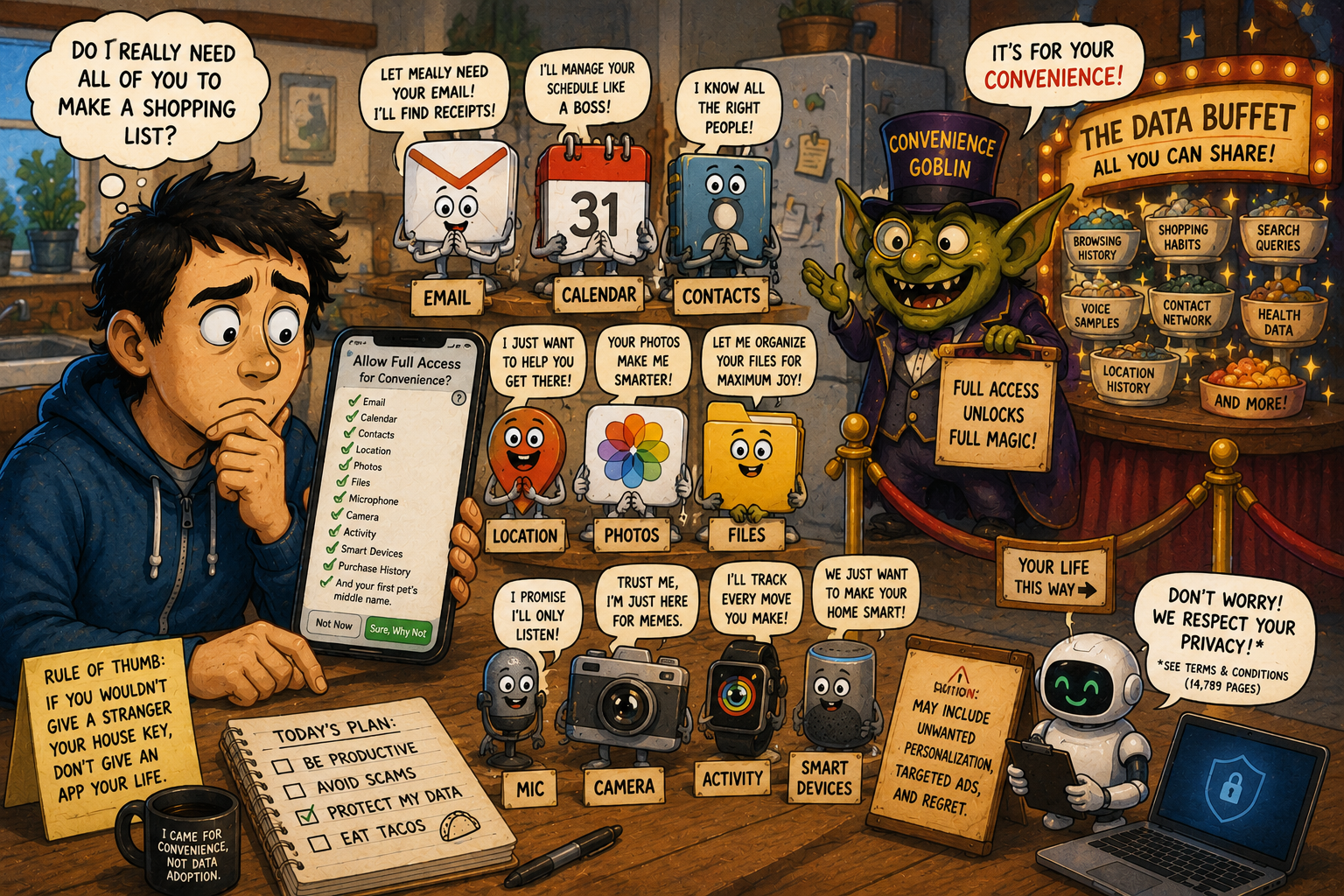
The pitch sounds friendly: connect everything, repeat yourself less, get smarter suggestions, save time. Some of that is genuinely useful. The problem is that convenience has become the velvet rope at the entrance to your personal data circus. Once an app says “just connect your account,” normal users are left asking, “Wait, how much of my life did I just hand to the tiny rectangle?”
What This Convenience Permission Goblin Covers
- Why Software Now Wants Full Access to Your Life for “Convenience”
- Convenience Is the Nicest Word for “Let Me In”
- AI Made the Access Request Bigger
- Mini Case: The Calendar App That Wanted the Whole House
- The Access Ladder: A Better Way to Say Yes
- The Bottom Line: Convenience Should Come With a Leash
- FAQ: Full Access, App Permissions, and Data Overreach
- References
Convenience Is the Nicest Word for “Let Me In”
The word “convenience” does a lot of overtime in tech. It means faster sign-ins, better reminders, smoother syncing, smarter search, fewer taps, and fewer moments where you stare at a screen muttering, “Where did I put that file, demon?”
But it can also mean broader data access. An app may ask to connect your email so it can find receipts. It may ask for calendar access so it can schedule things. It may ask for contacts so it can identify people. It may ask for location so it can personalize recommendations. Each request sounds reasonable in isolation.
Stack them together and suddenly the grocery app, calendar assistant, browser extension, smart TV, and AI tool are all standing in your digital living room wearing socks they did not buy.
The Permission Creep Pattern
Permission creep usually starts with one helpful feature.
First, the software asks to read your calendar so it can remind you about meetings. Fine. Then it wants email access to find travel plans. Maybe. Then it wants contacts to “improve collaboration.” Hmm. Then it wants background activity, location, notifications, purchase history, and permission to send “helpful updates” that are mostly coupons with a degree in interruption.
That is how everyday users end up granting access they never meant to grant. Not because they are careless, but because the prompts arrive one tiny “yes” at a time.
The issue is not that access is always bad. The issue is that software often asks for the most useful access for itself, not the narrowest access that works for you.
AI Made the Access Request Bigger
AI assistants changed the permission conversation because they are built to be more helpful when they have context. A regular app might need one file. An AI assistant may want to search across email, calendar, documents, chats, browsing history, photos, and past conversations so it can “understand your workflow.”
That can be powerful. It can also feel like hiring a personal assistant who immediately opens every closet.
Google’s Personal Intelligence connects user-approved Google apps like Gmail and Photos to make Gemini more personal. OpenAI’s connected app controls explain that when users connect Google services such as Gmail, Calendar, or Drive, data may be indexed and synced so responses can be more useful. Microsoft’s Recall for Copilot+ PCs is another example of the convenience bargain: it helps users retrace activity with snapshots, while also offering controls to pause, filter, disable, or delete what is saved.
The pattern is obvious. The future of software wants context. Context lives in your data.
Useful Is Not the Same as Unlimited
A tool that can find your flight confirmation is useful. A tool that permanently remembers every weird travel search from the last five years is a different animal.
A tool that summarizes a meeting thread is useful. A tool that reads every email by default because it might someday be convenient is where the privacy goblin starts tapping a clipboard.
“No gracias” is sometimes the correct technical response.
Mini Case: The Calendar App That Wanted the Whole House
Imagine a new planning app. It promises to organize your week, reduce stress, and make your schedule feel “effortless.” It sounds great because your current schedule looks like a raccoon fell into a filing cabinet.
During setup, it asks for calendar access. Reasonable.
Then email access to detect tasks. Maybe useful.
Then contacts so it can identify people in meetings. Fine, possibly.
Then location to estimate travel time. Reasonable only if you actually use travel-time planning.
Then notifications, background refresh, browsing history, and permission to connect your notes app because “smart suggestions work best when everything is connected.”
At that point, the app is no longer organizing your week. It is moving into the guest room.
Permission vs. Benefit Table
| Access Request | Real Convenience | Better Boundary |
|---|---|---|
| Calendar | Schedule reminders and meeting prep | Allow calendar only, not email yet |
| Finds receipts, travel plans, and tasks | Connect only if you need inbox search | |
| Contacts | Identifies people and groups | Avoid unless collaboration is central |
| Location | Estimates commute and nearby reminders | Use while using, not always |
| Files and notes | Finds project context | Limit to specific folders when possible |
| Notifications | Alerts you to tasks | Turn off marketing or nonessential alerts |
The best permission is not the one that unlocks the most features. It is the one that unlocks the feature you actually plan to use.
The Access Ladder: A Better Way to Say Yes
Do not treat permissions like a light switch. Treat them like a ladder. Start at the bottom and climb only when the benefit is real.
Level 1: No Access
Use this when you are testing an app, browsing features, or unsure whether you will keep it. If the app cannot explain why it needs access, it has not earned access.
Level 2: One-Time or While-Using Access
Good for location, camera, microphone, and photos. This is the “you may borrow the stapler, but you are not getting a house key” level.
Level 3: Limited Scope
Choose selected photos, specific folders, one calendar, or one account when available. This is especially useful for AI tools and productivity apps. Give the tool the project drawer, not the whole garage.
Level 4: Full Access With Review
Use this only for tools you trust and use often, like a password manager, main email app, backup tool, or work-approved productivity assistant. Even then, review connected apps and permissions every month or two.
Quick Access-Control Checklist
- Ask what feature breaks if you deny the permission.
- Choose one-time, while-using, selected-photo, or folder-limited access when available.
- Avoid connecting email, calendar, files, and contacts all at once.
- Disconnect integrations you have not used in 90 days.
- Review AI memory, chat history, and connected app controls after major life changes.
- Turn off notifications that exist mostly to drag you back into the app.
- Use official settings pages, not random pop-up prompts, to manage sensitive access.
The Tradeoff: Locking Everything Down Can Be Annoying
Here is the irritating truth: full access can make software better. A calendar assistant with no calendar is just a motivational poster. An AI tool with no documents cannot summarize your documents. A maps app without location becomes a guessing game with traffic.
Privacy advice that ignores convenience is not helpful. People use tools because they want less friction. If every task requires eight manual steps, users will either give up or approve everything just to make the prompts stop yelling.
The better goal is selective convenience. Let useful tools have the minimum context they need, then remove access when the job is done.
When Not to Grant Full Access
Do not grant full access when:
- You are only trying the app once.
- The app’s main purpose is small or vague.
- The permission request does not match the feature.
- The app wants contacts, email, files, or location before showing real value.
- The app gives you no clear way to disconnect later.
- The benefit is described only as “better personalization.”
“Better personalization” can mean genuinely helpful suggestions. It can also mean the app wants more data because data is the snack bowl of the software industry.
The Bottom Line: Convenience Should Come With a Leash
Software wants full access to your life for convenience because connected data makes products feel smarter. It helps apps predict, summarize, automate, and personalize. Sometimes that saves time. Sometimes it just turns your private context into a buffet with rounded buttons.
The practical takeaway is simple: do not say yes to the whole house when the app only needs the porch. Start with narrow access, expand only when a real feature requires it, and review connected apps before forgotten tools keep quietly sipping data in the background.
Convenience is nice. Boundaries are nicer. The best software should help without acting like it owns a tiny deed to your calendar, inbox, files, location, and left eyebrow.
FAQ: Full Access, App Permissions, and Data Overreach
Q1. Is it bad to connect apps to email or calendar?
A1. Not always. It can be useful for scheduling, reminders, receipts, and task summaries. The safer move is to connect only when you need the feature and disconnect tools you stop using.
Q2. Should I deny every permission at first?
A2. For new or unfamiliar apps, yes, deny unclear permissions first. You can usually grant access later when a feature actually needs it.
Q3. Which permissions deserve the most caution?
A3. Be careful with email, calendar, contacts, files, photos, microphone, camera, location, health data, financial data, and AI memory or chat history.
Q4. What is the easiest privacy habit for everyday users?
A4. Once a month, review connected apps and remove anything you have not used in 90 days. That one habit cuts a lot of quiet overreach.
By: Rex Iriarte
Why trust this: Consumer-tech commentary based on current privacy controls, app permissions, AI assistant integrations, and everyday device behavior.
Last updated: 2026-05-13
Disclosure: No paid placement influenced this post.
References
- Google Blog, “Gemini introduces Personal Intelligence,” January 14, 2026
- OpenAI Help Center, “Google App for ChatGPT Data Controls FAQ,” accessed May 13, 2026
- Microsoft Support, “Privacy and control over your Recall experience,” accessed May 13, 2026
- Federal Trade Commission, “Privacy and Security Enforcement,” accessed May 13, 2026
- Apple, “Privacy Labels,” accessed May 13, 2026




0 Comments