
Why Privacy Settings Always Sound Like They Need a Lawyer Present
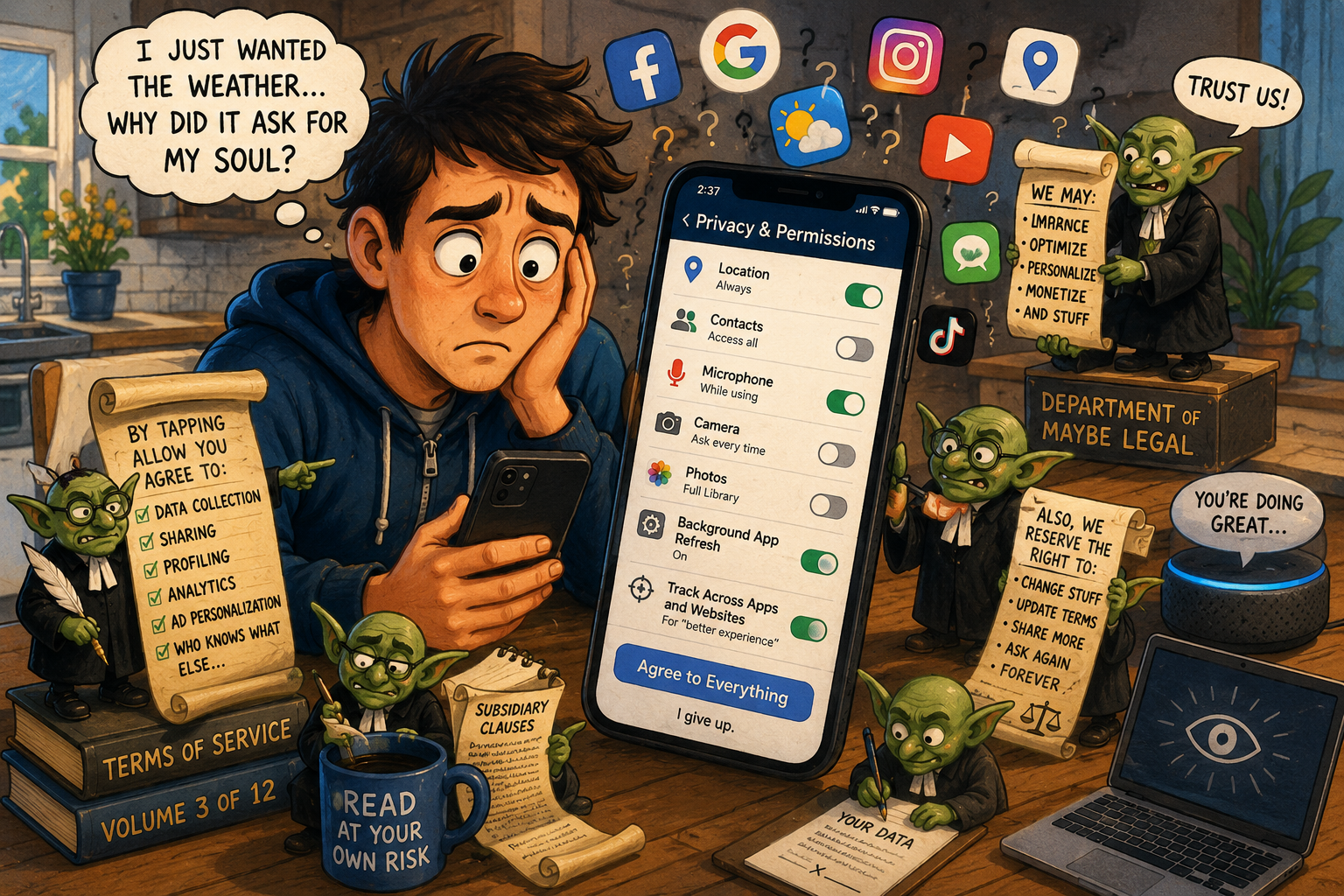
Privacy settings have a gift for making normal people feel like they are signing a mortgage inside a moving elevator. You open an app to do one simple thing, maybe check the weather, scan a receipt, or connect a speaker, and suddenly your phone is asking whether you consent to “enhanced personalized experiences.”
Enhanced how? Personalized by whom? Why does my flashlight app need to know whether I visited a sporting goods store last Thursday?
In 2026, privacy prompts are everywhere because apps, browsers, AI assistants, smart devices, and operating systems all want more context. Some of that context is useful. Some of it is business model seasoning. The trick is learning which is which before tapping Allow like you are feeding coins into a haunted vending machine.
What This Privacy Settings Circus Covers
- Why Privacy Settings Always Sound Like They Need a Lawyer Present
- Every Permission Prompt Is a Tiny Negotiation
- Why 2026 Made the Privacy Menu Even Weirder
- Mini Case: The Weather App That Wanted a Life Story
- The Three-Question Privacy Filter
- The Bottom Line: You Do Not Need a Law Degree, Just a Pause
- FAQ: Privacy Settings, Permissions, and Data Overreach
- References
Every Permission Prompt Is a Tiny Negotiation
The modern app permission prompt pretends to be a yes-or-no question. It is not. It is a tiny negotiation wearing rounded corners.
“Allow location?” might mean a map can show you the nearest grocery store. It might also mean background location, ad targeting, analytics, fraud detection, or “we would like to know where your sneakers emotionally live.” The wording rarely says the quiet part clearly enough.
That does not mean every app is evil. A navigation app needs location. A photo editor may need access to selected photos. A banking app may need identity verification. A video call app without microphone access is just awkward silent theater.
The problem is permission creep. Apps often ask for the most convenient access for themselves, not the narrowest access that works for you.
The Normal-User Translation
When an app says, “Allow access to improve your experience,” translate it as: “This may help a feature, help analytics, help ads, or help something buried in a policy nobody reads unless coffee and a court order are involved.”
That sounds cynical, but it is practical. Good privacy habits are less about paranoia and more about matching access to purpose.
If the app’s purpose is obvious, the permission might be fine. If the app’s purpose and the permission are in two different galaxies, pause. A calculator app asking for contacts is not calculating. It is networking.
Why 2026 Made the Privacy Menu Even Weirder
Privacy used to feel like a website problem. Clear cookies. Block trackers. Move on with your little digital backpack.
Now privacy is spread across phones, laptops, browsers, voice assistants, smart TVs, fitness bands, cars, doorbells, AI chatbots, and suspiciously ambitious refrigerators. Every device wants an account. Every account wants a profile. Every profile wants to “personalize.” Personalization is useful until your toaster starts acting like a junior marketing associate.
App stores have tried to make this clearer. Apple’s App Store privacy labels are designed to explain how apps handle data. Google Play’s Data safety section asks developers to disclose what data apps collect and share. Those are helpful improvements, but they are still summaries. They do not replace judgment.
Then AI made privacy prompts feel even more personal. People ask chatbots about health concerns, money stress, work problems, relationship confusion, and private plans. WhatsApp’s May 2026 announcement of Incognito Chat with Meta AI shows how mainstream the concern has become: users want AI help without feeling like every sensitive question is being placed in a glass jar on a shelf.
Ay bendito, the future is smart enough to summarize your feelings and weird enough to ask whether it may store them.
The Real Annoyance: Settings Are Scattered
Privacy controls are rarely in one clean place. You may need to check:
- Phone privacy settings
- Individual app settings
- Browser privacy controls
- Account dashboards
- AI chat history controls
- Smart home device apps
- Ad personalization menus
- Email and notification settings
- Cookie banners that look like they were designed by a maze enthusiast
No casual user wants a Saturday morning “data minimization journey.” People have laundry. People have errands. People have a printer that has chosen violence.
That is why the goal should not be perfect privacy. The goal should be fewer dumb permissions.
Mini Case: The Weather App That Wanted a Life Story
Imagine you download a weather app before a weekend trip. You want to know whether rain will ruin the cookout. Simple mission.
First prompt: precise location. Reasonable if you want neighborhood-level weather alerts.
Second prompt: notifications. Also reasonable if you want storm alerts, not if you only get “daily sunshine tips” and coupon nonsense.
Third prompt: tracking across other apps and websites. Now the weather app is putting on sunglasses indoors.
Here is the practical difference:
| Permission | Reasonable Use | Side-Eye Moment |
|---|---|---|
| Precise location | Severe weather alerts or hyperlocal radar | You only check the forecast manually |
| Notifications | Storm warnings or commute weather | Marketing pings, fake urgency, and engagement nudges |
| Photo access | Uploading weather photos or reports | The app only displays forecasts |
| Cross-app tracking | Rarely needed for the core feature | Framed as personalization without a clear user benefit |
The best move is not to deny everything. It is to start narrow. Choose approximate location if that works. Choose “while using the app” instead of always-on access. Let notifications earn their place.
The Three-Question Privacy Filter
Before tapping Allow, ask three questions. This takes less time than finding the exact charger cable that fits the old tablet nobody admits belongs to them.
1. What breaks if I say no?
If the app cannot do the thing you opened it for, the permission might be justified. A rideshare app without location becomes a very expensive guessing game.
If nothing obvious breaks, deny it first. Most apps will ask again when the permission is truly needed. Apps have the persistence of a toddler near a vending machine.
2. Can I give less access?
Use limited permissions when available. Pick “while using,” “allow once,” “selected photos,” or approximate location when those options make sense.
Be more careful with always-on location, full photo library access, contacts, microphone, camera, health data, financial data, and AI chat history. Those categories can reveal habits, relationships, routines, and private concerns.
3. Does the data request match the app’s job?
A meditation app may need audio playback. It probably does not need your full contact list. A grocery app may need your ZIP code for store availability. It does not automatically need precise location forever, your photo library, and permission to send seven notifications about lettuce.
This is the core rule: the boringness of the app should match the boringness of the permissions.
Quick Privacy Settings Checklist
- Review location permissions once a month.
- Change “always allow” to “while using” unless always-on access is necessary.
- Limit photo access to selected images when possible.
- Turn off notifications from apps that mostly send promotions.
- Check AI chat history settings before sharing sensitive personal details.
- Delete apps you have not used in 90 days.
- Read privacy labels or Data safety summaries before installing unfamiliar apps.
- Avoid granting contacts access just to “find friends” unless you actually want that feature.
The Tradeoff: Privacy Can Make Tech Less Convenient
Here is the part privacy advice sometimes skips: stricter settings can make apps less smooth.
Deny location and weather gets less exact. Deny contacts and messaging apps may not suggest people automatically. Disable personalization and your recommendations may become oddly unhinged, like your device thinks you are shopping for garden gnomes, protein powder, and accounting software at the same time.
That tradeoff is real. Privacy is not about smashing every permission button with a tiny hammer. It is about deciding what each app deserves to know.
When Not to Micromanage Everything
Do not spend three hours auditing every toggle on a phone you barely use. Start with the big categories first: location, contacts, microphone, camera, photos, health data, financial data, and AI chat history.
Also, do not treat app privacy labels as perfect truth tablets from a mountain. They are helpful summaries, often based on developer disclosures. Use them to spot mismatches, then combine that with device-level controls and common sense.
The best privacy setup is one you will actually maintain. A perfect system you abandon after two days is just a digital gym membership with more checkboxes.
The Bottom Line: You Do Not Need a Law Degree, Just a Pause
Privacy settings sound like they need a lawyer present because companies often explain data access in language that is technically descriptive and emotionally oatmeal. The information may be there, but the clarity is buried under menu layers and “learn more” links.
The practical takeaway is simple: match permission to purpose, start with the narrowest access, and revisit settings when an app starts acting too familiar. AI tools, smart devices, and everyday apps will keep asking for more context because context makes features better and data more valuable.
You do not need panic. You need friction. One extra pause before tapping Allow can keep a weather app from becoming your unofficial biographer.
FAQ: Privacy Settings, Permissions, and Data Overreach
Q1. Should I deny every app permission?
A1. No. Some permissions are necessary for features to work. The better habit is to deny unclear permissions first and allow access only when the app’s purpose clearly requires it.
Q2. Which permissions matter most?
A2. Start with location, contacts, microphone, camera, photos, health data, financial data, and AI chat history. Those can reveal more about your life than basic device settings.
Q3. Are App Store privacy labels and Google Play Data safety sections enough?
A3. They are useful starting points, but not a complete privacy audit. Use them to spot obvious mismatches, then check device settings for the actual permissions granted.
Q4. What is the easiest privacy habit for everyday users?
A4. Once a month, review location access and notifications. Those two categories create a lot of everyday exposure and annoyance, and they are usually quick to clean up.
By: Rex Iriarte
Why trust this: Consumer-tech commentary based on current app privacy disclosures, permission controls, FTC privacy enforcement, and everyday device behavior.
Last updated: 2026-05-13
Disclosure: No paid placement influenced this post.
References
- Apple, “Privacy Labels,” accessed May 13, 2026
- Apple Developer, “App Privacy Details,” accessed May 13, 2026
- Google Play Help, “Provide information for Google Play’s Data safety section,” accessed May 13, 2026
- Federal Trade Commission, “Privacy and Security Enforcement,” accessed May 13, 2026
- WhatsApp Blog, “Introducing Incognito Chat with Meta AI,” May 13, 2026




0 Comments