
Why a Saved Network Deserves Attention
A Chromebook that reconnects automatically to Wi-Fi feels convenient. In a home, classroom, repair counter, or small office, that convenience can become a security question when the device changes hands. A saved network may keep working long after the person using the Chromebook has forgotten how the connection was set up.
The phrase sync-internals password extractor appears in searches for unofficial methods that claim to reveal saved Wi-Fi credentials from ChromeOS data. This post does not provide extraction steps, bypass instructions, or links to those tools. The useful question is simpler: what should an authorized owner or administrator do when a shared Chromebook may expose access to a private network?
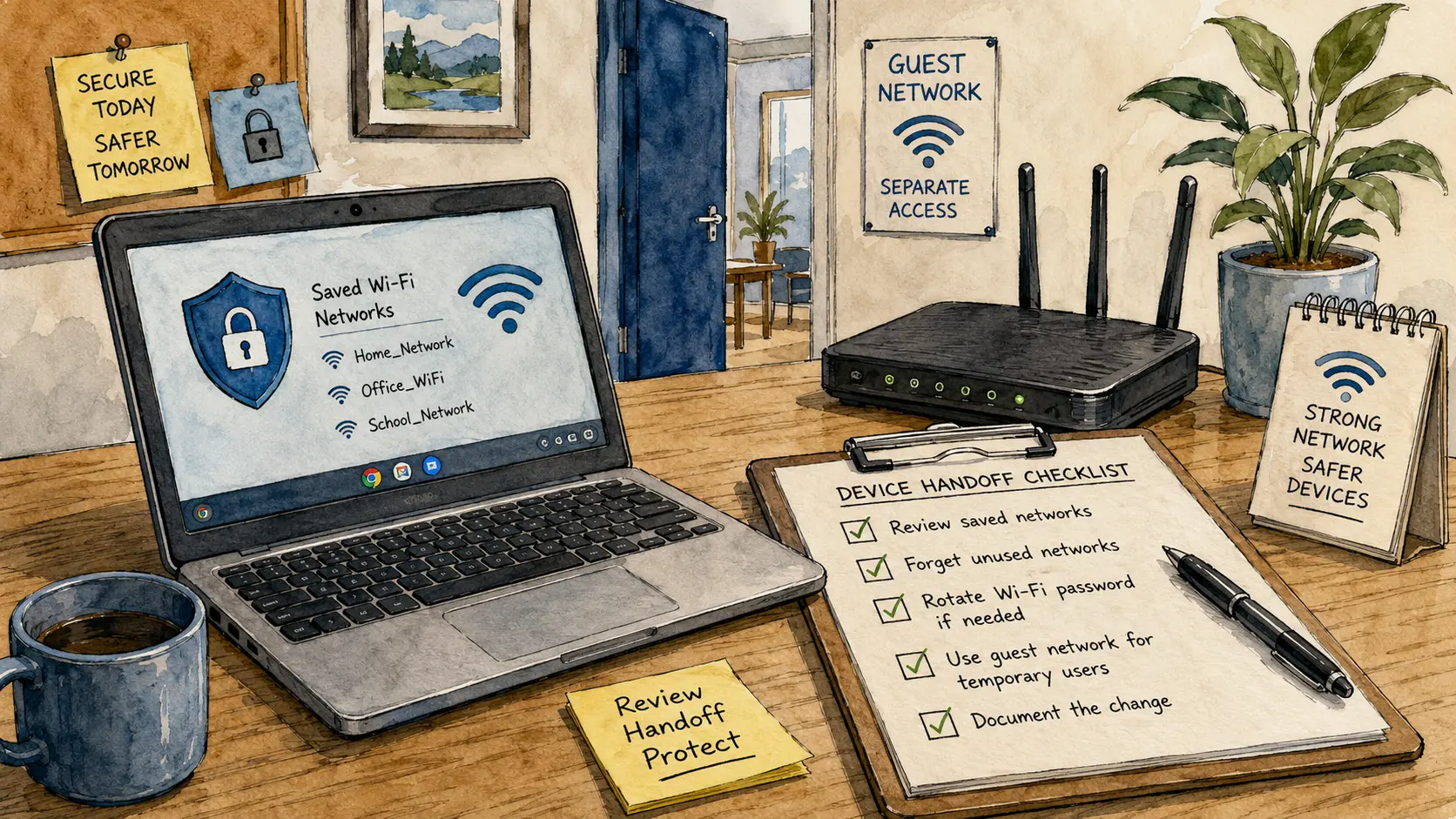
Chromebook Wi-Fi Risk Checklist
- Why a Saved Network Deserves Attention
- Quick Answer: What This Phrase Means
- What a Shared Chromebook Can Expose
- A Safer Response for Homes, Schools, and Small Offices
- When the Setup Needs a Bigger Change
- Frequently Asked Questions
- Disclaimer
- References
Quick Answer: What This Phrase Means
- Best for: Parents, school staff, small-business owners, and authorized IT administrators reviewing Chromebook Wi-Fi risk.
- What this covers: How to recognize the exposure, decide whether action is needed, and reduce the chance of a repeat problem.
- What this does not cover: Extracting, decoding, bypassing, or recovering Wi-Fi credentials from a device.
- Main caution: Do not assume that a saved connection is harmless merely because the password is not visible in the normal settings screen.
- When to get professional help: Bring in an authorized IT professional when the device is managed by a school or employer, the network supports business operations, or you suspect an unauthorized person accessed the network.
Google documents that a Chromebook can save network information and sync Wi-Fi networks across supported devices. Google also documents a normal option to forget a known network. Those conveniences are useful, but they mean that network access should be treated as something worth managing during a device handoff.
What a Shared Chromebook Can Expose
The biggest mistake is treating this as a Chromebook curiosity instead of a network-access issue. The risk is not limited to one laptop. A Wi-Fi credential can open the door to the same network used by printers, smart televisions, cameras, file shares, or office equipment, depending on how the router and network were configured.
That does not mean every saved network creates an emergency. A family Chromebook used by the same people in the same home is different from a school laptop passed between students or an office Chromebook returned by a former employee. The device history matters.
Terms Worth Knowing
- Saved network: A Wi-Fi connection the Chromebook remembers so it can reconnect later.
- Known network: A previously stored Wi-Fi connection listed in ChromeOS settings.
- Managed device: A Chromebook controlled through an organization’s administrative policies.
- Shared passphrase: One Wi-Fi password used by multiple people or devices.
- Network segmentation: Separating devices into different network areas, such as guest and internal Wi-Fi.
A Realistic Device-Handoff Scenario
A small office lends a Chromebook to a temporary worker for two weeks. The Chromebook connects to the same Wi-Fi network used by the office printer and staff laptops. The worker returns the Chromebook, but the office never reviews the saved networks and never asks whether the Wi-Fi credential should be changed.
The right response is not panic. The office should document which network the Chromebook used, identify who had physical access to the device, decide whether the credential may have been exposed, and choose a proportionate next step. That may mean forgetting the saved network on the Chromebook, rotating a shared Wi-Fi passphrase, or redesigning the network so temporary devices use guest access instead of the internal office network.
A Safer Response for Homes, Schools, and Small Offices
The safest response starts with authorization and scope. Only review devices and networks that you own or administer. A school-owned Chromebook should go through the school’s IT process. A work device should go through the employer’s support channel. A family Chromebook should be reviewed by the household account owner.
Low-Risk Next Steps
- Identify the device owner. Confirm whether the Chromebook belongs to a person, family, school, nonprofit, or business.
- List the networks that matter. Focus on home, office, classroom, and staff networks rather than every café or public hotspot.
- Use normal settings to remove access when appropriate. Google provides a standard option to forget a known Wi-Fi network.
- Rotate a shared Wi-Fi passphrase when exposure is plausible. Update authorized devices afterward and record the date of the change.
- Separate guests and temporary devices. A guest Wi-Fi network can reduce the damage caused by a shared password.
- For managed fleets, review administrative settings. Google recommends creating Wi-Fi profiles in the Admin console and applying them to ChromeOS devices during enrollment.
Do Not Make These Assumptions
- “The password is hidden, so it cannot be exposed.” A hidden field in the normal interface is not a complete security control.
- “Changing the password fixes everything.” A new passphrase helps, but the network design may still be weak if every visitor, student, and office device uses the same access path.
- “A factory reset solves the entire problem.” Resetting a Chromebook may remove local access, but the broader response still depends on who knew the password, which devices remain connected, and whether the network should be redesigned.
- “A public extraction website is a safe recovery tool.” Do not paste private network information into an unknown website. Use authorized support processes instead.
When the Setup Needs a Bigger Change
A household may be able to solve the issue with a passphrase change and a guest network. A school, repair shop, clinic, or small office may need a more deliberate plan because many people and devices touch the network over time.
Choose the Response That Matches the Situation
| Situation | Reasonable First Step | Better Long-Term Direction | Main Limitation |
|---|---|---|---|
| Family Chromebook stays at home | Review known networks and change the home Wi-Fi passphrase if exposure is plausible | Create a guest network for visitors and temporary devices | A single password may still be shared too widely |
| Chromebook is sold, donated, or returned | Remove saved access using normal settings and complete the proper reset process | Keep a device-handoff checklist | A reset does not replace a router review when the password may already be known |
| School-managed Chromebook | Report the issue to authorized school IT staff | Use managed Wi-Fi profiles and review device policies | Students and staff should not attempt their own bypasses |
| Small-office Chromebook | Document who used the device and whether it reached the internal network | Separate guest devices from staff and operational equipment | A passphrase change can disrupt printers and other devices until they are updated |
| Repair-counter or loaner Chromebook | Keep it off private internal Wi-Fi unless necessary | Use a dedicated service or guest network | Convenience can tempt staff to reconnect it to the wrong network |
Red Flags That Justify Escalation
- A Chromebook was lost, stolen, sold, donated, or returned without a documented handoff.
- A shared device connected to a staff-only or internal business network.
- Students, visitors, contractors, or former employees had physical access to the Chromebook.
- One Wi-Fi password is reused across guest, staff, and operational devices.
- Unknown devices appear in the router or network-management interface.
- The organization lacks a clear owner for Wi-Fi changes and device inventory.
When one or more of these conditions apply, document the device, the network name, the date, and the people who need to be notified. Avoid experimenting with unofficial tools. An authorized administrator can decide whether the situation calls for a passphrase rotation, a managed-profile review, a guest-network redesign, or a more formal incident response.
Keep Convenience From Becoming a Permanent Shortcut
A Chromebook remembering Wi-Fi is normal. The problem begins when a temporary device, shared password, and unclear handoff process combine into a permanent shortcut. Families can reduce risk with a guest network and a simple reset checklist. Schools and small offices should treat saved network access as part of device management, not as an afterthought.
The practical next move is to review where shared Chromebooks connect today. Then separate temporary devices from internal networks before the next handoff creates an avoidable problem.
Frequently Asked Questions
Q1. Does a Chromebook normally save Wi-Fi network information?
Yes. Google documents that Chromebooks save network information when they connect and can sync Wi-Fi networks across supported devices. That is useful for convenience, but it also makes device handoffs worth reviewing.
Q2. Should I use an online tool to reveal a Wi-Fi password from a Chromebook?
No. Avoid pasting private network information into unknown websites or using unofficial extraction tools. Use your router’s authorized administration process, your organization’s IT support channel, or a documented password-reset process.
Q3. When should a small office change its Wi-Fi password?
Consider rotating a shared passphrase when an unauthorized person may have learned it, a device was lost or returned without a proper handoff, or temporary users connected to the internal network. A passphrase change is more useful when paired with a guest-network plan.
Q4. Is forgetting the Wi-Fi network on the Chromebook enough?
It may be enough for a routine handoff when there is no sign of exposure. It is not enough when the credential may already be known, reused, or shared too widely. In those cases, review the router setup and consider rotating the passphrase.
By: Marcus Irizarry
About the author: Marcus covers coding, web design, IT service, ecommerce, and practical technology topics for everyday users.
Last updated: 2026-06-08
Disclosure: No paid placement influenced this post.
Disclaimer
This post is a general security-awareness resource. It does not provide credential-extraction instructions, individualized cybersecurity advice, or permission to access any device or network. Review only devices and networks that you own or are authorized to administer. Escalate school, workplace, and business incidents through the appropriate IT or security contact.
References
- Google Chromebook Help — “Share the same networks across devices.” https://support.google.com/chromebook/answer/10062898?hl=en
- Google Chrome Enterprise and Education Help — “Add Wi-Fi networks.” https://support.google.com/chrome/a/answer/4601289?hl=en
- Google Chrome Enterprise and Education Help — “Managing your ChromeOS devices.” https://support.google.com/chrome/a/answer/1289314?hl=en
- CISA — “Technical Approaches to Uncovering and Remediating Malicious Activity.” https://www.cisa.gov/news-events/cybersecurity-advisories/aa20-245a



0 Comments