
When a Chromebook Becomes a Shared Device
A Chromebook can change jobs quickly. It may start as a family laptop, become a homework device, spend a weekend with a relative, and later get donated to a community group. In a small office, the same Chromebook may be passed to a contractor, a front-desk employee, or a temporary worker.
The hardware may still work perfectly. The security problem is usually the handoff. A person signs into the wrong account, leaves downloads behind, connects the device to an internal Wi-Fi network, or returns the Chromebook without anyone reviewing what access it still has.
A shared Chromebook security plan does not need to be complicated. The first decision is simple: decide whether the next person is a temporary borrower, a regular user, or part of an organization that manages a device fleet.
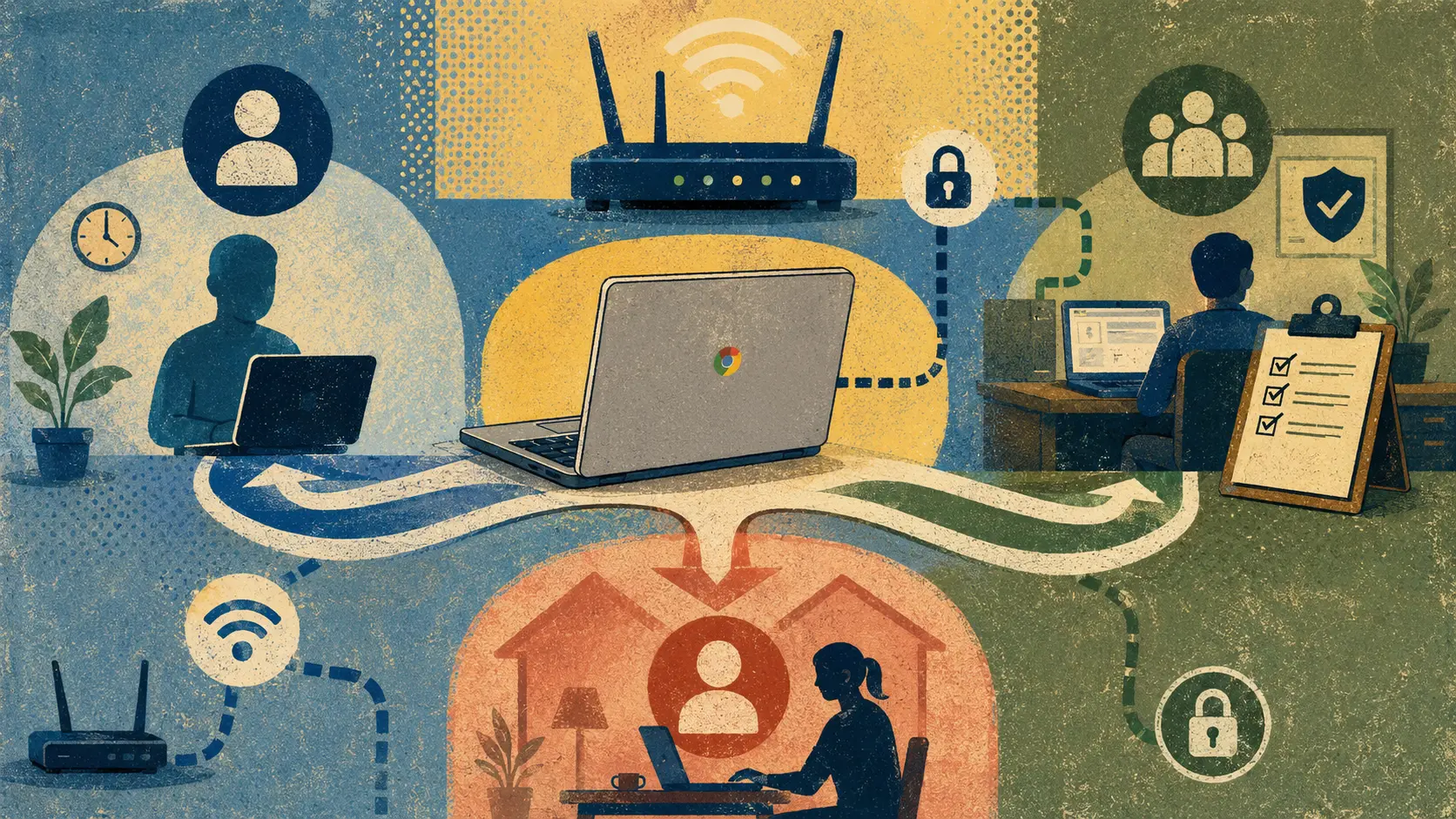
Shared Chromebook Handoff Map
- When a Chromebook Becomes a Shared Device
- Fast Answer: Match the Login Mode to the Borrower
- Three Ways to Share a Chromebook Without Creating a Mess
- Use a Handoff Checklist Before the Device Changes Hands
- When a School or Office Needs Managed Controls
- A Shared Device Should Have a Planned Exit
- Frequently Asked Questions
- Disclaimer
- References
Fast Answer: Match the Login Mode to the Borrower
- Best for: Families, schools, libraries, nonprofits, repair counters, and small offices that lend Chromebooks to other people.
- What this covers: A low-risk way to choose guest access, a separate user account, a managed session, or a proper reset.
- What this does not cover: Password extraction, account bypasses, unauthorized access, or instructions for retrieving stored credentials.
- Main caution: Do not lend a Chromebook while leaving your own signed-in session open.
- When to get professional help: Contact an authorized administrator when the Chromebook belongs to a school or employer, connects to an internal business network, or contains files that should not be exposed to the next user.
The easiest mistake is treating every borrower the same. A cousin checking email for 20 minutes is not the same as a family member who will use the device every week. A school loaner is not the same as a privately owned Chromebook sitting on a kitchen table.
The login method should match the relationship.
Three Ways to Share a Chromebook Without Creating a Mess
Google documents several normal Chromebook options for shared use. The right choice depends on whether the person needs temporary access, regular access, or an organization-managed workspace.
Option 1: Guest Browsing for Temporary Use
Google states that guest browsing is useful when someone borrows a Chromebook, when you borrow someone else’s Chromebook, or when a device is shared in a public setting such as a school or library.
When the user exits guest mode, the Chromebook deletes files, cookies, website data, and browsing activity created during that guest session. Guest mode also blocks app installation and does not provide saved preferences.
That makes guest browsing useful for short, low-stakes tasks. It is a better fit for a visitor checking a web page than for someone writing a report over several days.
Guest mode is not a magic privacy shield. Google notes that websites, signed-in services, the network operator, the internet service provider, and search engines may still receive information about online activity. A person should avoid signing into sensitive websites on an unfamiliar or untrusted device.
Option 2: A Separate Person for Regular Household Use
Google also provides an option to add another person to a Chromebook. This is intended for people who will use the device regularly, such as family members.
A separate account creates a cleaner boundary than passing one personal login around the household. Each regular user should sign in with their own account rather than borrowing someone else’s session.
This matters because a signed-in Chromebook can carry more than browser tabs. Google documents that account sync can include history, bookmarks, passwords, and Wi-Fi networks. The exact settings depend on the account and any administrator policies, but the practical rule is straightforward: do not treat one signed-in profile as a shared family drawer.
Option 3: Managed Guest Sessions for Organizations
Google documents managed guest sessions for businesses and schools that need multiple people to share the same ChromeOS devices without signing into personal Google Accounts.
This option can fit loaner devices, shared computers, libraries, business centers, and similar environments. It is not a casual household setting. An authorized administrator configures the device policies.
A school or nonprofit with 40 Chromebooks should not rely on the same handoff habits as a family with one laptop. Once devices move between many people, the organization needs a repeatable process, a responsible owner, and a clear rule for which Wi-Fi network those devices may use.
Compare the Sharing Options
| Sharing method | Best for | Main advantage | Main limitation |
|---|---|---|---|
| Guest browsing | A temporary borrower using the device briefly | Session files, cookies, website data, and browsing activity are deleted when the guest exits | Not ideal for ongoing work, and it does not hide activity from websites or the network operator |
| Separate user account | A family member or regular user | Gives each regular user a distinct sign-in path | Each user must manage their own account and sign out properly |
| Managed guest session | Schools, libraries, nonprofits, and small organizations with shared fleets | Provides an administrator-controlled approach for shared ChromeOS devices | Requires organizational planning and administrative control |
| Factory reset before transfer | Selling, donating, or changing the owner of a personal Chromebook | Erases local user data from the Chromebook’s hard drive | A reset does not replace a review of synced data, network access, or organization-managed policies |
Use a Handoff Checklist Before the Device Changes Hands
The safest process is short enough that someone will actually follow it. A family can keep the checklist near the Chromebook. A school, library, or office can add it to the loaner-device log.
Five-Minute Chromebook Handoff Checklist
- Identify the next user. Decide whether the person is a temporary borrower, a regular user, or part of an organization-managed workflow.
- Close the current session. Sign out before passing the Chromebook to anyone else.
- Choose the correct login path. Use guest browsing for brief temporary use, a separate account for a regular household user, or the organization’s approved managed session.
- Check the Wi-Fi network. Keep temporary and loaner devices on guest Wi-Fi when possible rather than the same internal network used by staff computers, printers, or business equipment.
- Review downloads before the device leaves. Move files that should be kept, then remove local copies that should not remain on the Chromebook.
- Record the handoff when the device belongs to an organization. Note the device, borrower, date, expected return date, and approved network.
- Use a proper reset for a permanent transfer. When a privately owned Chromebook is sold, donated, or given to a new owner, back up needed files and complete the appropriate factory-reset process.
A Realistic Small-Office Example
A small tax-preparation office keeps one Chromebook at the front desk for occasional overflow work. During a busy week, a temporary worker uses it to check appointment requests and print forms. The office lends the Chromebook without creating a separate login and allows it onto the same Wi-Fi network used by staff laptops and the printer.
The worker returns the device on Friday. Nobody signs out, nobody checks the Downloads folder, and nobody documents which account was used.
The better process takes about five minutes. The office signs out the prior user, places the Chromebook on a guest network, gives the temporary worker the approved access method, and records the loan. At the end of the shift, the worker exits the approved session and returns the device.
The Chromebook does not need a dramatic rescue. It needs a boring, repeatable handoff.
When a School or Office Needs Managed Controls
A household can solve many problems with separate accounts, guest browsing, and a guest Wi-Fi network. A school or business usually needs more structure because the devices move more often and the consequences of an unclear handoff are larger.
Google states that guest browsing on work or school Chromebooks may be controlled by the administrator. A user may not be able to turn the feature on or off independently. That is a good boundary. Students, employees, and contractors should not improvise around organization-managed settings.
Signs That a Casual Process Is No Longer Enough
- More than a few people borrow the same Chromebook each month.
- Devices leave the building or travel between classrooms, job sites, or offices.
- Temporary users connect to the same Wi-Fi network as staff computers or operational equipment.
- Nobody can answer who borrowed a specific Chromebook last week.
- Files remain in Downloads after a device is returned.
- Staff members share one personal sign-in because it feels faster.
- The organization depends on volunteers, seasonal workers, contractors, or rotating front-desk coverage.
A Simple Decision Guide
| Situation | Recommended starting point | Reason |
|---|---|---|
| A neighbor borrows a Chromebook for 30 minutes | Guest browsing | The use is temporary and does not require a saved profile |
| A child uses the family Chromebook every school night | Separate user account | The use is regular and should not take place inside another person’s account |
| A library lends Chromebooks inside the building | Managed guest session review | The devices serve many users and need administrator-controlled rules |
| A nonprofit gives a Chromebook to a volunteer for a month | Documented loan process and an approved account method | The device leaves the immediate workspace and needs an owner, return date, and network plan |
| A personal Chromebook is donated permanently | Back up needed files and complete a factory reset | The device is changing owners rather than being borrowed |
A Shared Device Should Have a Planned Exit
A good Chromebook-sharing process answers two questions before the device leaves someone’s hands: how will the next person sign in, and what happens when the device comes back?
Temporary use usually calls for guest browsing. Regular household use usually calls for a separate account. Schools, libraries, nonprofits, and small offices should consider managed controls and a written loan process once Chromebooks start moving between many people.
The goal is not to turn a simple laptop into a paperwork project. The goal is to stop a convenient shared device from quietly becoming a shared account, a forgotten download folder, and an unnecessary network risk.
Frequently Asked Questions
Q1. Is guest browsing the best option every time someone borrows a Chromebook?
Guest browsing is a practical fit for brief temporary use. It is less suitable when someone needs to keep local files, use the Chromebook regularly, or work within an organization-managed setup. Match the login method to the borrower and the length of the loan.
Q2. Does guest mode erase everything when the borrower exits?
Google states that exiting guest mode deletes files, cookies, website data, and browsing activity created during the guest session. That does not mean online activity becomes invisible to websites, signed-in services, the network operator, the internet service provider, or search engines.
Q3. Should family members share one Chromebook login?
Regular users should generally use their own accounts rather than passing one signed-in session around. Google provides an option to add another person to a Chromebook for regular users such as family members.
Q4. Is a factory reset the same as signing out?
No. Signing out ends a user session. A factory reset erases local user data from the Chromebook’s hard drive and is more appropriate when the device changes owners, such as during a sale or donation. Work and school Chromebooks should be handled through the organization’s administrator.
By: Marcus Irizarry
About the author: Marcus covers coding, web design, IT service, ecommerce, and practical technology topics for everyday users.
Last updated: 2026-06-10
Disclosure: No paid placement influenced this post.
Disclaimer
This post is a general security-awareness resource. It does not provide individualized cybersecurity advice, credential-extraction instructions, account-bypass methods, or permission to access any device or network. Review only devices and networks that you own or are authorized to administer. School-owned and workplace-managed Chromebooks should be handled through the appropriate administrator.
References
- Google Chromebook Help — “Use a Chromebook as a guest.” https://support.google.com/chromebook/answer/1057090?hl=en
- Google Chromebook Help — “Add a person to your Chromebook.” https://support.google.com/chromebook/answer/1059242?hl=en
- Google Chromebook Help — “Share the same networks across devices.” https://support.google.com/chromebook/answer/10062898?hl=en
- Google Chrome Enterprise and Education Help — “Managed guest session devices.” https://support.google.com/chrome/a/answer/3017014?hl=en
- Google Chromebook Help — “Reset your Chromebook to factory settings.” https://support.google.com/chromebook/answer/183084?hl=en



0 Comments