
Why Passkeys Feel Like a Security Upgrade With Eyebrows
Passkeys are supposed to make signing in easier. No more inventing a password that looks like a Wi-Fi router had a panic attack. No more typing a code from one app into another app while a timer counts down like you are defusing a toaster. Just unlock your phone, scan your face, tap a fingerprint, or use your device PIN.
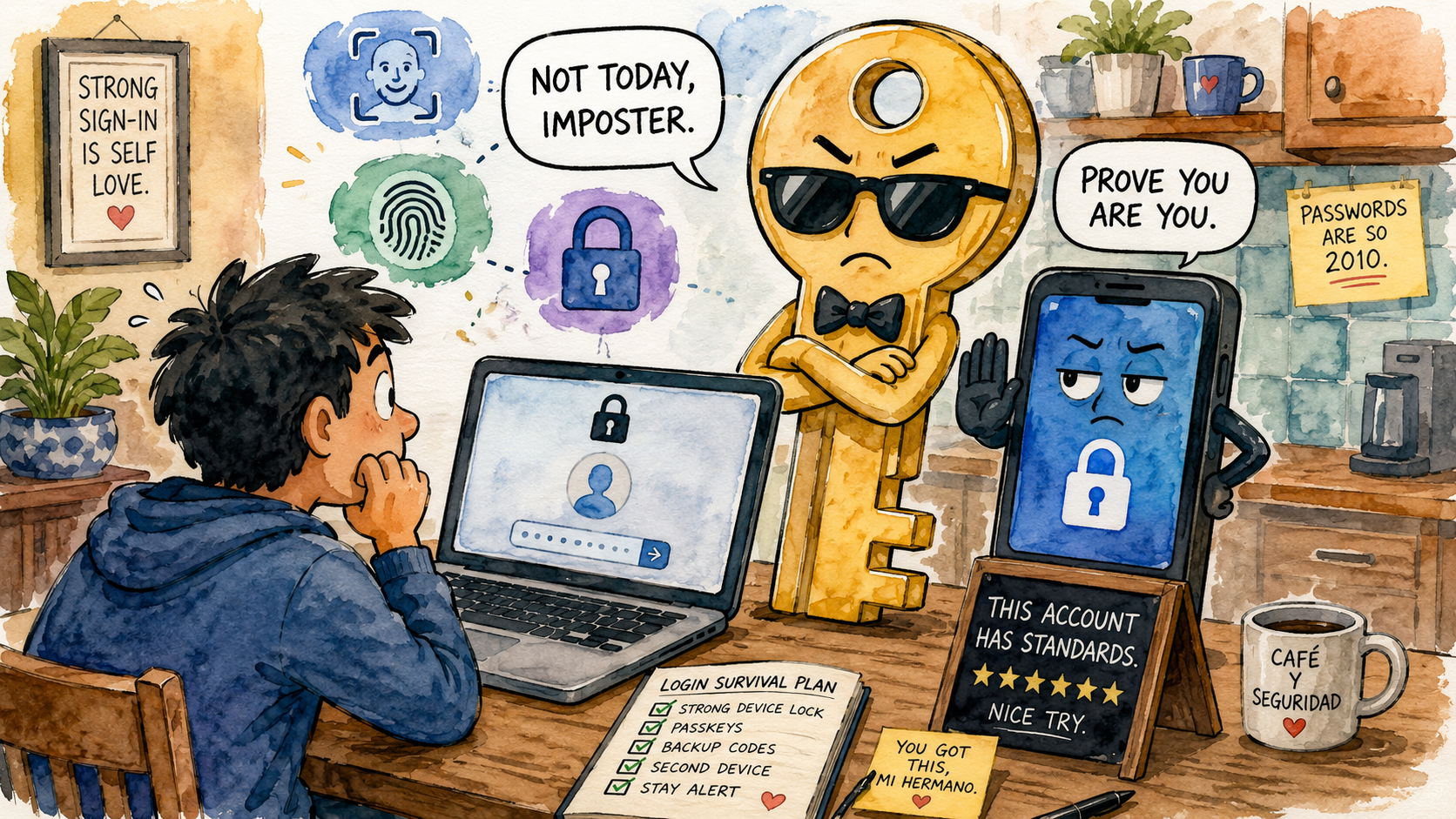
And yet, passkeys feel slightly judgmental, mi hermano. Not because they are bad. They are often safer than passwords. The vibe is strange because your device suddenly looks at you and says, “So you want to access your account? Prove you are you.” Then it waits with the emotional energy of a bouncer at a nightclub called Secure Login.
What This Judgmental Sign-In Situation Covers
- Why Passkeys Feel Like a Security Upgrade With Eyebrows
- The Safer Part Is Real. The Attitude Is Optional.
- Why Your Fingerprint Suddenly Has Main Character Energy
- Where Passkeys Still Get Awkward
- How to Try Passkeys Without Creating a Tiny Identity Crisis
- FAQ
- References
The Safer Part Is Real. The Attitude Is Optional.
- Main claim: Passkeys are a strong sign-in upgrade, but they can feel weird because they move trust from “what you remember” to “what your device approves.”
- Common mistake: Thinking passkeys are just passwords with a nicer outfit.
- Why it matters: Password fatigue leads people to reuse weak logins, ignore warnings, or surrender emotionally to “Forgot password.”
- Who will care: Anyone who has ever stared at a login screen and whispered, “I know I made an account.”
- Reality check: Passkeys reduce password drama, but they still need backup planning. Your phone should not become the only adult in the room.
The security case for passkeys is strong. A passkey is not a normal password you type, reuse, forget, or accidentally hand to a fake website wearing a suspicious little mustache. It is a cryptographic credential created for a specific app or website. In plain English, the service gets a public piece, while the private piece stays protected on your device or in your password manager.
That design helps with one of the nastiest password problems: phishing. If a fake site tricks you into typing a password, the attacker can reuse it. A passkey is designed so it works only with the correct site or app it was created for. The fake login page can stand there in a hoodie saying, “Trust me,” but the passkey is not supposed to fall for the performance.
That is good. That is progress. That is also why the experience feels like your phone got promoted to Security Supervisor and now refers to you as “the account holder.”
Why Your Fingerprint Suddenly Has Main Character Energy
The old password system trained people to carry around tiny secrets. Some people used a password manager. Some reused the same password with a different number at the end and hoped the internet would be chill about it. The internet was not chill about it.
Passkeys change the ritual. Instead of proving yourself by typing a secret, you prove yourself by unlocking a device that already knows you. That might mean Face ID, Touch ID, Windows Hello, a phone screen lock, a PIN, or a hardware security key, depending on the platform and account.
The usual myth
- “Passkeys are just fingerprints stored on websites.”
- “If I use a passkey, I never need to think about account recovery.”
- “Every website supports passkeys now.”
- “If it uses my face, it must be creepy by default.”
What the real-world pattern suggests
Passkeys do not usually send your fingerprint or face scan to the website. The local device uses your unlock method to approve use of the passkey. That distinction matters because the website is not supposed to collect your face like a weird digital trophy.
The judgmental feeling comes from the ceremony. Passwords let you pretend you were in control, even when you were typing Summer2021! for the fourth year in a row. Passkeys remove the performance. The device asks for proof. You blink at the camera. The laptop decides whether you are sufficiently you. Somewhere in the background, a security standard quietly folds its arms.
Mini scenario: the couch login tribunal
Imagine it is 10:43 p.m. You are on the couch trying to sign into a streaming app on a new tablet. The site offers a passkey. Your phone wakes up, shows a prompt, and asks you to unlock it. Your face scan fails once because you are at a tragic recline angle with snack lighting. The phone asks again.
At that exact moment, the passkey feels personal.
Not insecure. Not useless. Personal. It is the same feeling as being carded at a store when you are clearly old enough to have lower back opinions. You know the rule is there for a reason, but still, the tiny machine could have been warmer about it.
Where Passkeys Still Get Awkward
Passkeys solve major password problems, but they do not remove every login headache. The awkward part is that the world is halfway through a transition. Some sites support passkeys well. Some support them badly. Some still act like a password and an SMS code from 2013 are the height of civilization.
Where the simple take fails
- “Passkeys replace all passwords instantly”: Not yet. Many people will live in a mixed setup for a while, using passkeys on some accounts and passwords on others.
- “Passkeys mean no more recovery problems”: You still need account recovery options, especially if a phone breaks, a laptop dies, or a password manager gets locked.
- “Biometric means the website has my face”: Usually, the device uses biometrics locally to unlock the credential. The site should not receive your biometric scan.
- “Safer means effortless forever”: Safer can still be annoying when you switch devices, share a family account, use a public computer, or help a relative log in.
What not to do
Do not make a passkey your only path into a valuable account without checking recovery options. That is how a security upgrade turns into a small personal courtroom drama. Before replacing a password, check whether the account has backup codes, a second trusted device, a recovery email, a phone number you still control, or a reliable password manager.
Also, do not assume every prompt is legitimate just because it mentions passkeys. The safest habit is still boring and effective: start from the real app or website, not a random email button screaming urgency. Passkeys are phishing-resistant, but your attention span is still human and therefore occasionally made of soup.
How to Try Passkeys Without Creating a Tiny Identity Crisis
The best way to start is with accounts that support passkeys clearly and have recovery options you understand. Google, Apple, Microsoft, and many password managers now explain passkeys in their own support materials, but the exact setup can vary by device, browser, and account type.
Start with one or two accounts you use often but can still recover if something feels weird. Do not begin with the account that controls your whole digital life while you are tired, hungry, and arguing with a Bluetooth keyboard. That is not security. That is an episode.
Quick reality-check list
- Add a passkey first to an account with clear recovery options.
- Keep your password manager updated, especially if it stores or syncs passkeys.
- Make sure your phone, laptop, or tablet has a strong screen lock.
- Check whether the account lets you keep backup sign-in methods.
- Add a second trusted device when the service allows it.
- Remove old recovery phone numbers or email addresses you no longer control.
- Test sign-in once before you actually need the account in a hurry.
The Bottom Line Before Your Login Judges You Again
Passkeys are a real improvement over the old password circus. They reduce the need to remember fragile secrets, they are designed to resist phishing, and they make sign-in feel faster once the setup is clean. That is the practical part.
The funny part is that they also make authentication feel more personal. Your phone looks at your face, your laptop checks your fingerprint, and suddenly your account has standards. That is okay. A slightly judgmental login is still better than a reused password from 2018 wearing a fake mustache and hoping nobody notices.
FAQ
Q1. Are passkeys actually safer than passwords?
A1. In many common sign-in situations, yes. Passkeys are designed to resist phishing because they are tied to the real app or website where they were created. They also remove the need to type or reuse a password. That said, you still need good device security and recovery options.
Q2. Does a passkey send my fingerprint or face scan to the website?
A2. In the normal passkey model, your biometric check happens on your device. The website receives confirmation that the sign-in was approved, not your actual fingerprint or face scan. The device unlock method is basically the local gatekeeper.
Q3. Should I delete all my passwords once I start using passkeys?
A3. Not immediately. Many users still need a mixed setup because not every website supports passkeys well. Start by adding passkeys to important accounts that support them, then keep secure backup methods until you are sure recovery works.
By: iocomputer.net Editorial Team
Why trust this: This commentary uses public passkey guidance from FIDO Alliance, Google, Apple, Microsoft, and the UK National Cyber Security Centre, then explains the everyday user experience in plain language.
Last updated: 2026-05-19
Disclosure: No paid placement influenced this post.
References
- FIDO Alliance — “Passkeys” (accessed 2026-05-19). https://fidoalliance.org/passkeys/
- Google for Developers — “Passkeys” (updated 2026-04-15). https://developers.google.com/identity/passkeys
- Apple Support — “About the security of passkeys” (updated 2024-09-16). https://support.apple.com/en-us/102195
- Microsoft Support — “What are passkeys and why they matter” (accessed 2026-05-19). https://support.microsoft.com/en-us/account-billing/what-are-passkeys-and-why-they-matter-301c8944-5ea2-452b-9886-97e4d2ef4422
- UK National Cyber Security Centre — “Passkeys” (accessed 2026-05-19). https://www.ncsc.gov.uk/passkeys




